
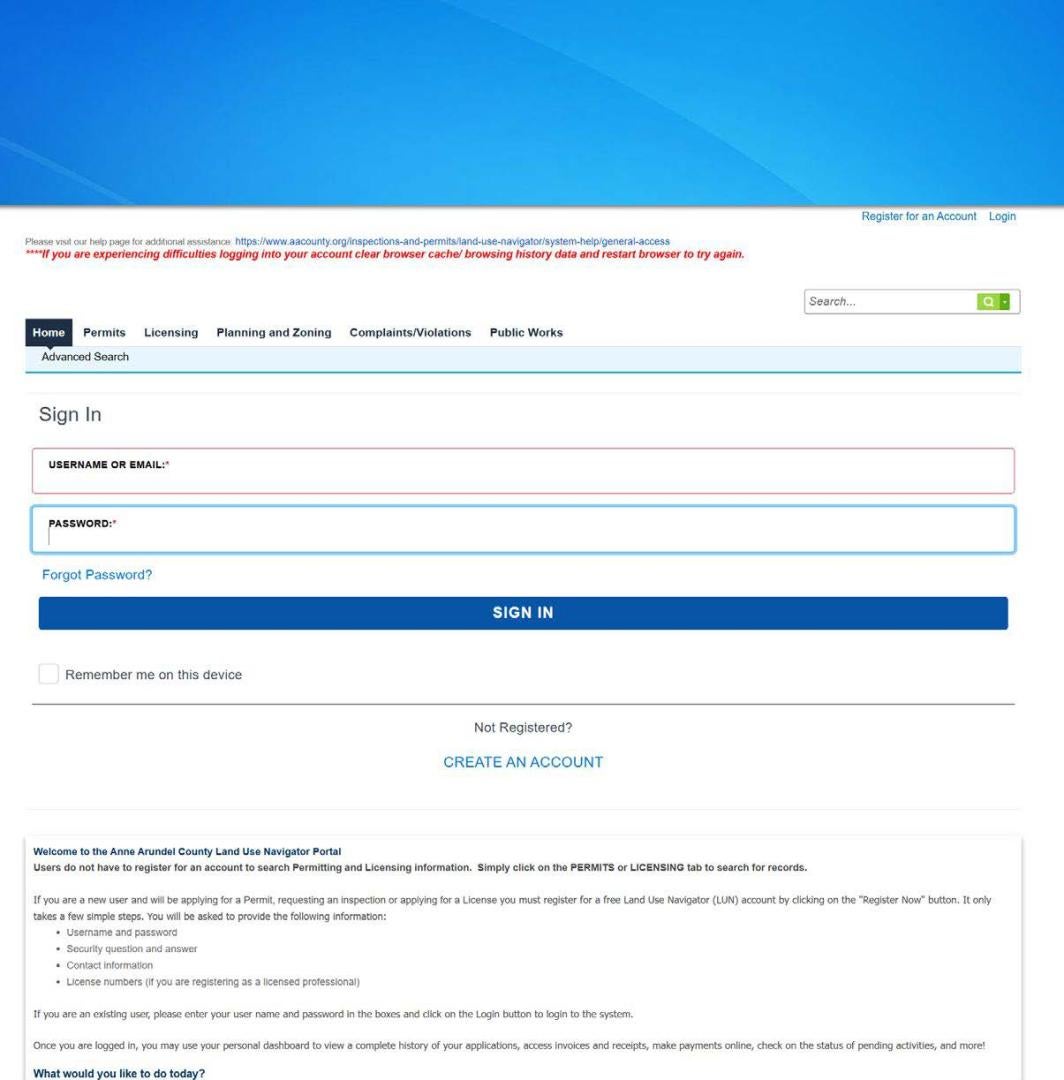
Creating an Account
On the ACA Homepage, Click Create an Account.
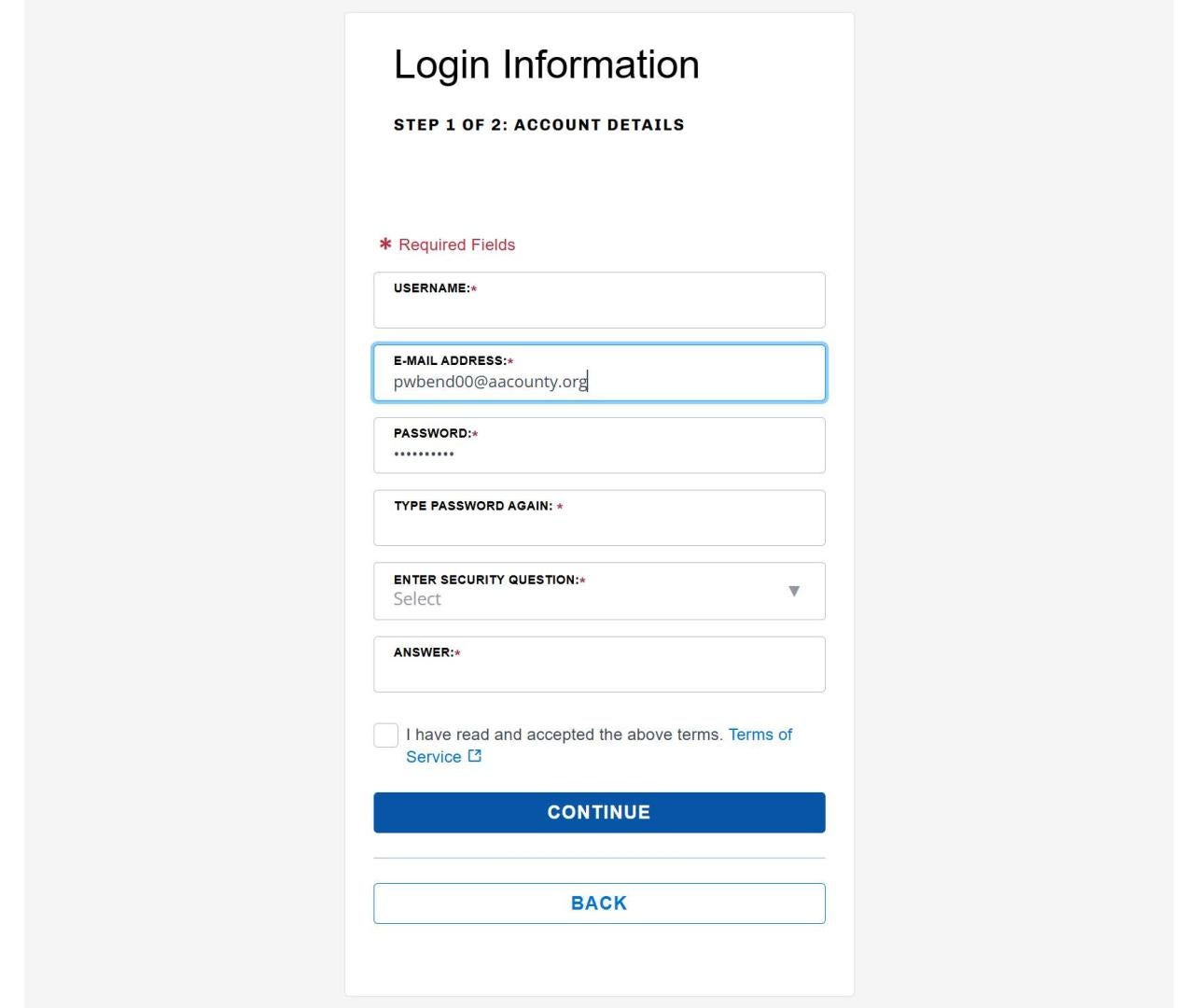
Login Information
Fill out your login information.
Click Continue.
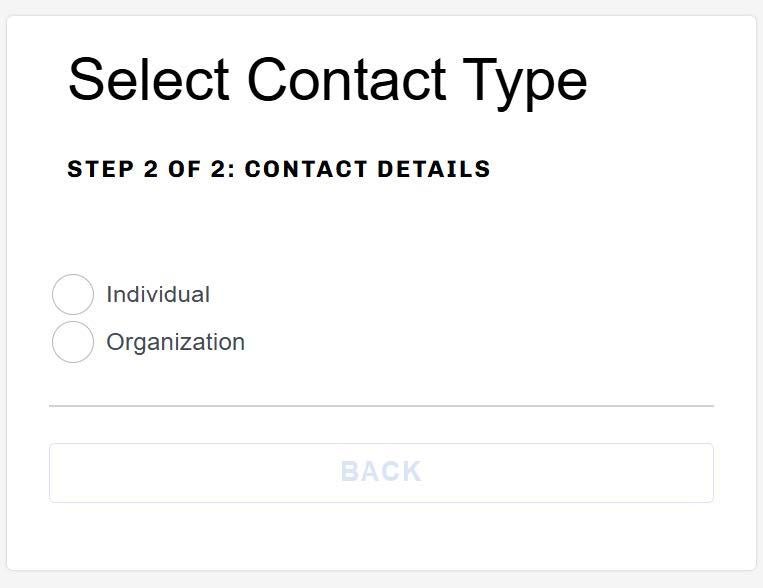
Select Contact Type
Select Individual.
Organization will be used later in the account set up process to add a contractor.
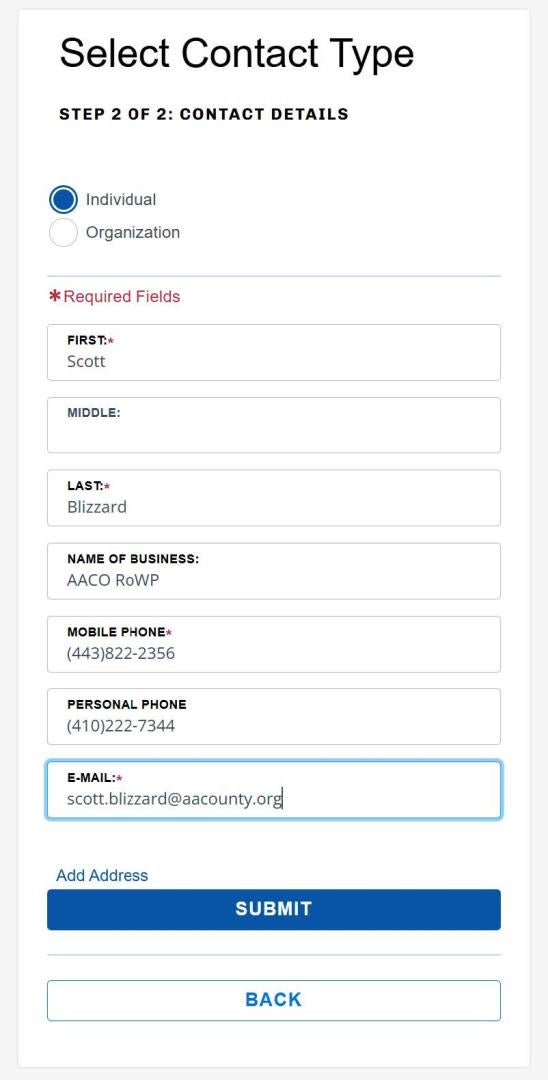
Fill out your Contact Information
Your primary phone number can be used in the required Mobile Phone field.
Click Submit.
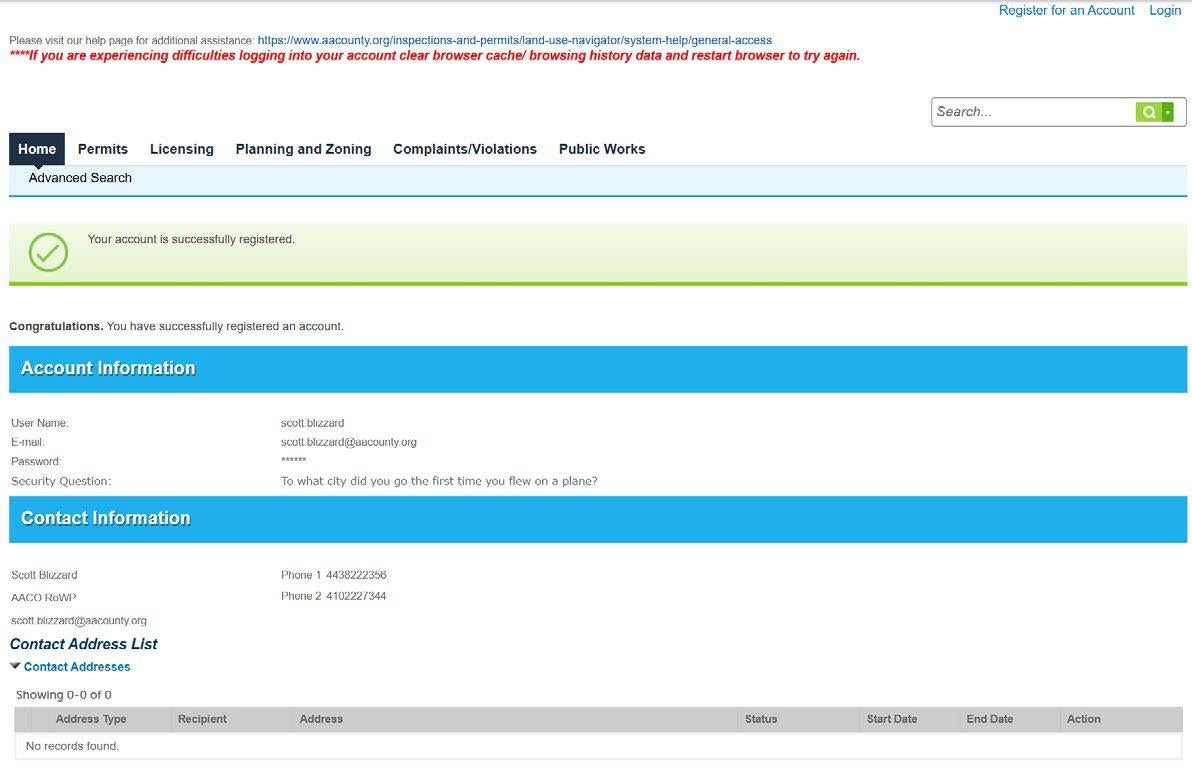
Account Confirmation Page
To continue your Account setup, Login.
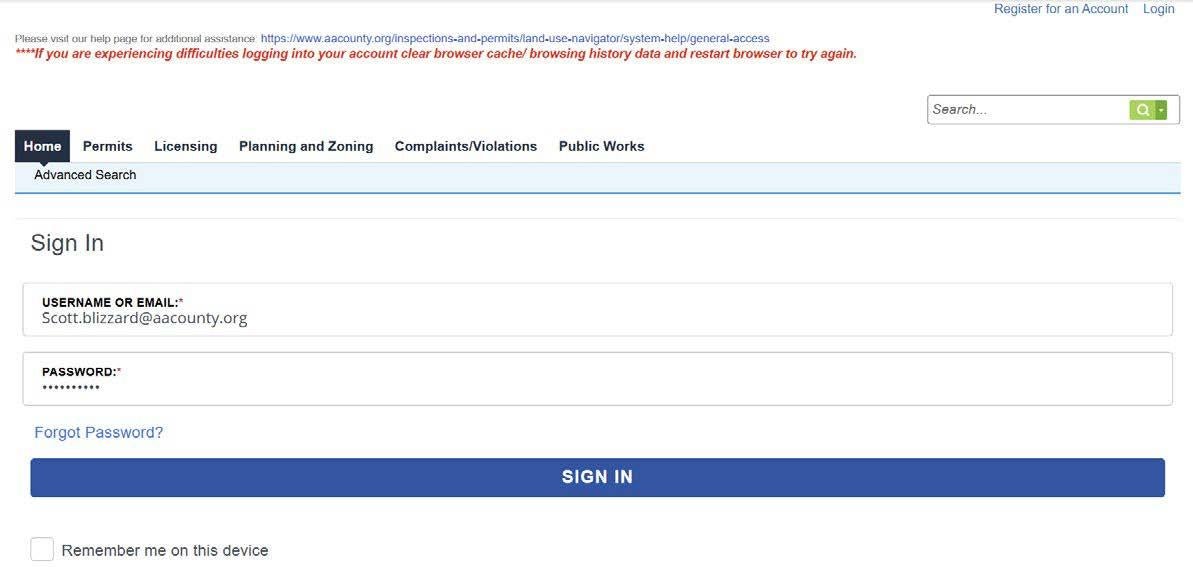
Login
Sign In with the account you just created.
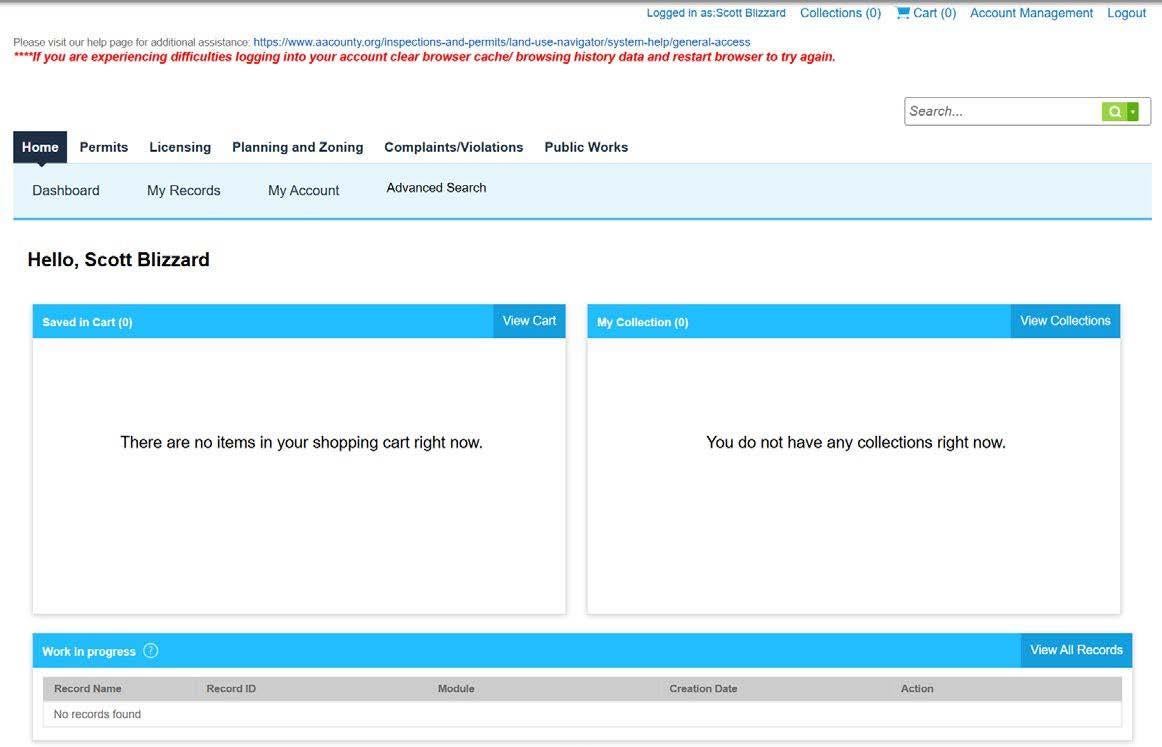
Click Account Management
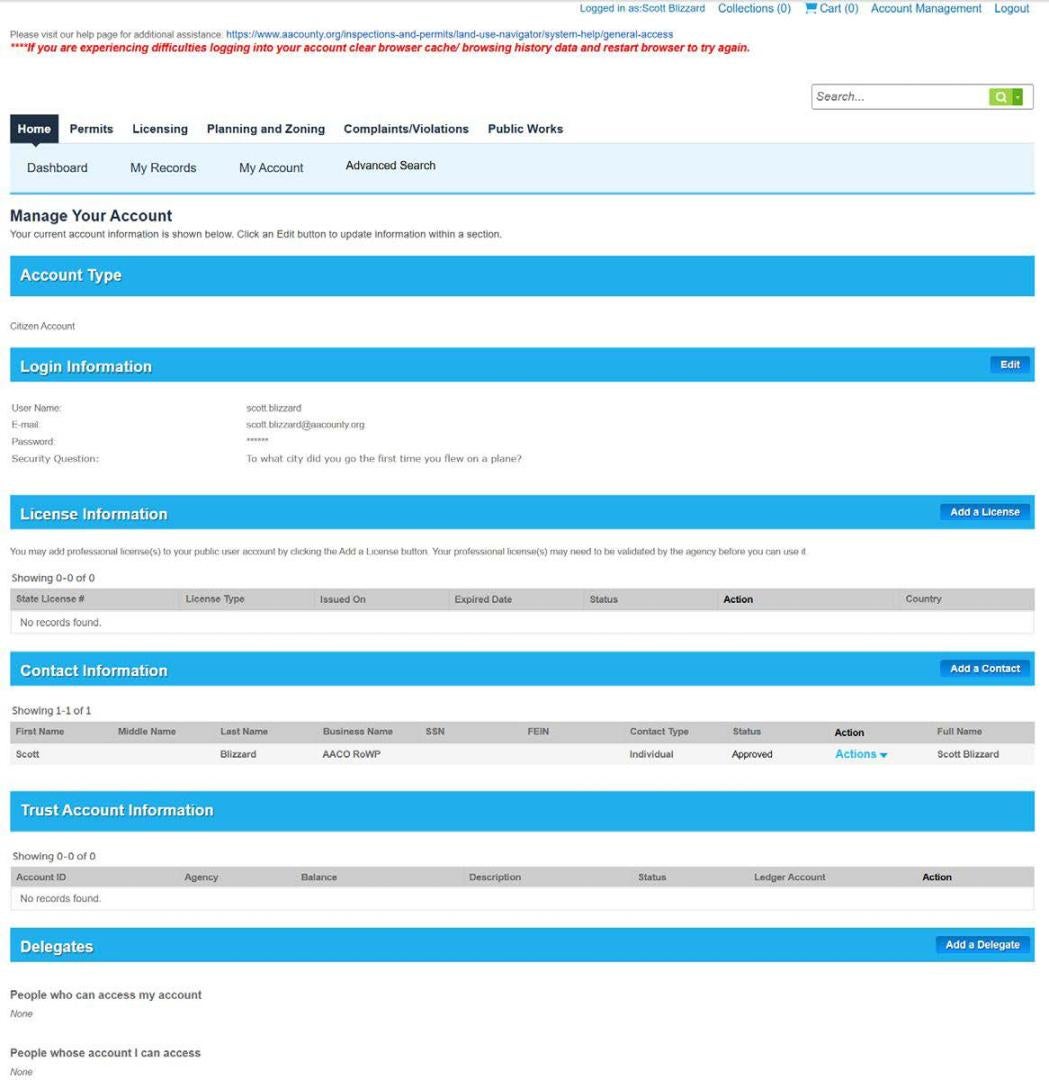
Account Management
Use the Account Management page to add the Contacts, Contractors and Account Delegates.
Contacts (Individual) are selectable during the application process.
Contacts (Organization) are contactors selectable during the application and/or reporting forms.
Adding Contacts and Contractors
Click Add a Contact.
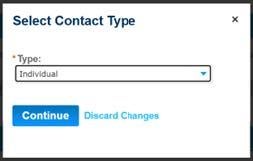
Adding a Contact
Select Individual.
Click Continue.
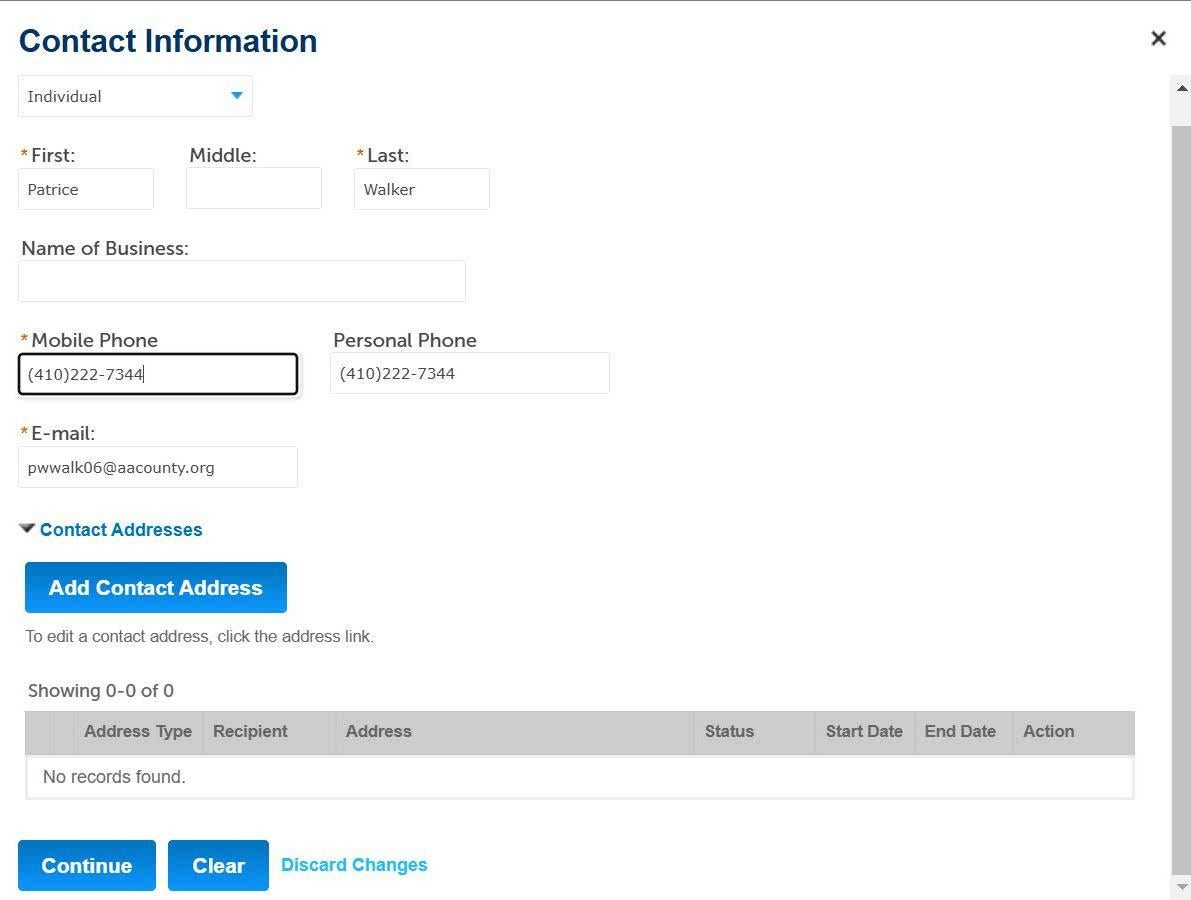
Select Individual.
Fill out the Contact Information fields.
The primary phone number can be used in the required Mobile Phone field.
Click Add Contact Address.
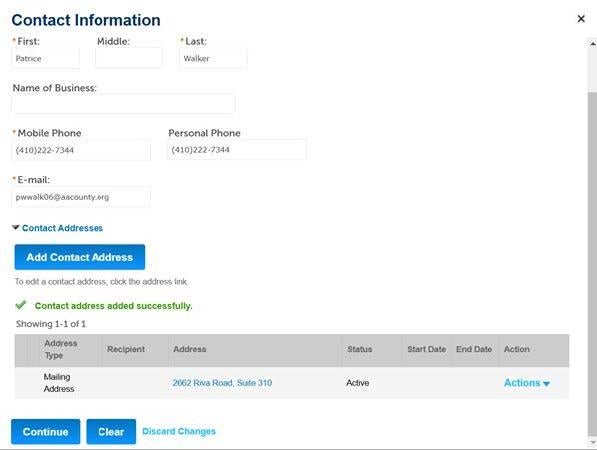
Contact Address
Select Mailing Address.
Complete the Address fields.
Click Save and Close.
Click Continue
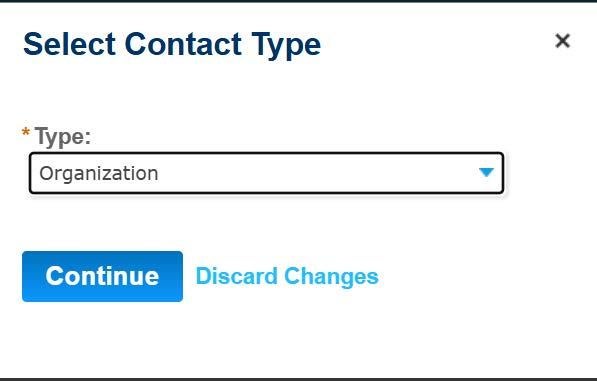
Adding a Contractor
Select Organization.
Click Continue.
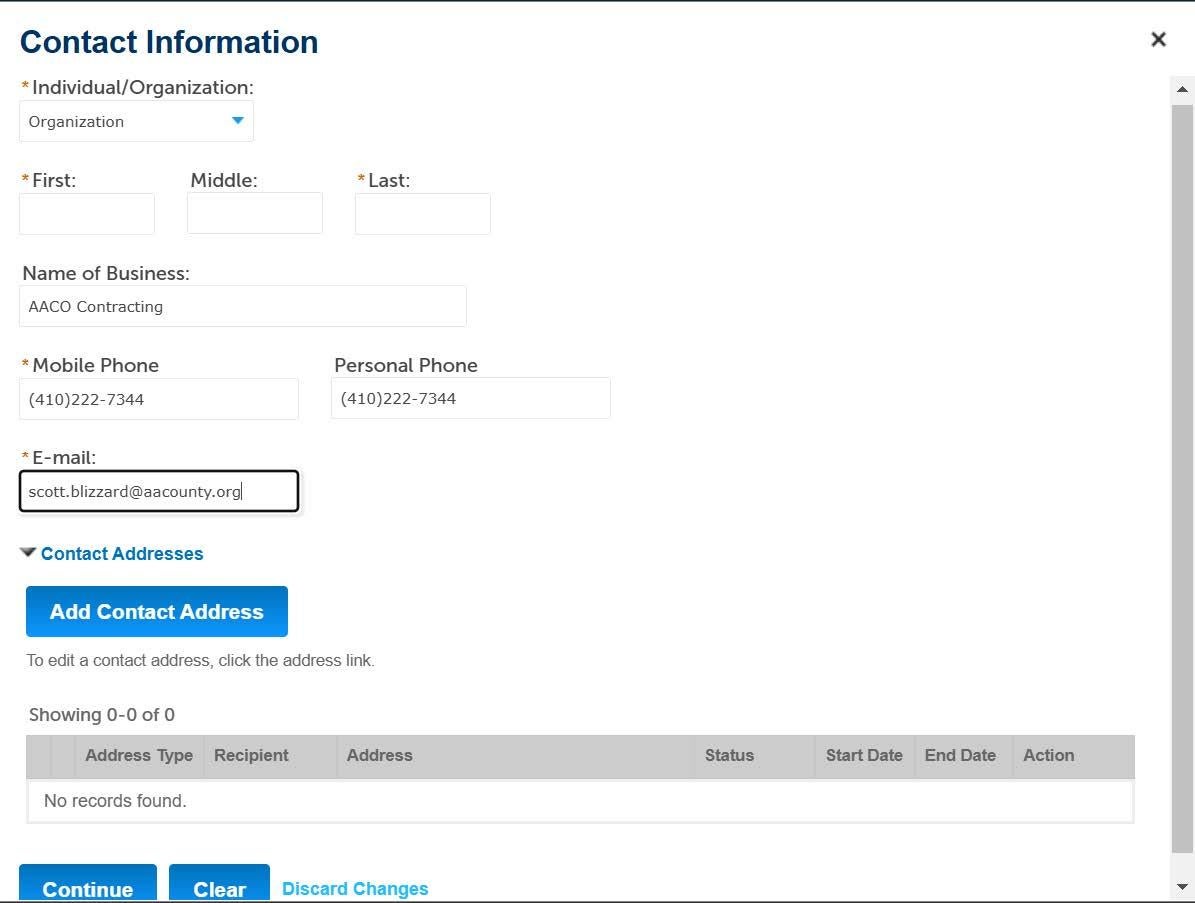
Select Organization.
Fill out the Contact Information fields.
Enter the Contractor’s name in the Name of Business field.
The contractor’s name must be spelled and formatted identically as the Organization Name submitted by the Utility during registration.
The primary phone number can be used in the required Mobile Phone field.
Click Add Contact Address.
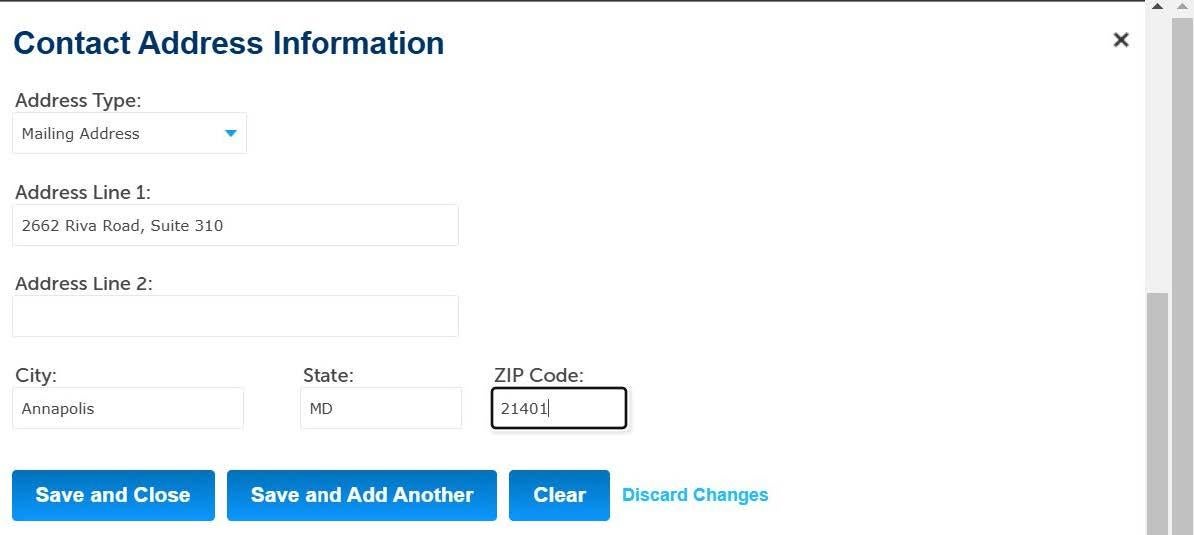
Contact Address
Select Mailing Address.
Complete the Address fields.
Click Save and Close
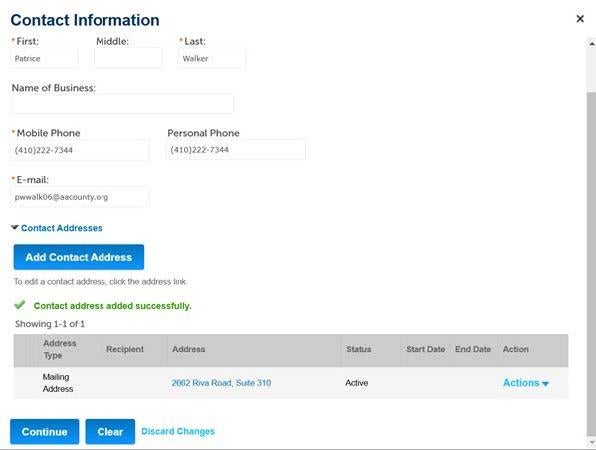
Click Continue.
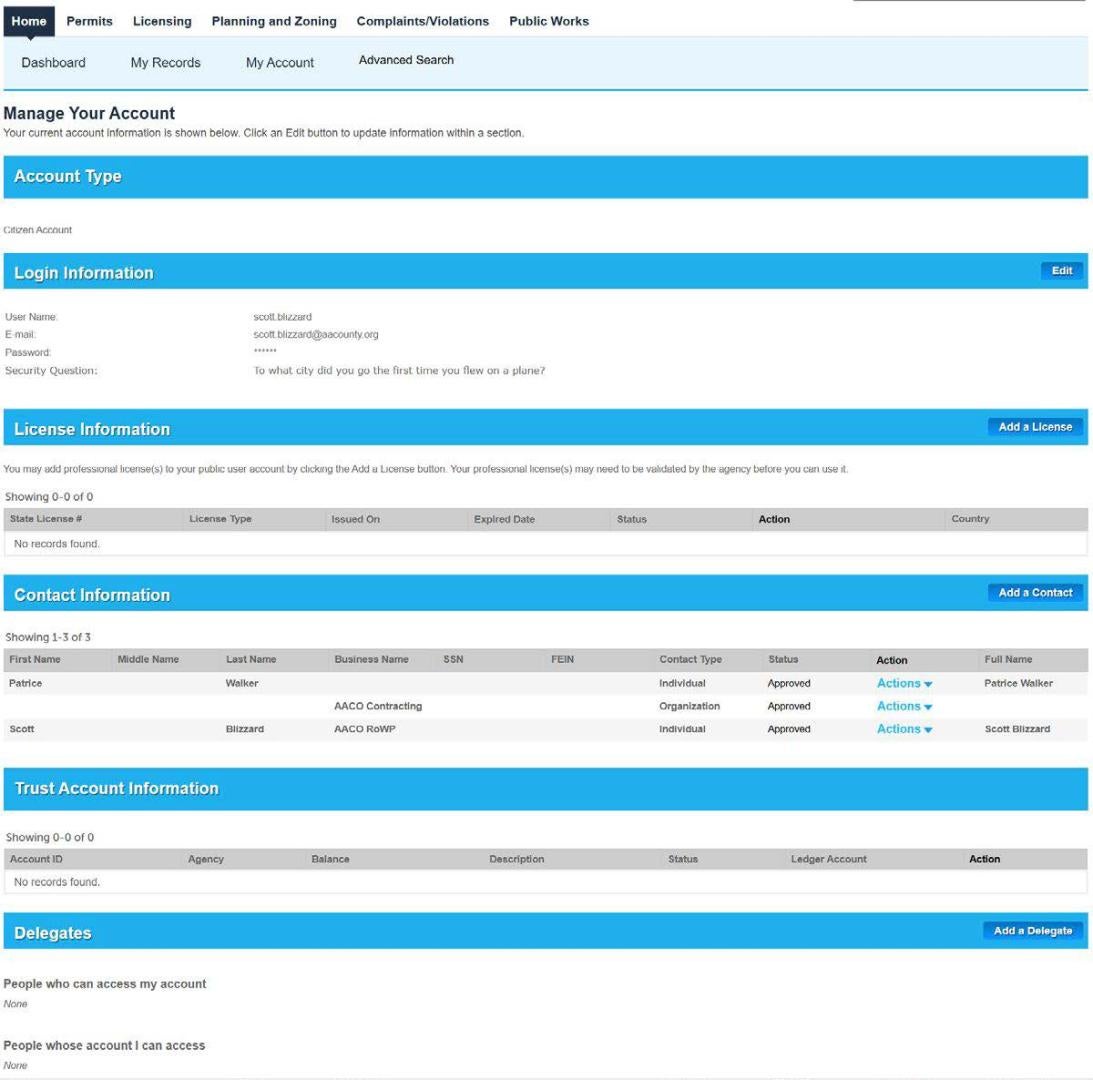
Adding an Account Delegate
Account Delegates have access to all of the permits submitted under your account.
Account Delegates must have an ACA Account.
The Delegate must accept the delegate request.
You can remove an Account Delegate at any time. Once removed, they will lose access to your applications.
Click Add a Delegate.
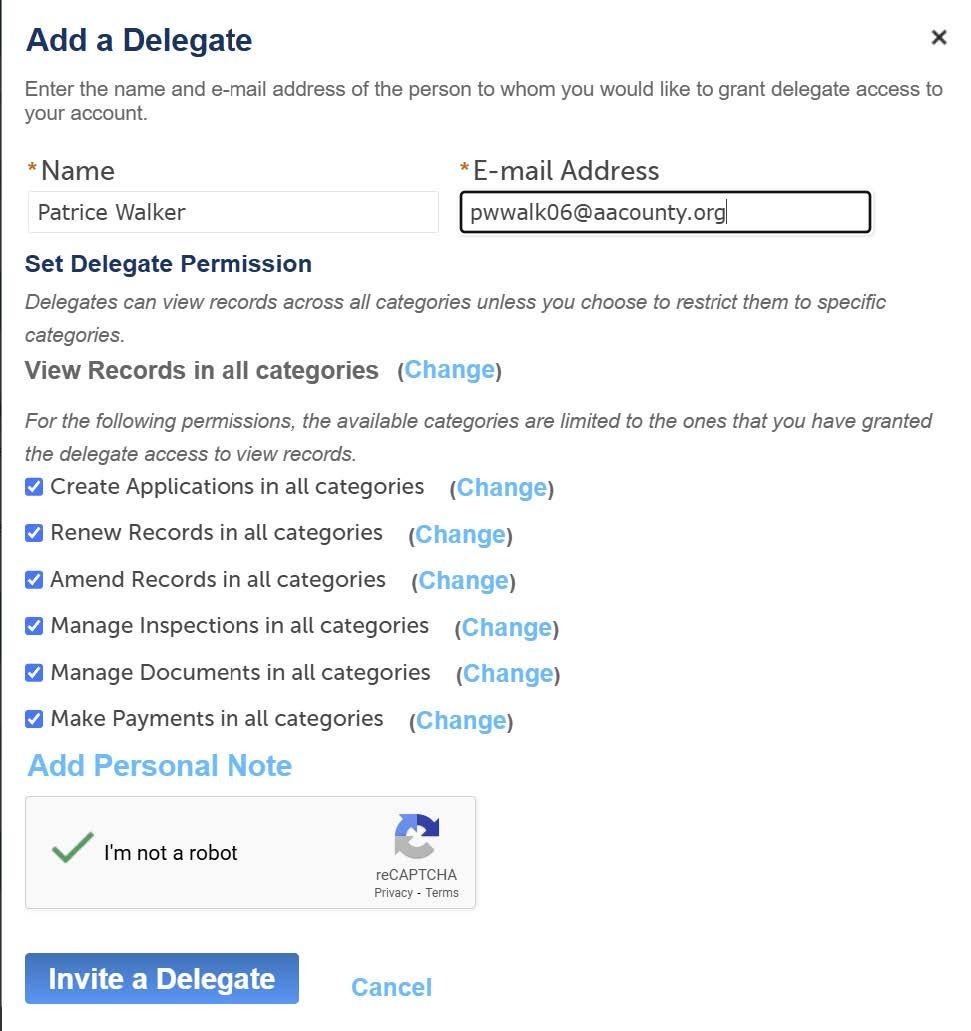
Enter the Delegate’s Name and E-mail Address.
Check the Access boxes.
Check the CAPTCHA box.
Click Invite a Delegate.
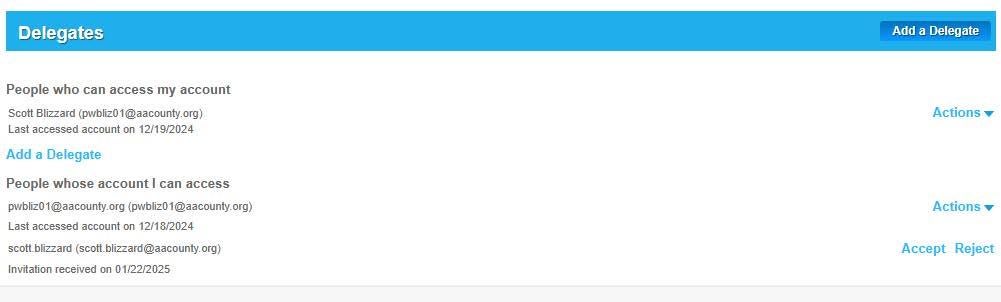
The Delegate will need to login to ACA and Accept the request.