
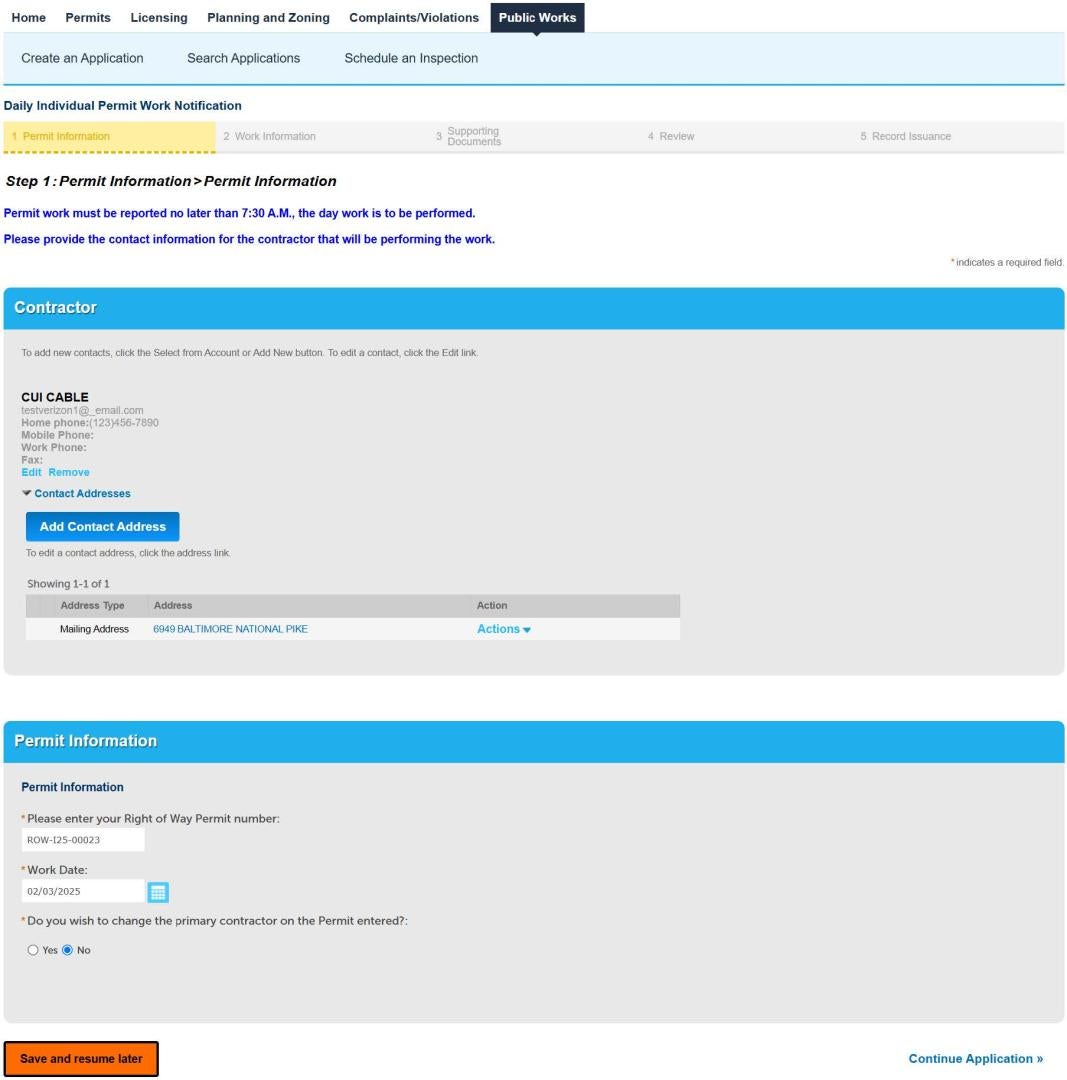
Contractor
Make sure your account is set up correctly before entering a maintenance location.
Click Select From Account and select the Contractor from the list.
The contractor’s name must be spelled and formatted identically as the Organization Name submitted by the Utility during registration.
Permit Information
Enter the Rights of Way Permit Number.
Enter the full permit number.
Select the Work Date from the Calendar
The Work Date is limited to the current date and the next six calendar days.
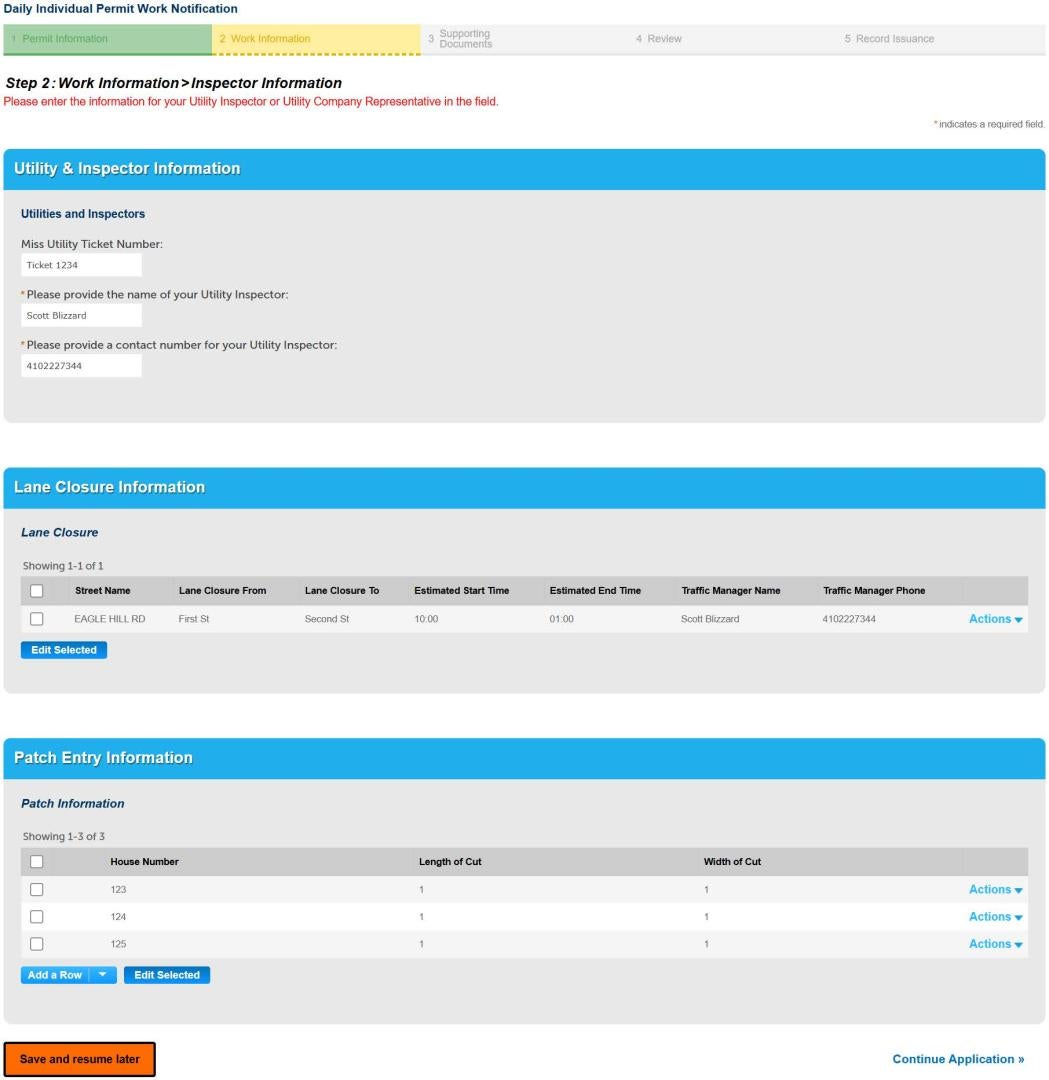
Utility and Inspector Information
Enter the Miss Utility ticket number.
Enter the Utility Inspector Name.
Enter the Utility Inspector Phone Number.
Lane Closure Information
Lane Closure From
Lane Closure To
Estimated Start Time
Enter a stat location. This can be a house number or intersection.
Estimated Start Time
Estimated End Time
Traffic Manager Name
Traffic Manager Phone
Patch Entry Information
Add row for each patch planned for the day.
Enter the House Number.
Enter the Patch Width.
Enter the Patch Length.
Click Continue Application.
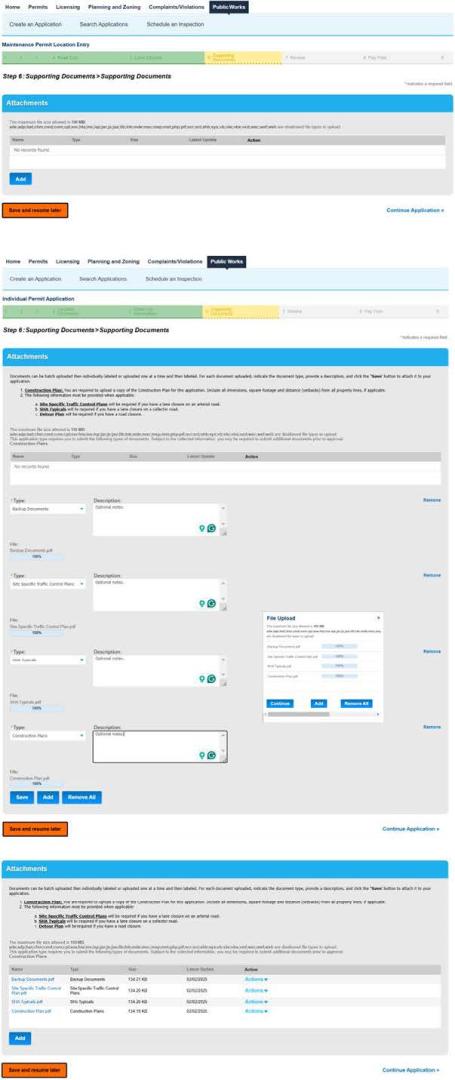
Attachments
Attachments are optional.
Select Add to upload your required documents.
Once the documents have been selected, click Continue.
Label the Attachments.
Attachment Labels
Backup Documents
Construction Plans: Select Add to upload your required documents.
Once the documents have been selected, click Continue.
Label the Attachments.
Attachment Labels
Backup Documents
Construction Plans
Detour Plan
Paved Trench Justification
Right of Way Agreement
Road Closure Form
Road Closure Justification
Road Closure Outreach Materials
Road Closure Outreach Plan
SHA Typicals
Site Photos
Site Specific Traffic Control Plans
Supporting Documents
The app will let you know if you are missing a required attachment.
Click Save.
Review the Attachments and Labels.
Click Continue Application.
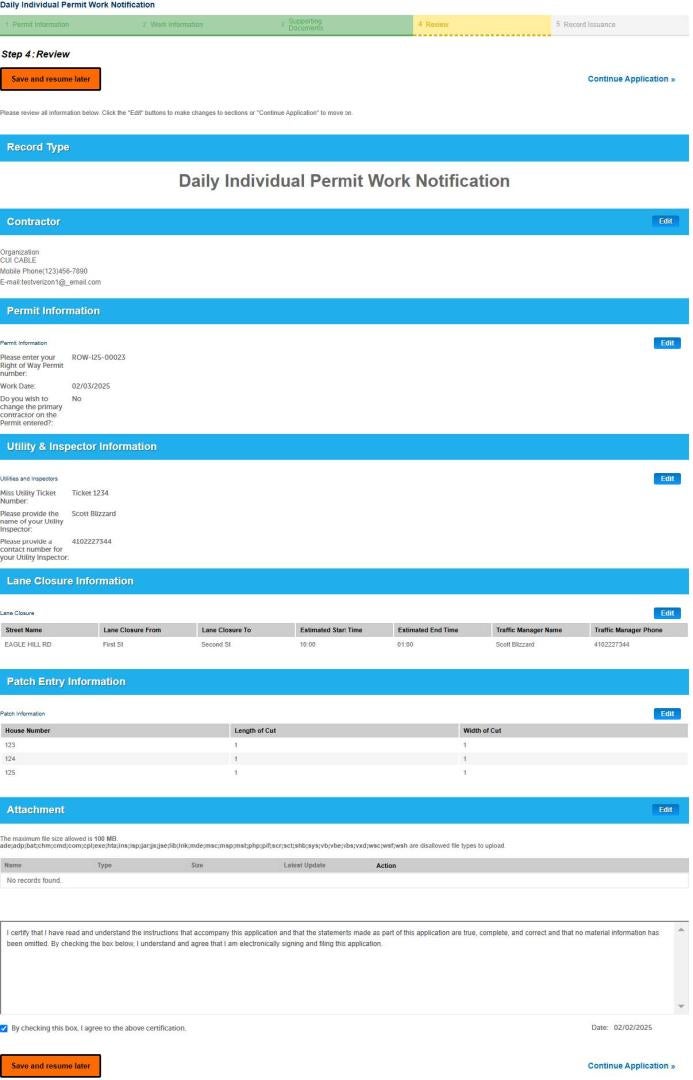
Application Review
Click the Certification.
Click Continue Application.
The confirmation number will be displayed on the next page.