
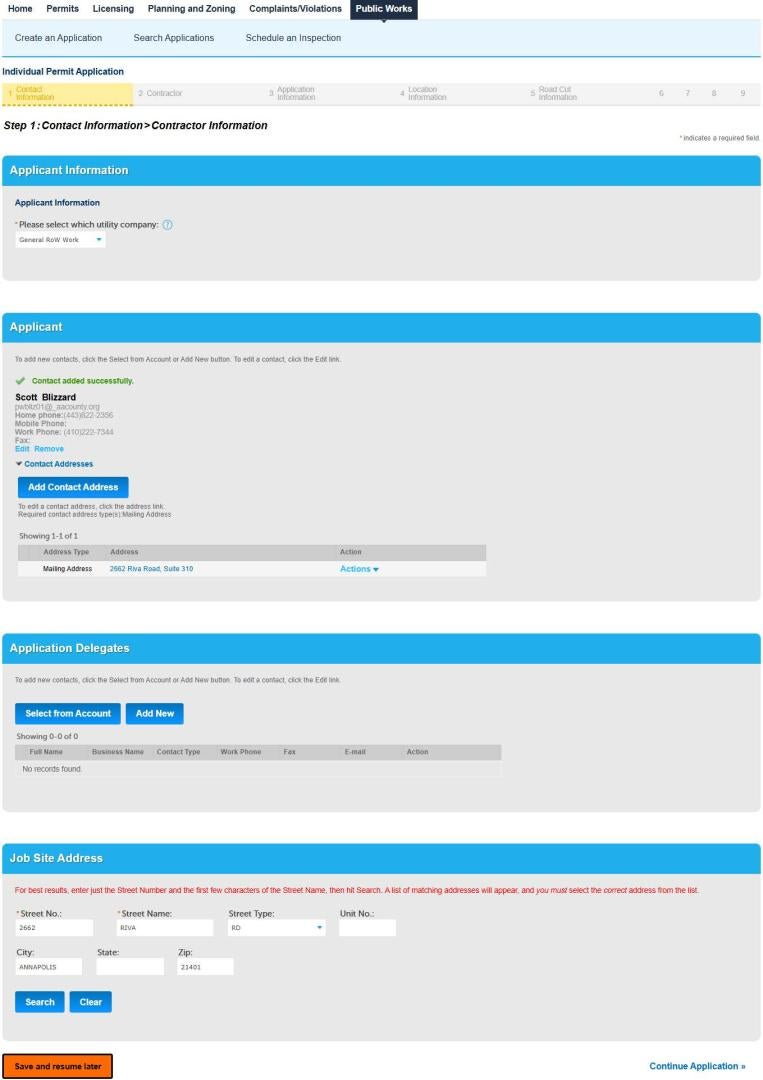
Individual Permit Application
Applicant Information
Select General/RoW Agreement/Government
If you’re a Utility, refer to the Utility Instructions.
If you select Government, you must provide a County Project Number in one of the Job Number fields.
Applicant
Click Select from Account and select your name form the Contact list.
You can add your information in the Account Management section.
Application Delegate
Click Select from Account and select your Delegate form the Contact list.
Select Application Delegate in the popup window.
A Delegate entered in this section will only have access to this permit.
You can add enter a Delegate directly or select from your Contact list.
Job Site Address
Enter a House Humber (Street No.) and the first couple of letters in the Street Name field.
Click Search.
Select an Address in the popup window. Then click Select.
The address should be located somewhere in the proposed work area.
Only enter the house number and the first couple of letters of the road name.
You must click Clear between entry attempts.
In the popup only select an option form the Address section. Ignore the other sections.
If you make a mistake entering the address, you must click the Clear before another attempt.
Click Continue Application.
Accela Submitting an Individual Permit Application (Utility)
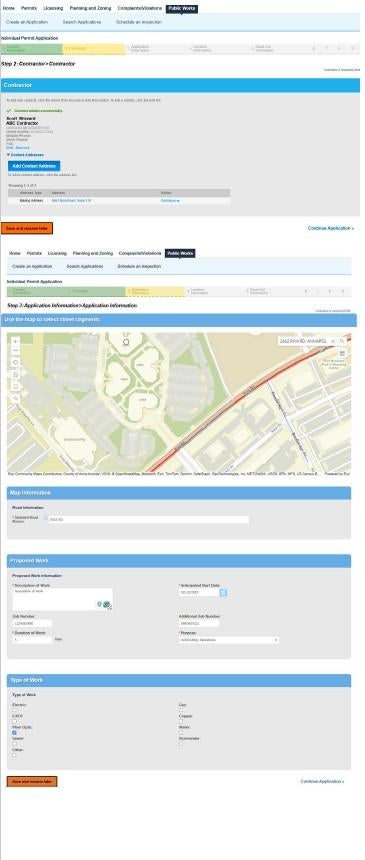
Contractor
Enter the Contractor’s information or select from your Account.
Click Continue Application.
Map Tool
Start typing the house number and street name in the map search field.
Click on the roads for the proposed work
Clicking on a road will toggle it on or off.
The map only displays Anne Arundel County maintained roads.
Red – Arterial
Green – Collector
Blue – Local
Map Information
Displays the roads selected on the map.
Proposed Work
Description of Work
Enter a brief description of the proposed work.
Anticipated Start Date
The date must be 7 to 30 days from the current date.
Job Numbers
Enter up to two job numbers.
Duration of Work
Enter the Anticipated duration of work.
Proposed Work
Select the best option form the dropdown.
Type of Work
Click the check box best associated with your proposed work.
Click Continue Application.
Accela Submitting an Individual Permit Application (Utility)
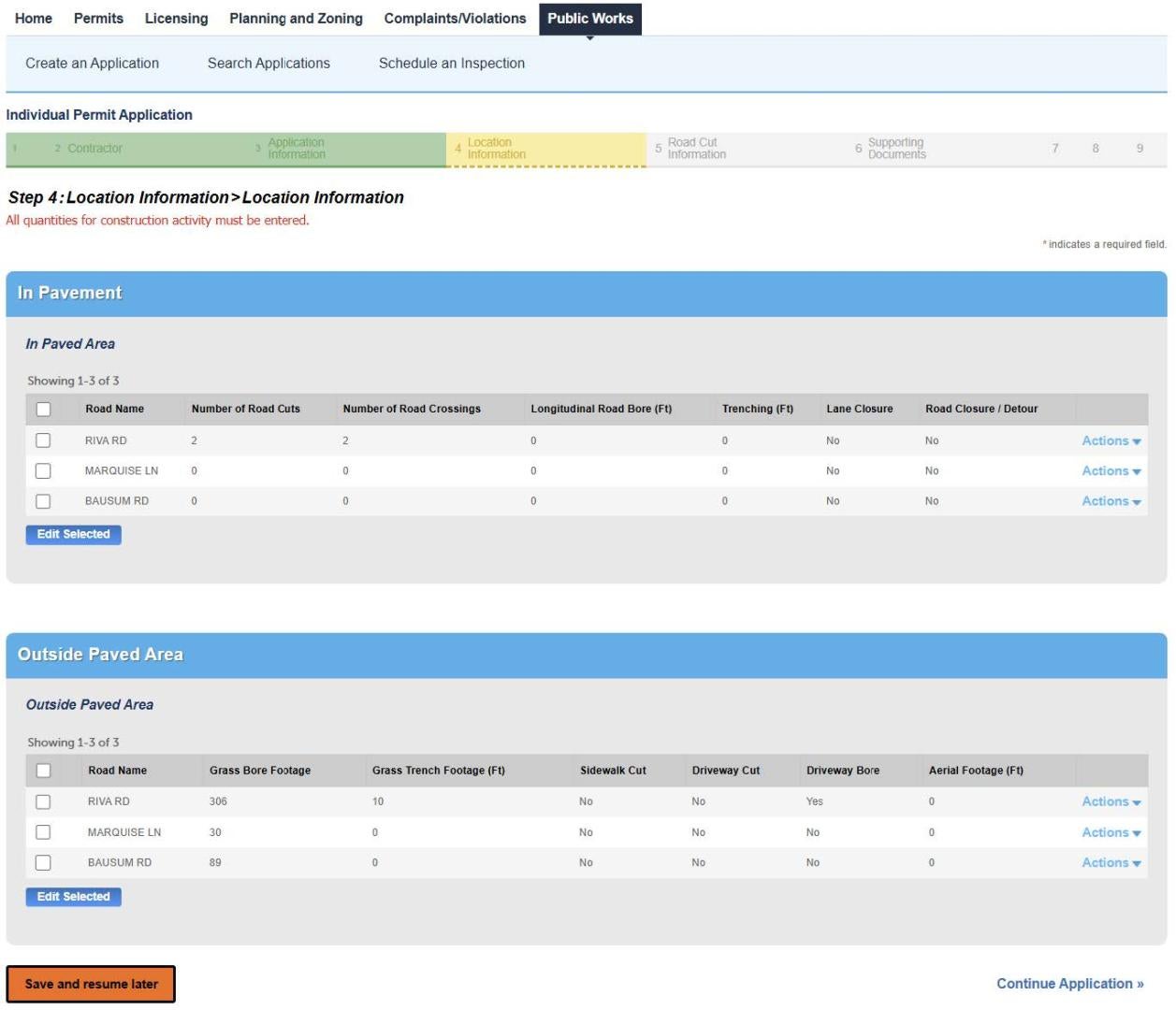
In Pavement
Edit each road listed.
Every field is required. Use a zero in any unused field.
Number of Road Cuts
Enter the number of proposed road cuts.
Number of Road Crossings
Enter the number of proposed road crossings.
Longitudinal Road Bore
Enter the bore footage. Longitudinal road bores are not road crossings.
Trenching
Enter the trench footage in the roadway.
Lane Closure
Select Yes or No.
Road Closure
Select Yes or No.
Outside Paved Area
Edit each road listed.
Every field is required. Use a zero in any unused field.
Grass Bore Footage
Enter the bore footage
Grass Trench Footage
Enter the bore footage.
Sidewalk Cut
Select Yes or No
Driveway Cut
Select Yes or No
Driveway Bore
Select Yes or No
Aerial Footage
Select Yes or No
Click Continue Application.
Accela Submitting an Individual Permit Application (Utility)
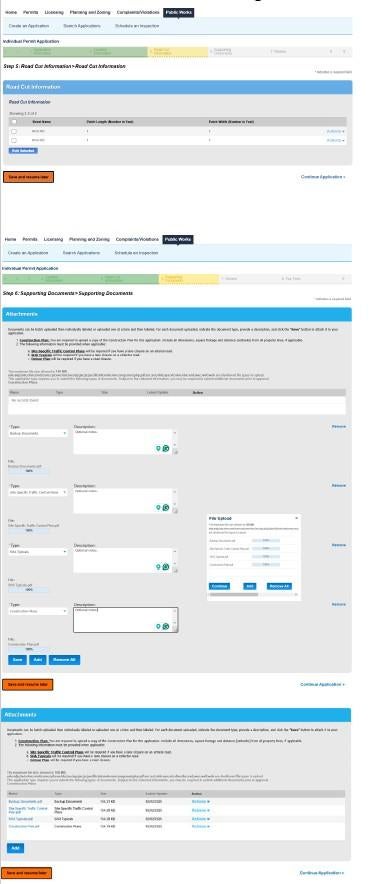
Road Cut Information
This section will only display if a number was entered in the Number of Road Cuts Field.
Edit each road listed.
Every field is required. Use a zero in any unused field.
Enter the Length and Width of the proposed road cuts.
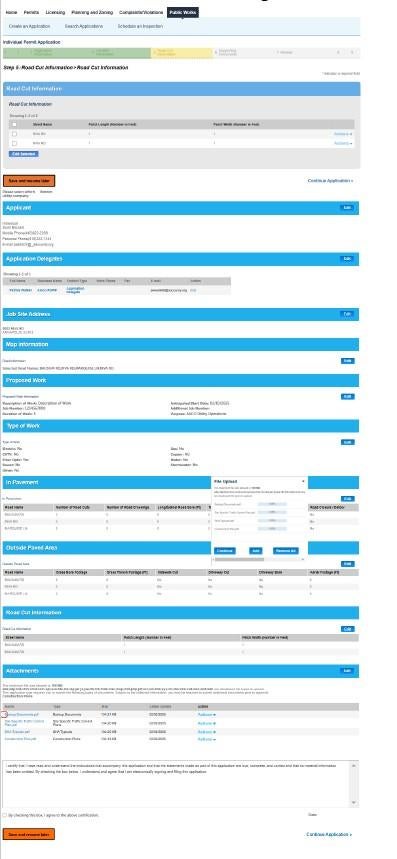
Attachments
Select Add to upload you required documents.
Once the documents have been selected, click Continue.
Label the Attachments.
Attachment Labels
Backup Documents
Construction Plans
Detour Plan
Paved Trench Justification
Right of Way Agreement
Road Closure Form
Road Closure Justification
Road Closure Outreach Materials
Road Closure Outreach Plan
SHA Typicals
Site Photos
Site Specific Traffic Control Plans
Supporting Documents
The app will let you know if you are missing a required attachment.
Click Save.
Review the Attachments and Labels.
Accela Submitting an Individual Permit Application (Utility)
Application Review
Click the Certification.
Click Continue Application.
Complete the Payment Process.
Payment is due for RoW Agreement and General RoW Work applications
Payment is collected in three stages during the permit process.
The nonrefundable application fee is due before submitting an application.
The permit fee is due when the application review is complete before the permit is issued.
Any additional fees accrued during construction will be collected when the work is complete.
Click Continue Application.
The confirmation number will be displayed on the next page.
Once the application is submitted, fees are submitted by selecting Home/My Records/Pay Feed Due under the Record Number in the list.