Log in to the Harbor system
Before proceeding with this help guide, you must be logged into the Harbor financial system. For your security, Harbor requires Multi-Factor Authentication (MFA) to complete the login process.
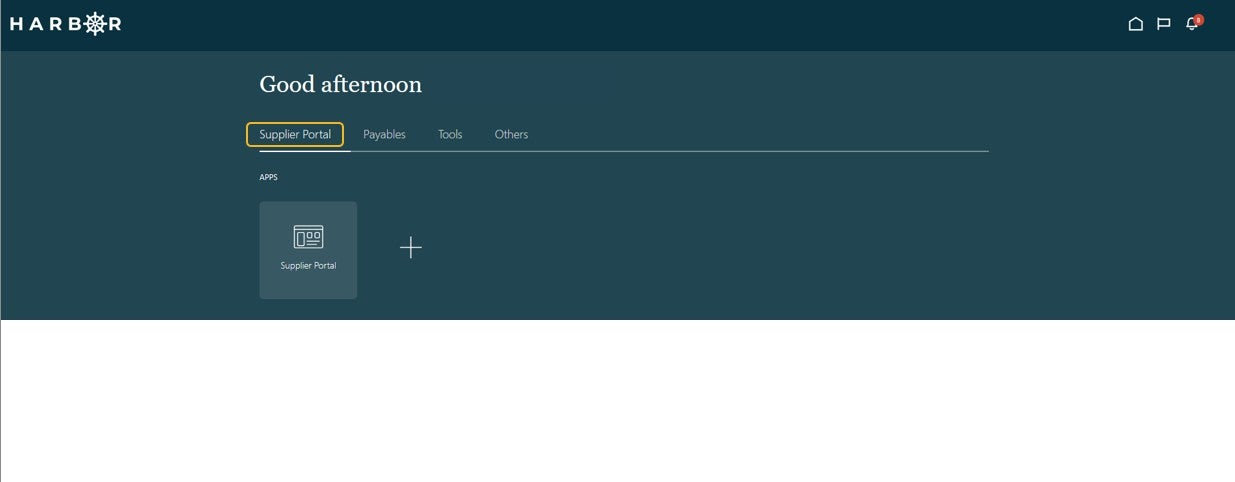
1From the Homepage, click the Supplier Portal tab.
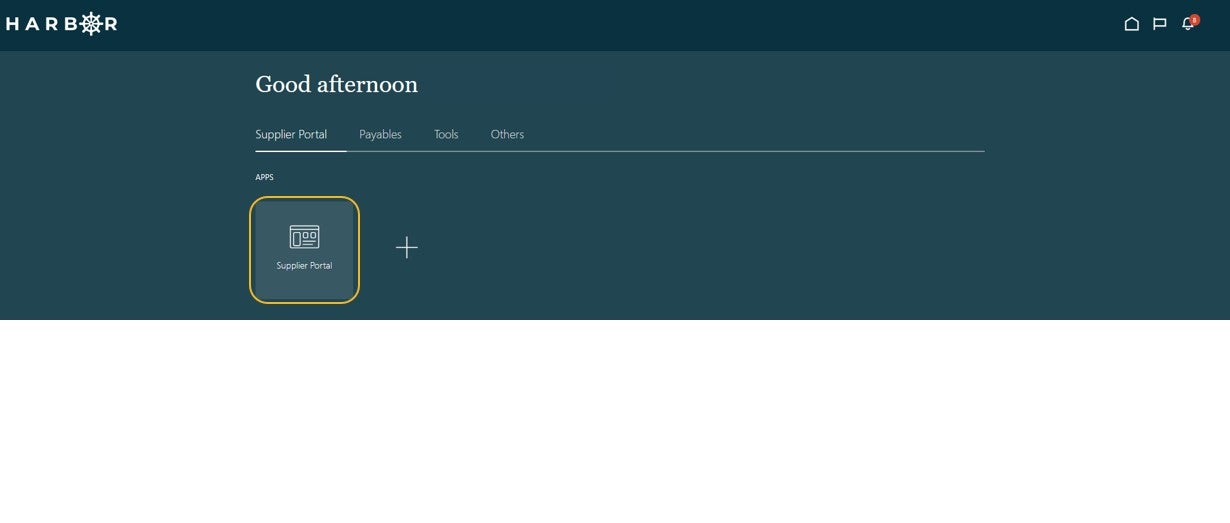
2Click into the Supplier Portal app to access the Work Area.
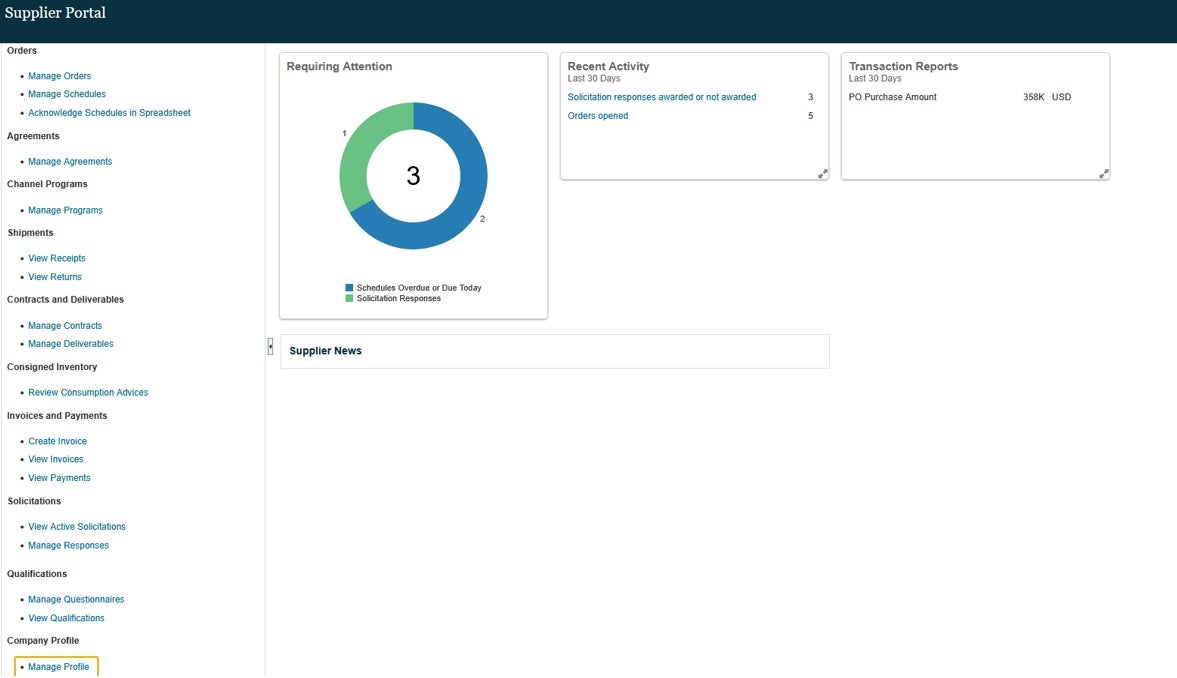
3Click Manage Profile in the Tasks pane.
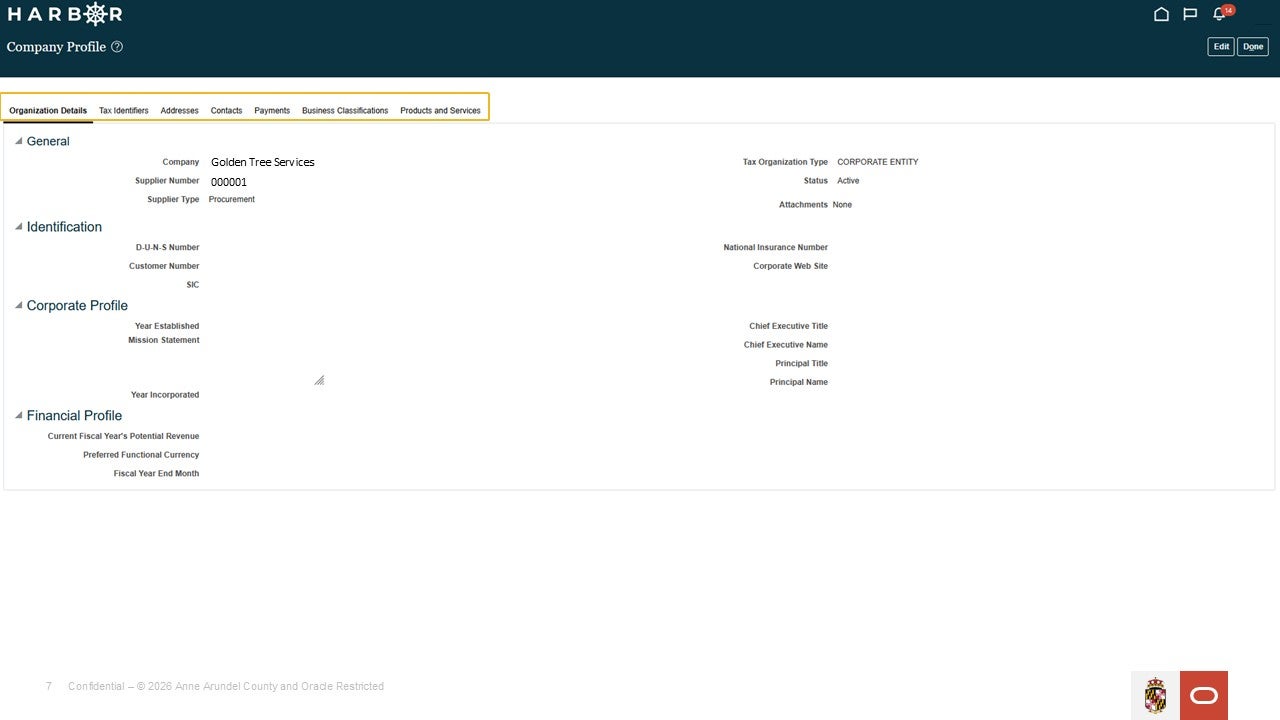
4Click between tabs to view the various Company Profile details.
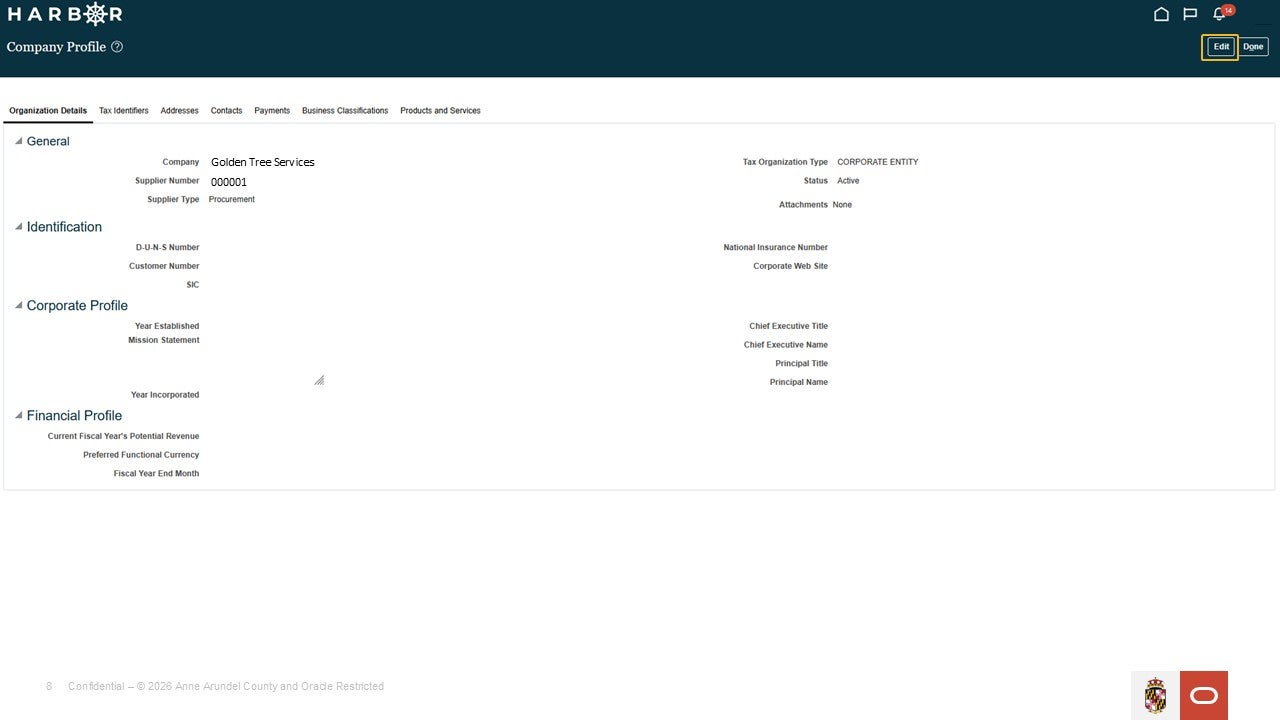
5If an Edit is needed, click on Edit.
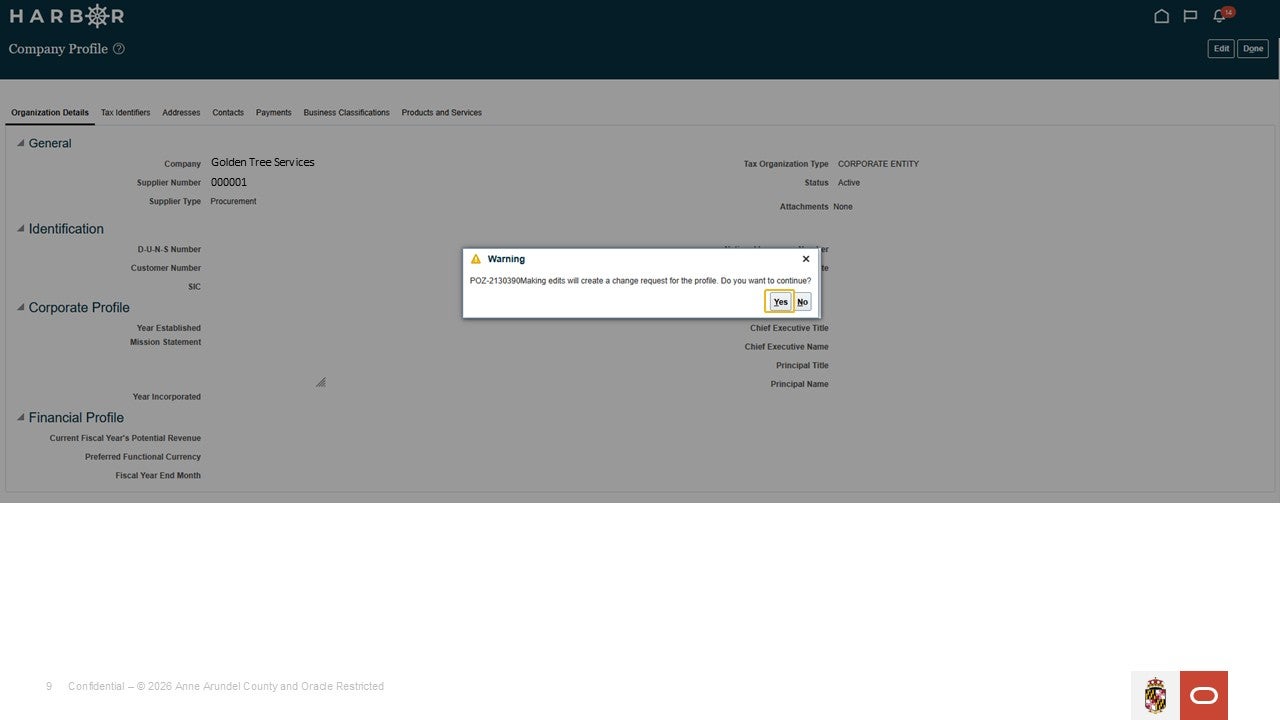
6After making an edit, the following message will appear "Making edits will create a change request for the profile. Do you want to continue?" Click "Yes".
7Enter a Description of the change in the Change Description box.
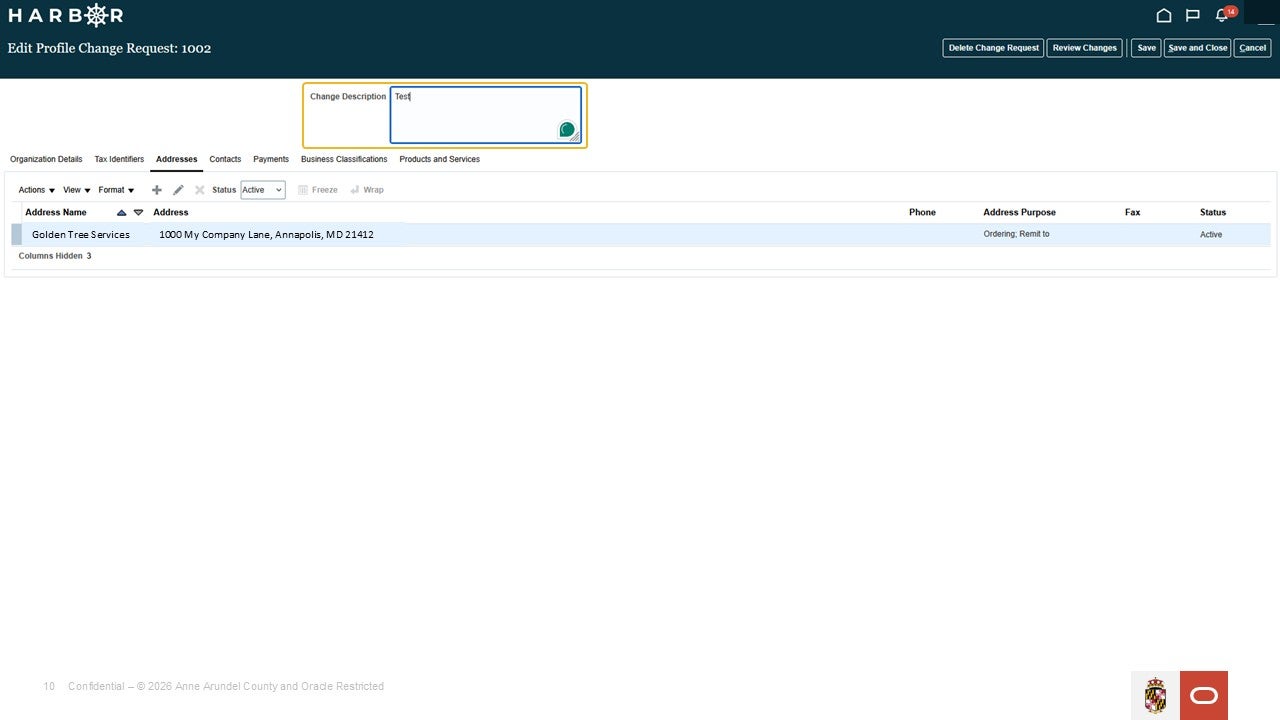
8Click on + icon to add new information.
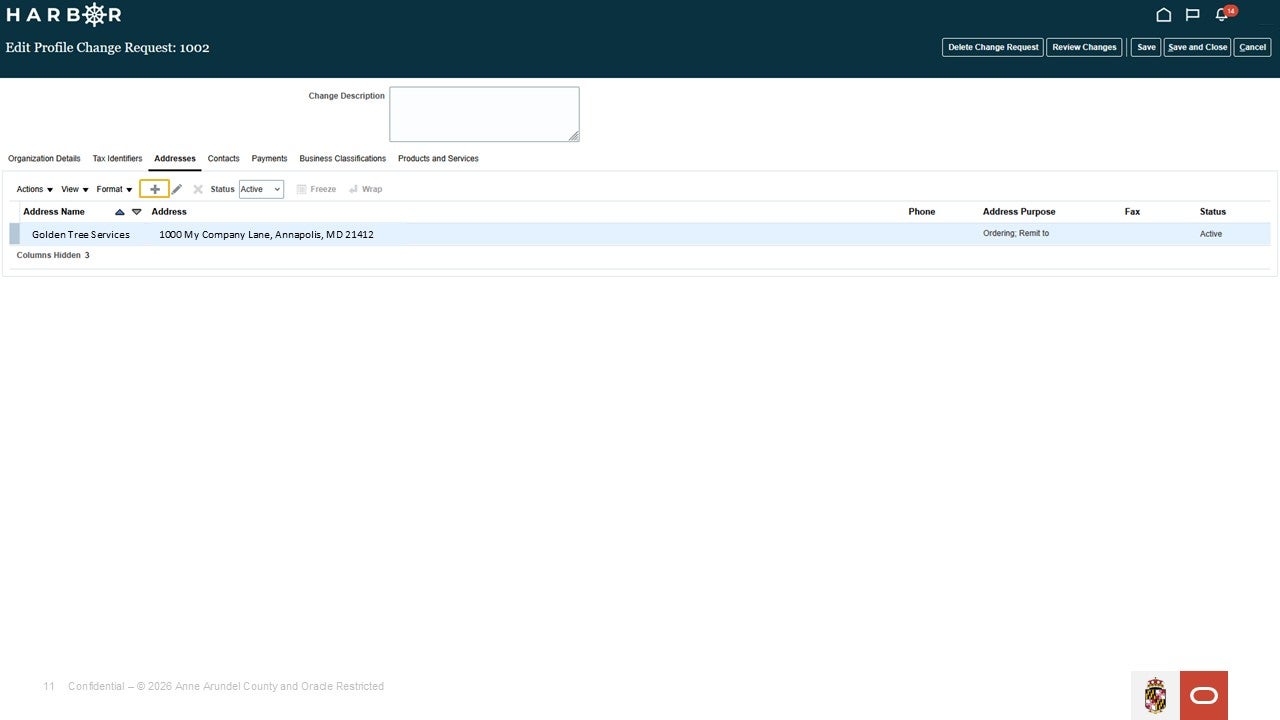
9Enter in the required fields and click "OK" button.
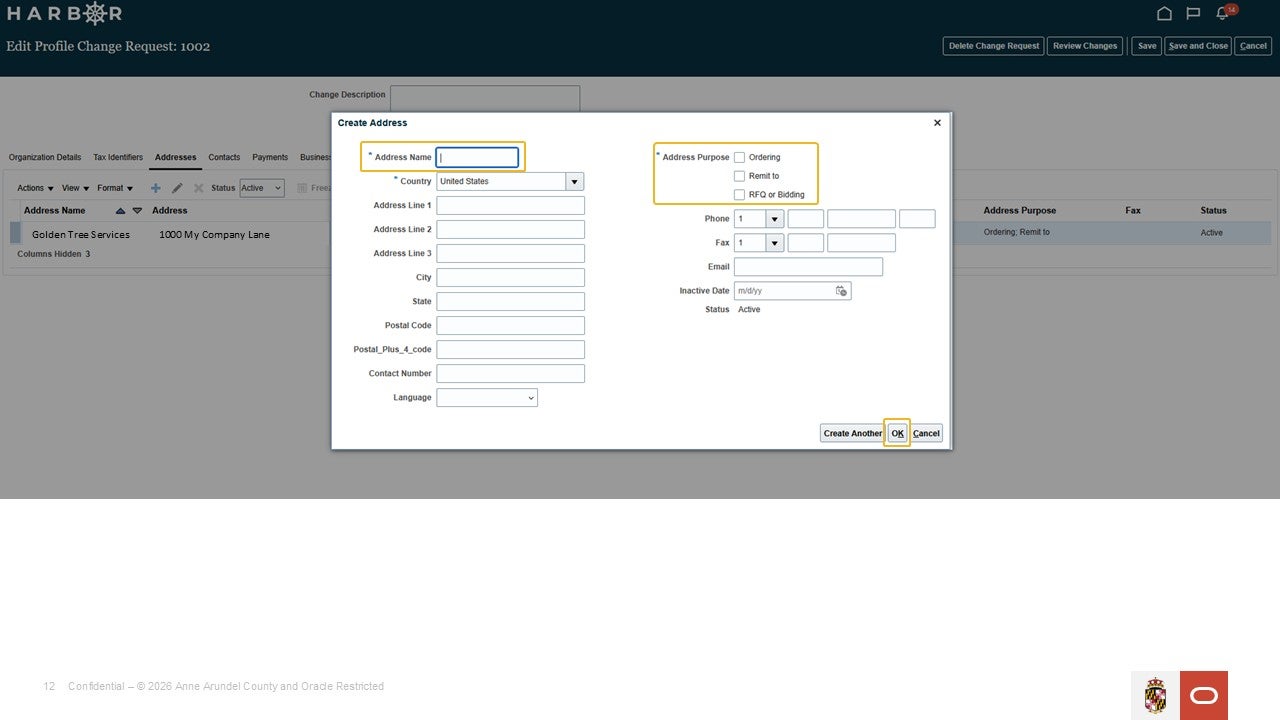
10Click on Pencil icon to edit information.
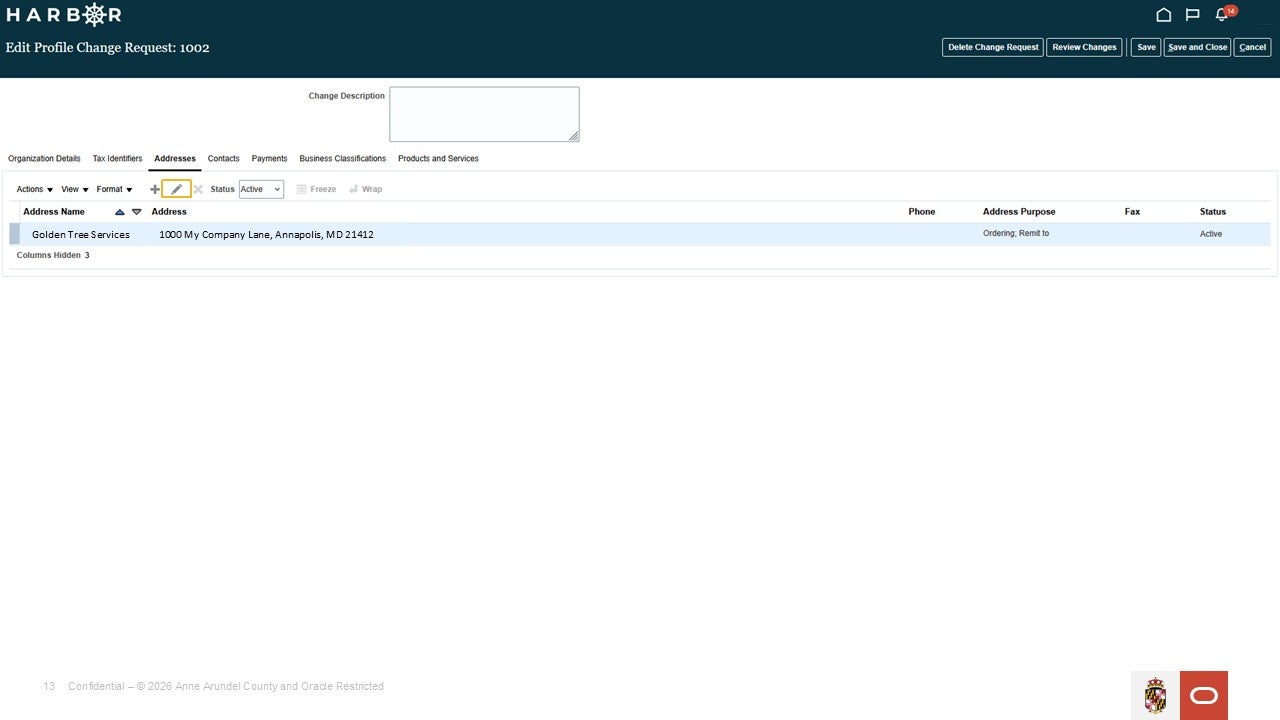
11Edit any fields that require an update and click "OK" button.
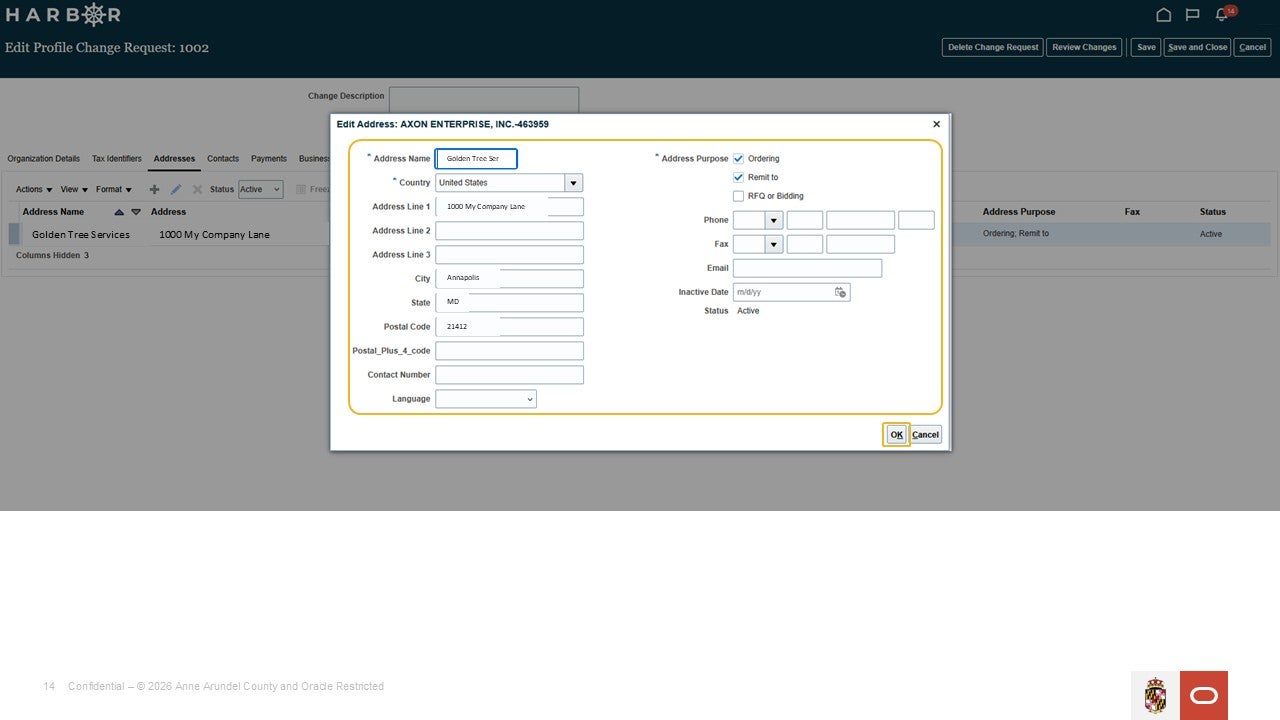
12Click "Review Changes" button.
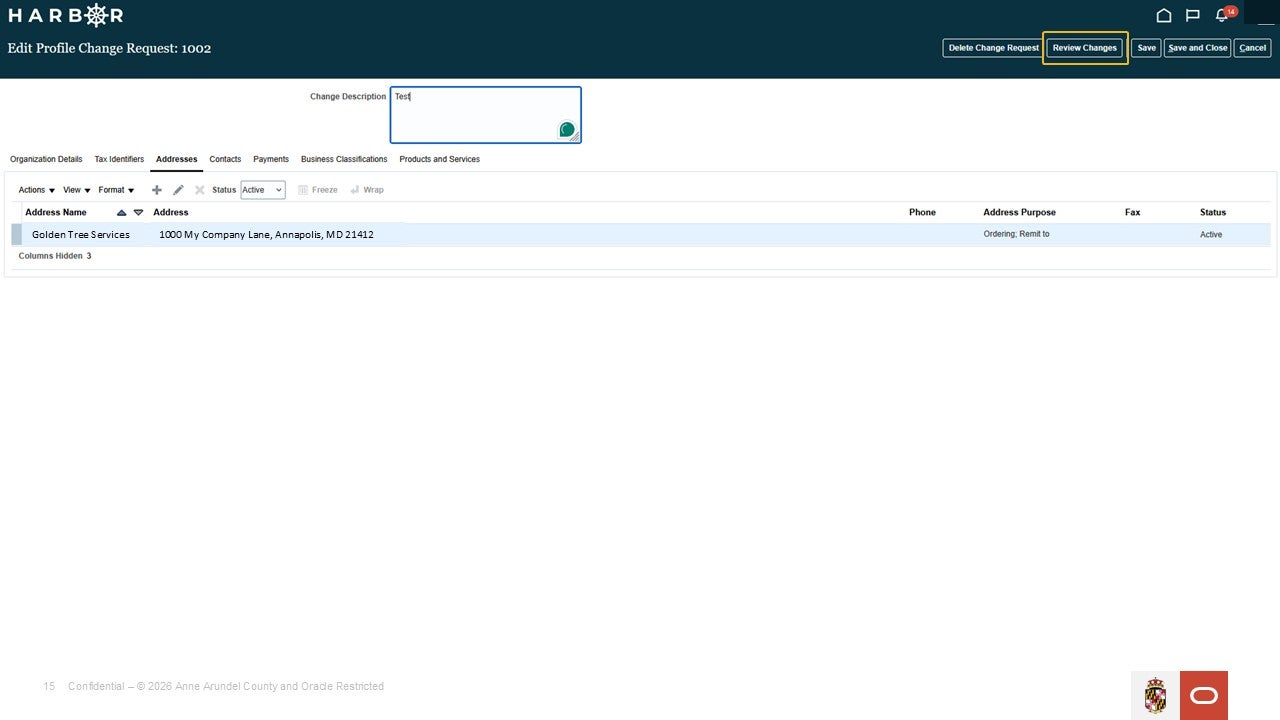
13Review Changes and then click "Submit" button.
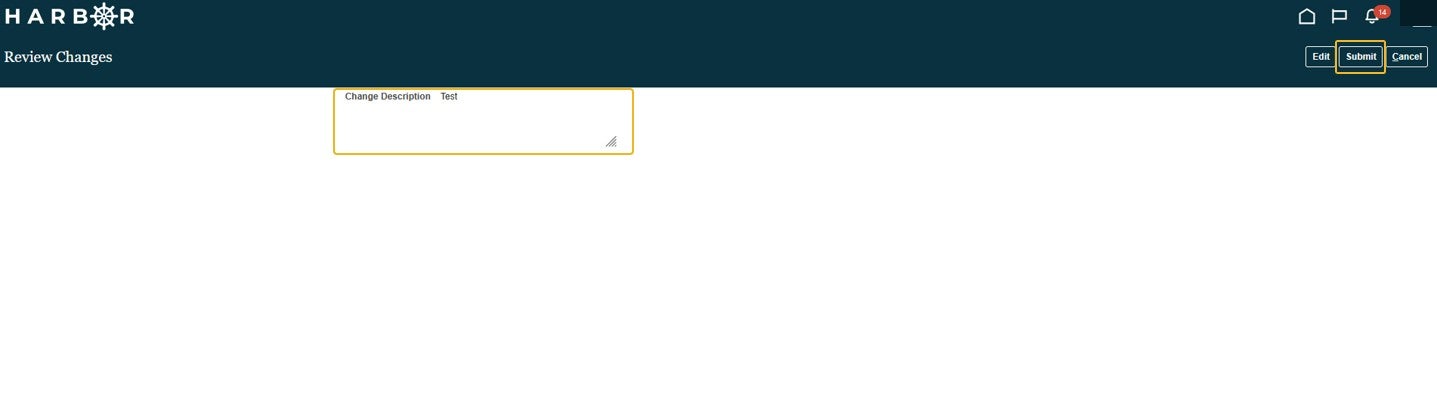
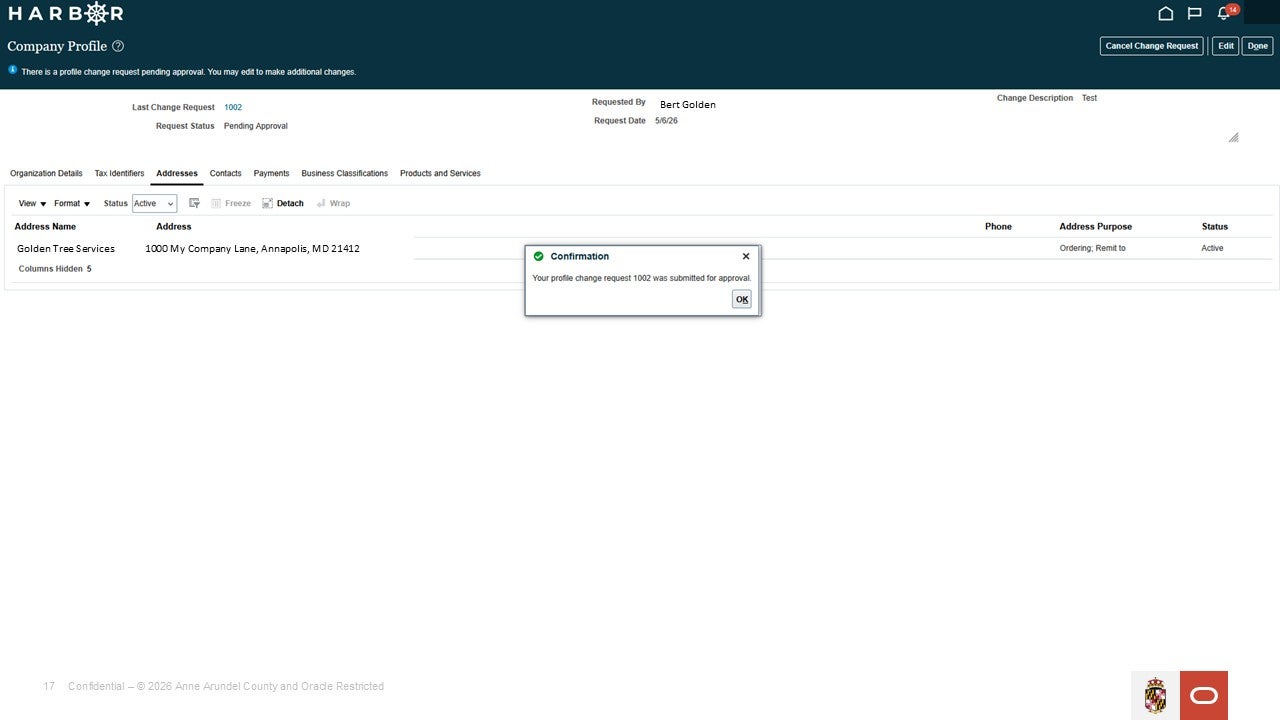
14A confirmation message will appear showing successful submission. Click the "OK" button. Your change will be reviewed by County staff after submittal.