
Before Getting Started
- Check with other members of your organization to determine if they have already registered in Harbor. If so, they will need to assist you with getting set up in the system by adding you as a Contact. If you attempt to register with your organization's tax ID number and another employee has already registered, you will receive an error.
- Collect documents you can reference for important details. Many of the details you will be asked to provide can be found on your W-9 form.
- The registration process takes approximately 30 minutes.
- The registration process will time out if activity stops.
- It is recommended that you plan to complete the registration process in one attempt to prevent duplicating data entry effort.
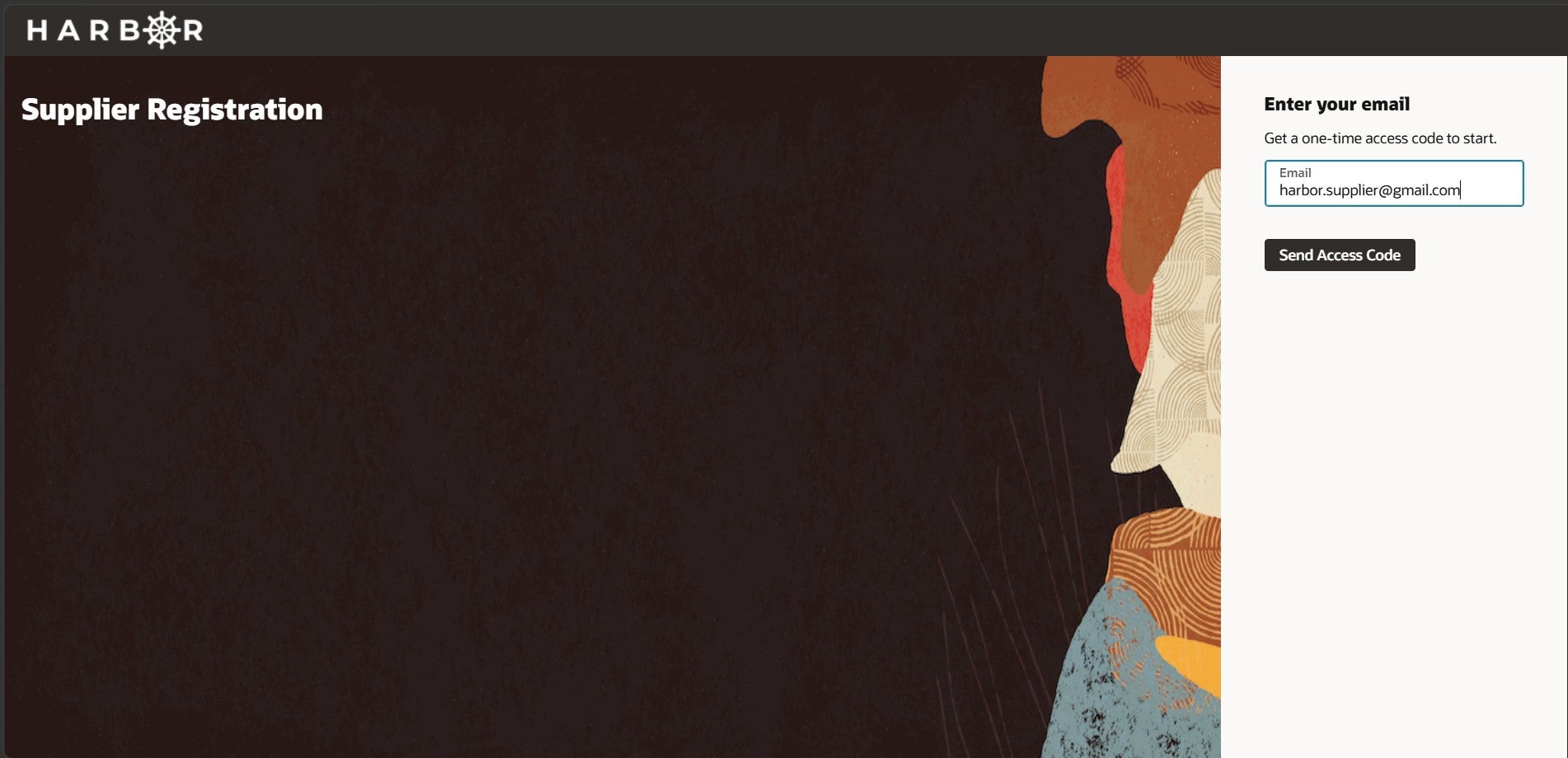
1Click the supplier registration link, enter your email, and click the "Send Access Code" button. Leave this window open on your browser.
2Go to your email and open the email titled "Access Code for Your Supplier Registration".
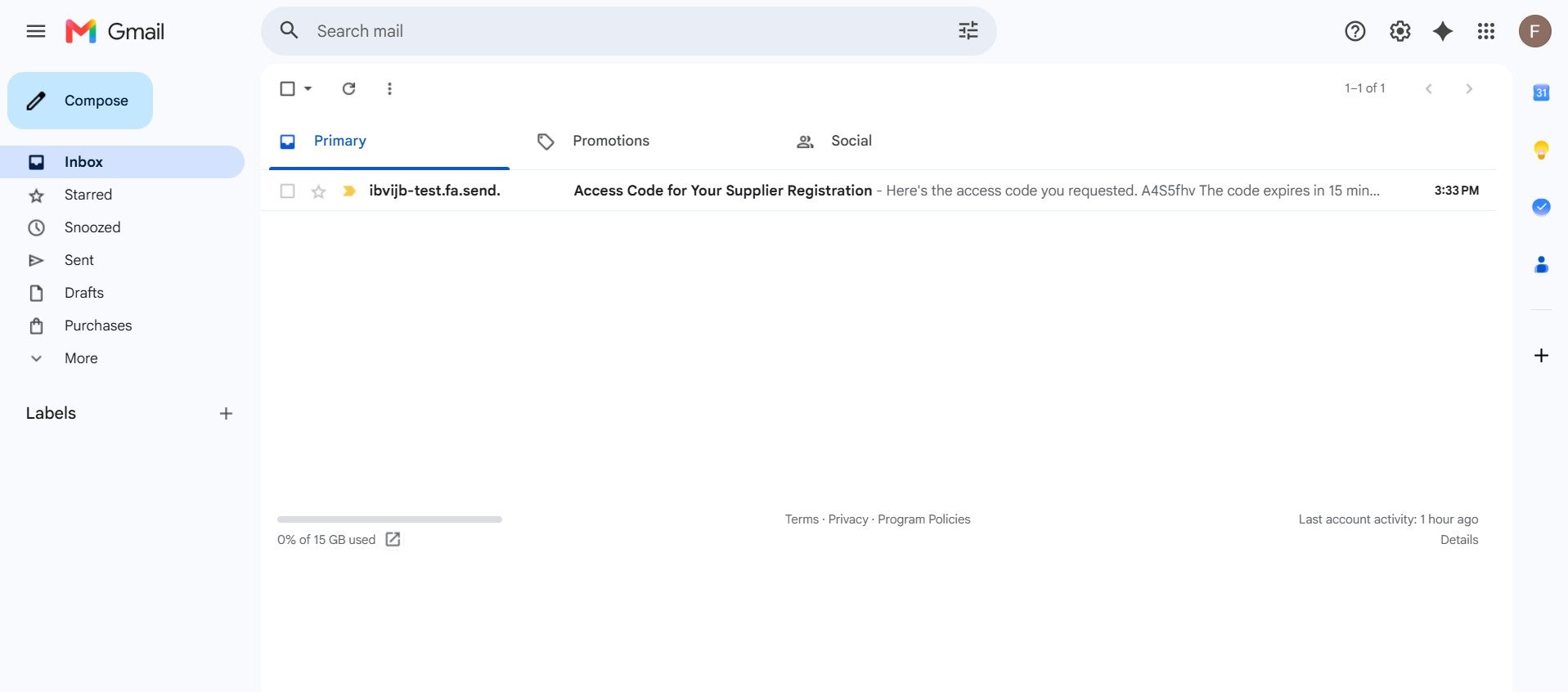
3Copy the access code provided in the email.
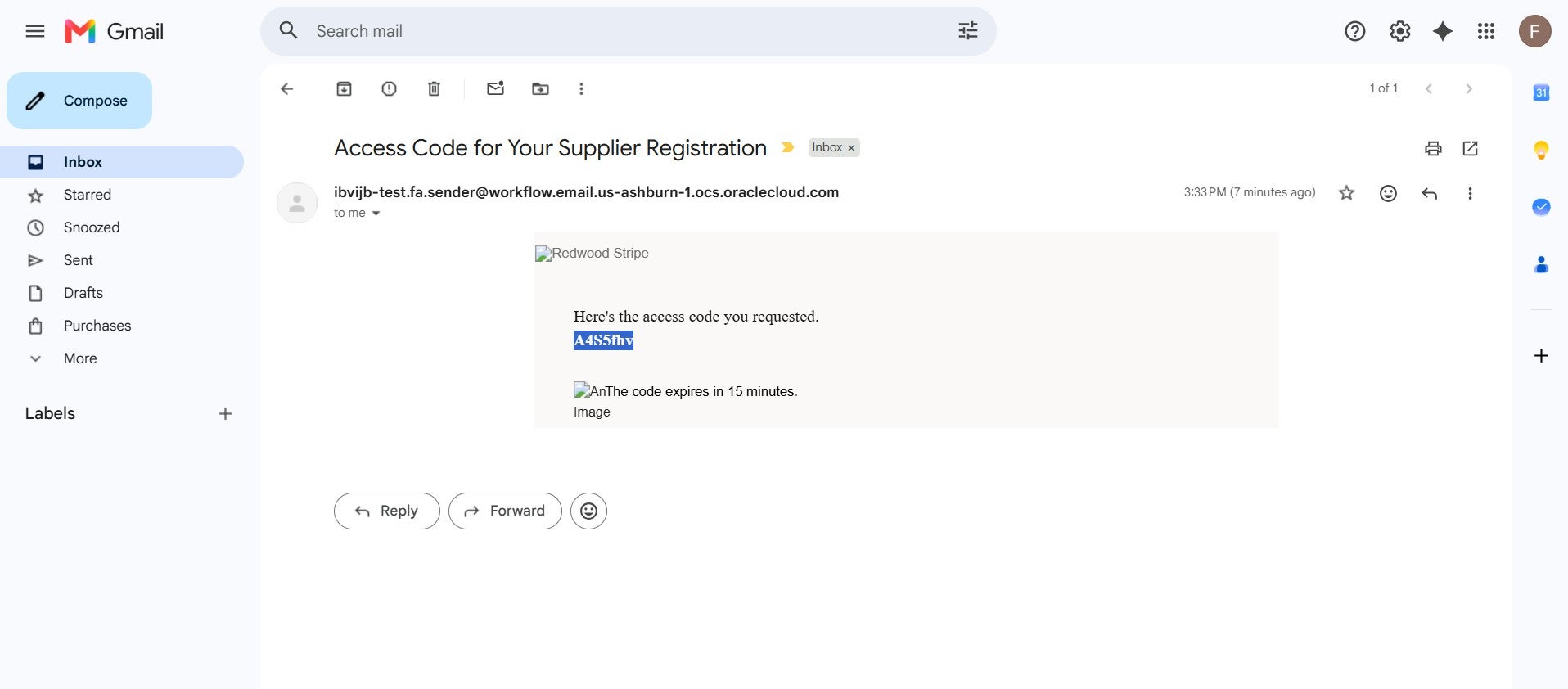
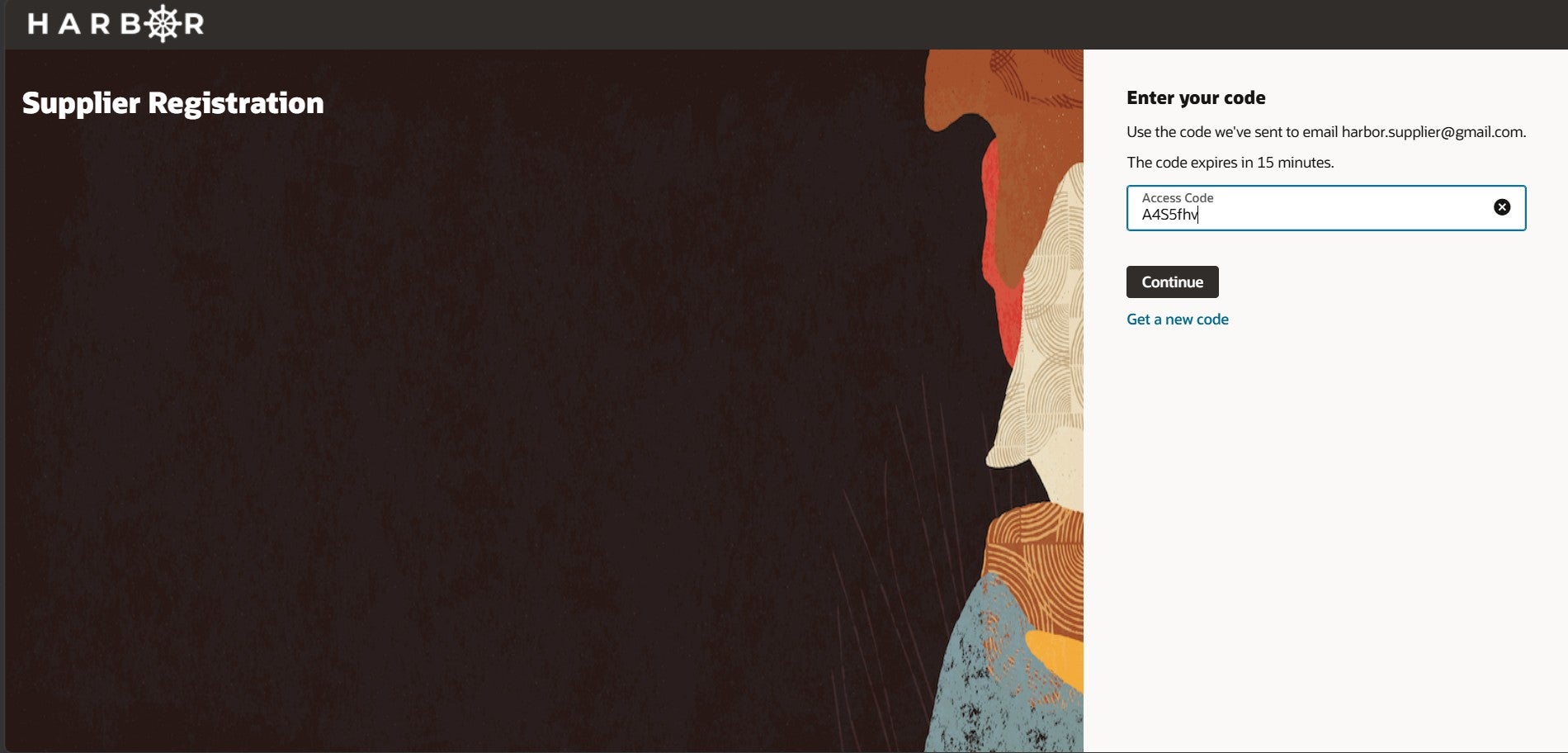
4Return to registration page in your open browser window and paste the access code you copied from the email. Click the "Continue" button.
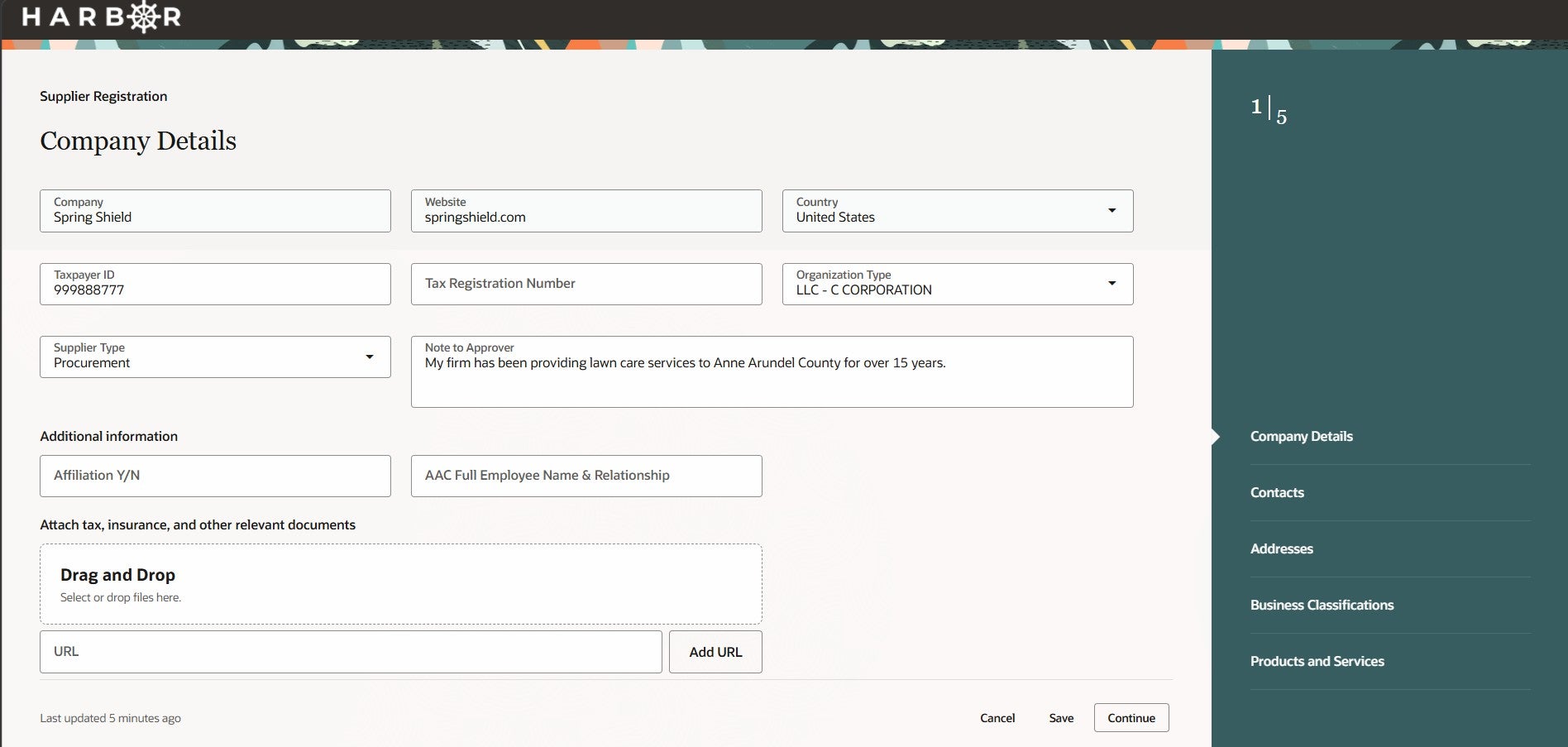
5Enter the name of your company, your company website (if applicable), and the name of the country where your company operates.
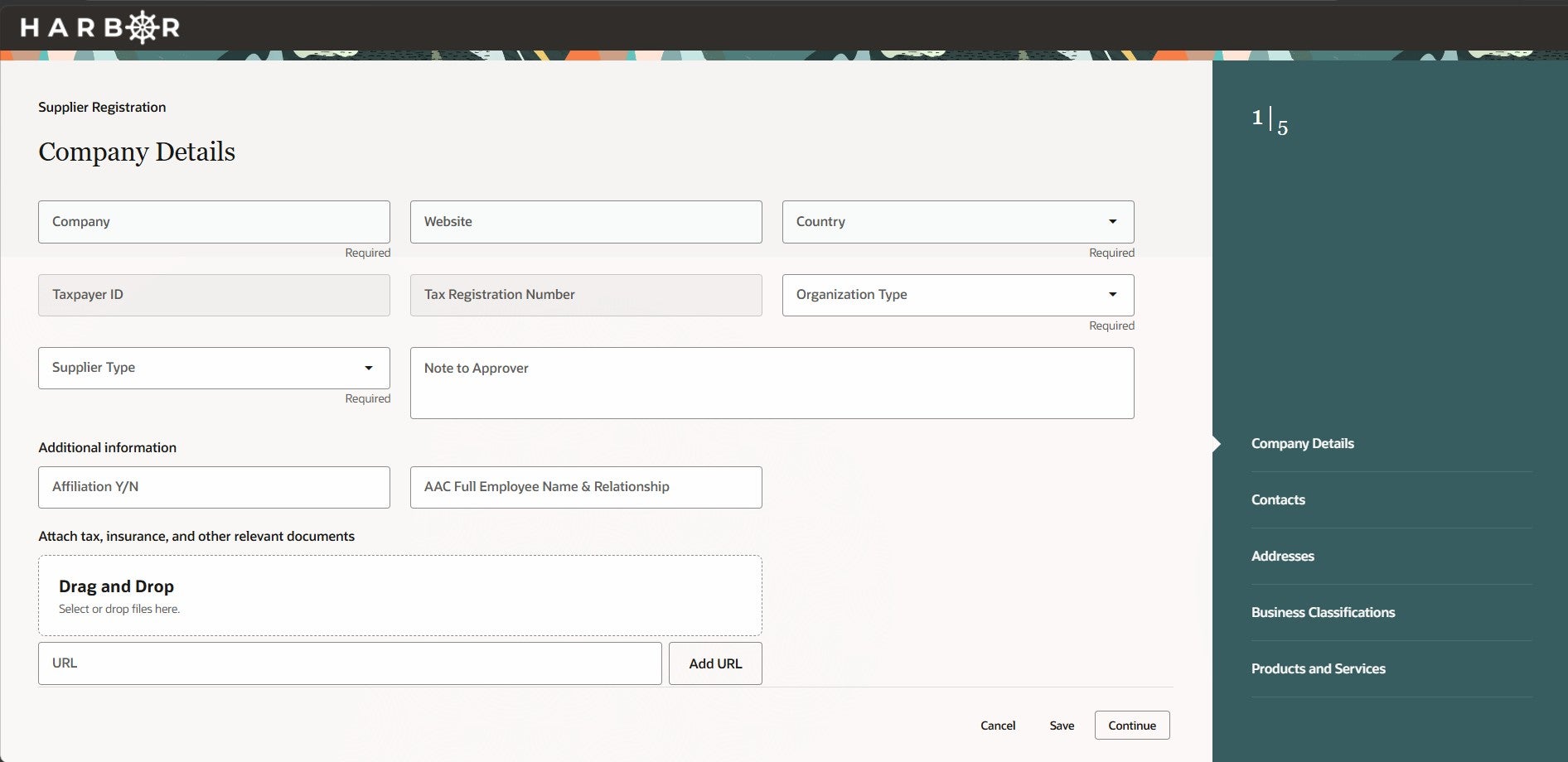
6Next, enter your tax payer ID, tax registration number (tax registration number is an optional field, it is okay if you do not have one), and organization type. These details are listed on your W-9 form.
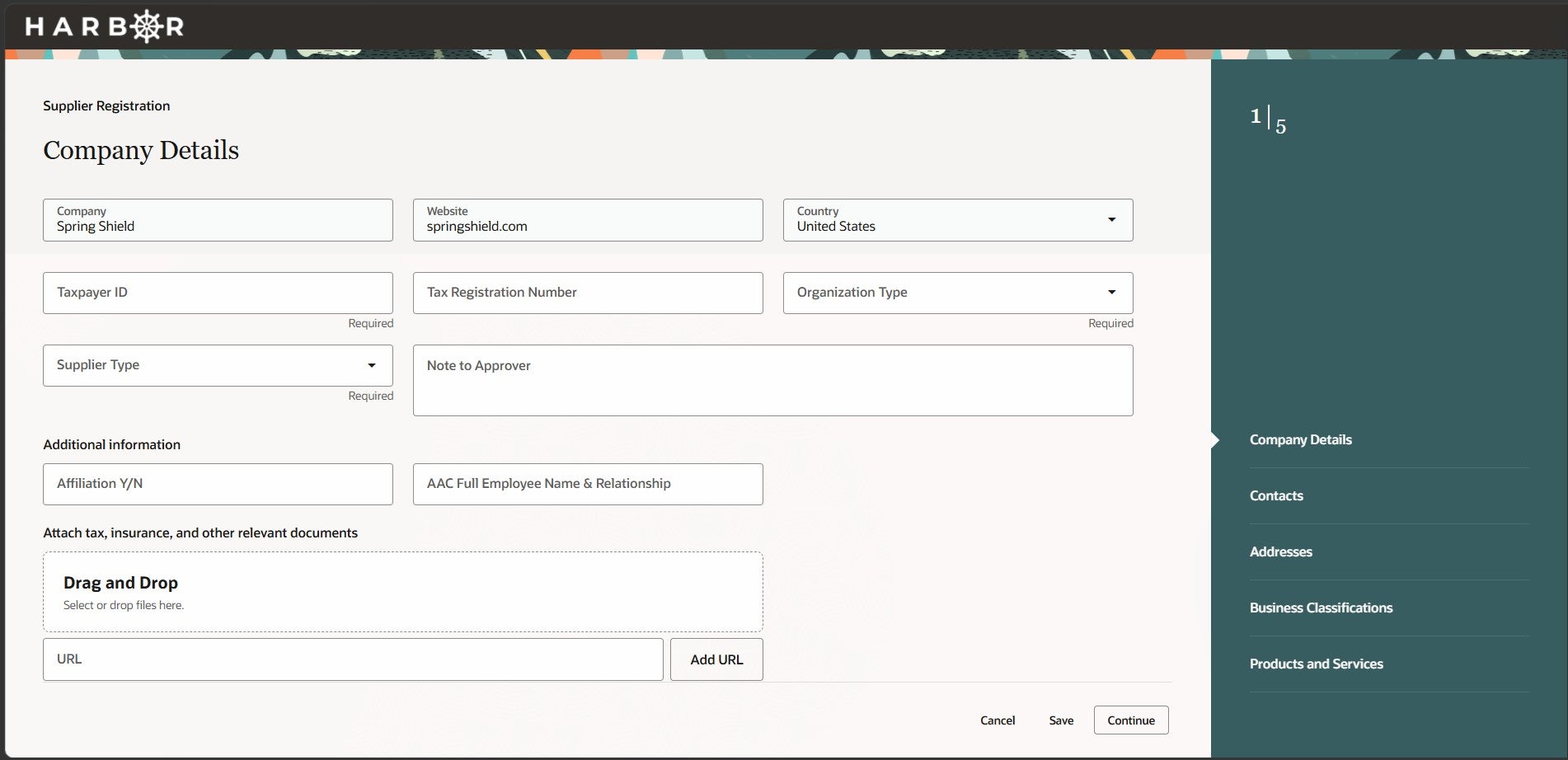
Important Note on Tax IDs: Please ensure you submit a unique Tax ID. If you submit a registration for a company profile that already exists in the system, your registration will generate a rejection notice without citing a specific reason. If you do not receive an approval notice within 24 hours, please contact your company's profile administrator.`
Select the Organization Type that best reflects your business’s legal and tax status, as registered with the IRS (or equivalent authority), not the products or services you provide. If you’re unsure, this information is typically listed on your W‑9, articles of incorporation, or other official registration documents. Below is a guide to help you choose:
Most Common Business Structures
- Corporation / C Corporation / S Corporation - Select C Corporation or S Corporation based on your IRS tax election. (If you’re incorporated and not sure which, your W‑9 will indicate this.)
- LLC – C Corporation / LLC – S Corporation / LLC Partnership - Choose the option that matches how your LLC is taxed, not just that it’s an LLC.
- Partnership - For general or limited partnerships.
- Individual - For sole proprietors operating under an individual’s name. *Trust/Estate - For trusts or estates acting as the supplier.
7Click on the drop down menu in the data field "Supplier Type" and select the option that describes your organization's supplier type.
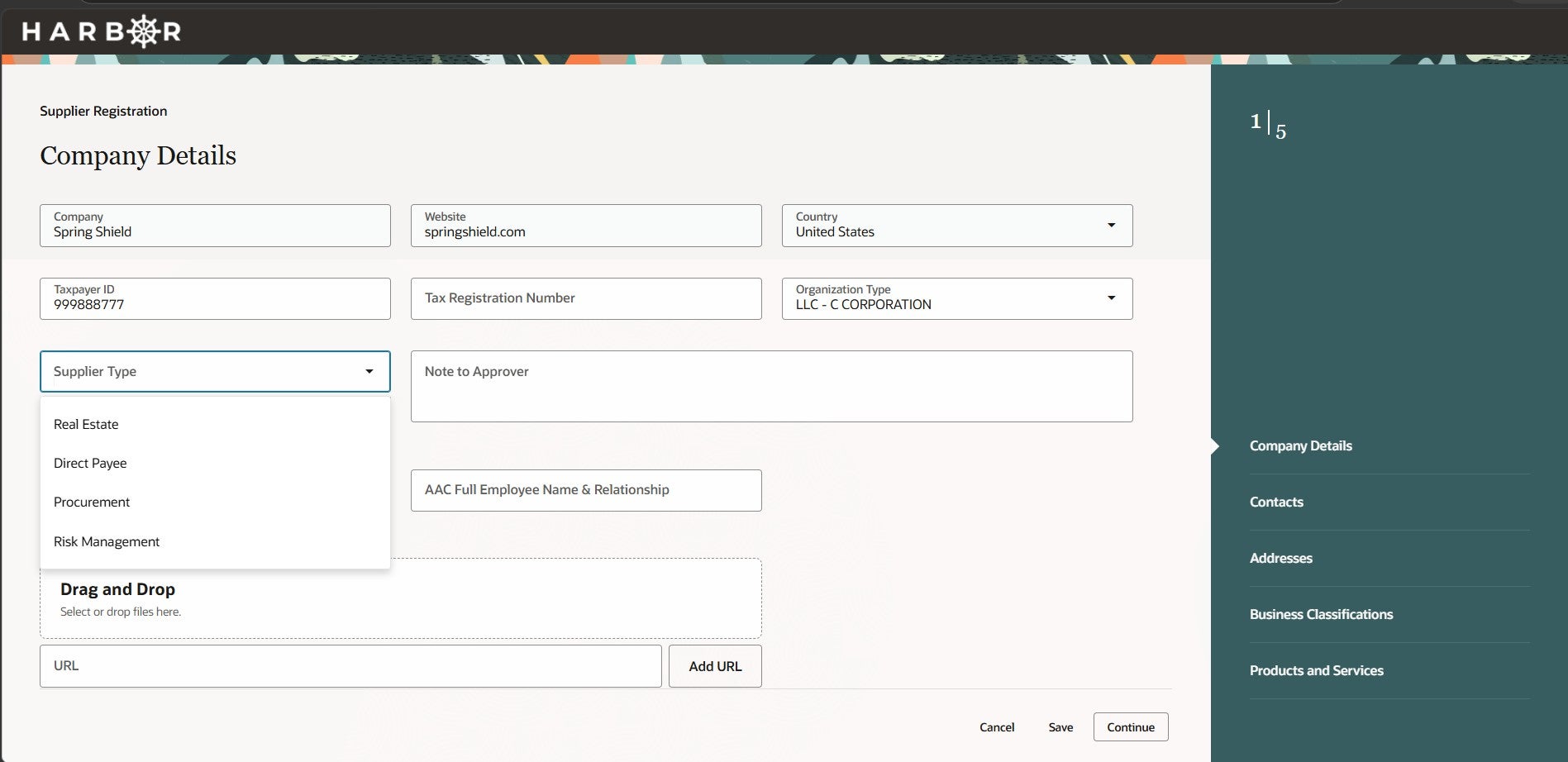
Select the Supplier Type that best describes how your organization will interact with and be paid by the organization. This selection helps route your registration correctly and ensures proper processing of contracts, payments, and communications.
Here’s how to choose:
- Real Estate - Select this if you provide real estate–related services, such as leasing, property sales or purchases, appraisals, right‑of‑way services, or property management.
- Direct Payee - Organizations that are only receiving payments and not bidding should usually choose Direct Payee.
- Procurement - Organizations that intend to bid on work or sell goods/services MUST choose Procurement. Select this if you plan to bid on solicitations, RFQs, or contracts and provide goods or services through the formal procurement process and receive payments. MOST SUPPLIERS SHOULD CHOOSE THIS OPTION
- Risk Management - Do not choose this option. Risk Management suppliers can only be registered by the County. Selecting the correct supplier type helps ensure your registration is reviewed, approved, and used appropriately. You may update your supplier later if your relationship or role changes.
Selecting the correct supplier type helps ensure your registration is reviewed, approved, and used appropriately. You may update your supplier later if your relationship or role changes.
8Use the optional field "Note to Approver" to include any notes you would like reviewed with your registration.
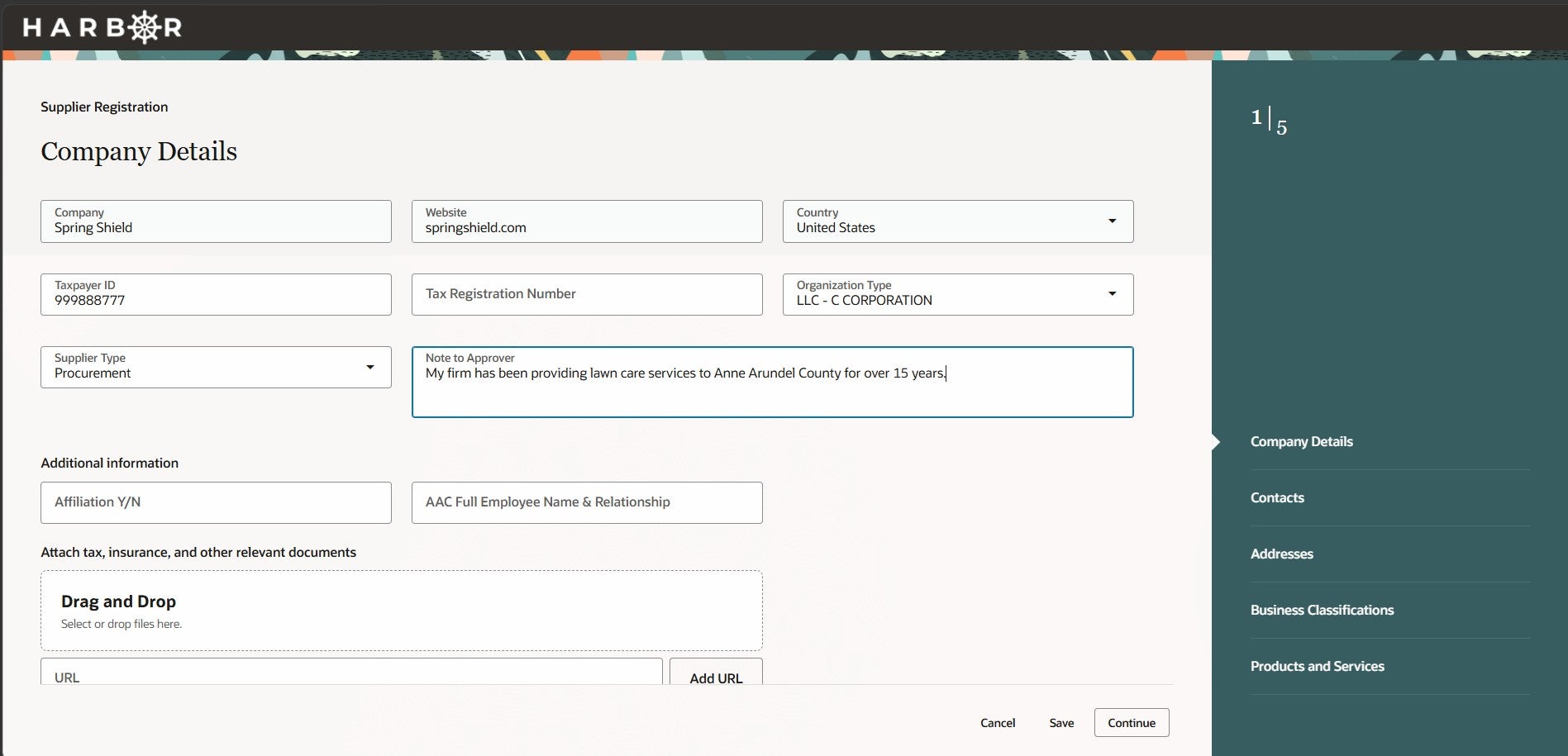
9Under the header "Additional Information", there is an optional data field "Affiliation Y/N" to indicate if your firm is affiliated with the county by enter "Y" or "N". If you are not familiar with this term, leave the field blank. If your firm is affiliated with the county, enter "Y" and provide the "ACC Full Employee Name & Relationship".
In Anne Arundel County, supplier and contracting affiliations with County officials or employees are governed by Article 8 (Purchasing), Section 8-2-118(g) of the Anne Arundel County Code.
10At the bottom of the company details page, attach any tax, insurance, and/or other relevant documents that would be helpful for processing your supplier registration. You can also choose the option to paste a URL with important documents if applicable.
SUBMITTING TAX DOCUMENTS DURING REGISTRATION IS STRONGLY RECOMMENDED.
Here’s how these requirement documents are used:
- Tax documents - Most suppliers will be required to submit a W‑9 (or appropriate tax form) so payments can be issued and reported correctly for tax purposes. This is required before payment can be processed.
- Insurance documents - Proof of insurance (such as a Certificate of Insurance) may be required before contract award or work begins, especially if you are providing services, performing work on‑site, or entering into a formal agreement.
- Timing matters - These documents may not be required at initial registration, but they are often required before payment, contract execution, or activation as an eligible supplier.
- Not all suppliers need everything - Some supplier types (such as Direct Payees or one‑time payment recipients) may require tax documentation but not insurance. Procurement suppliers typically require both, depending on the scope of work. Supplying accurate and up‑to‑date documentation helps prevent delays in approval, contracting, or payment.
11Click the "Save" button and "Continue" button, to continue completing the registration process.
12Enter the first contact you would like to provide for your business. Registration communications will be sent to this contact. Enter their first name, last name, email, job title, mobile number, office number, and fax number if applicable.
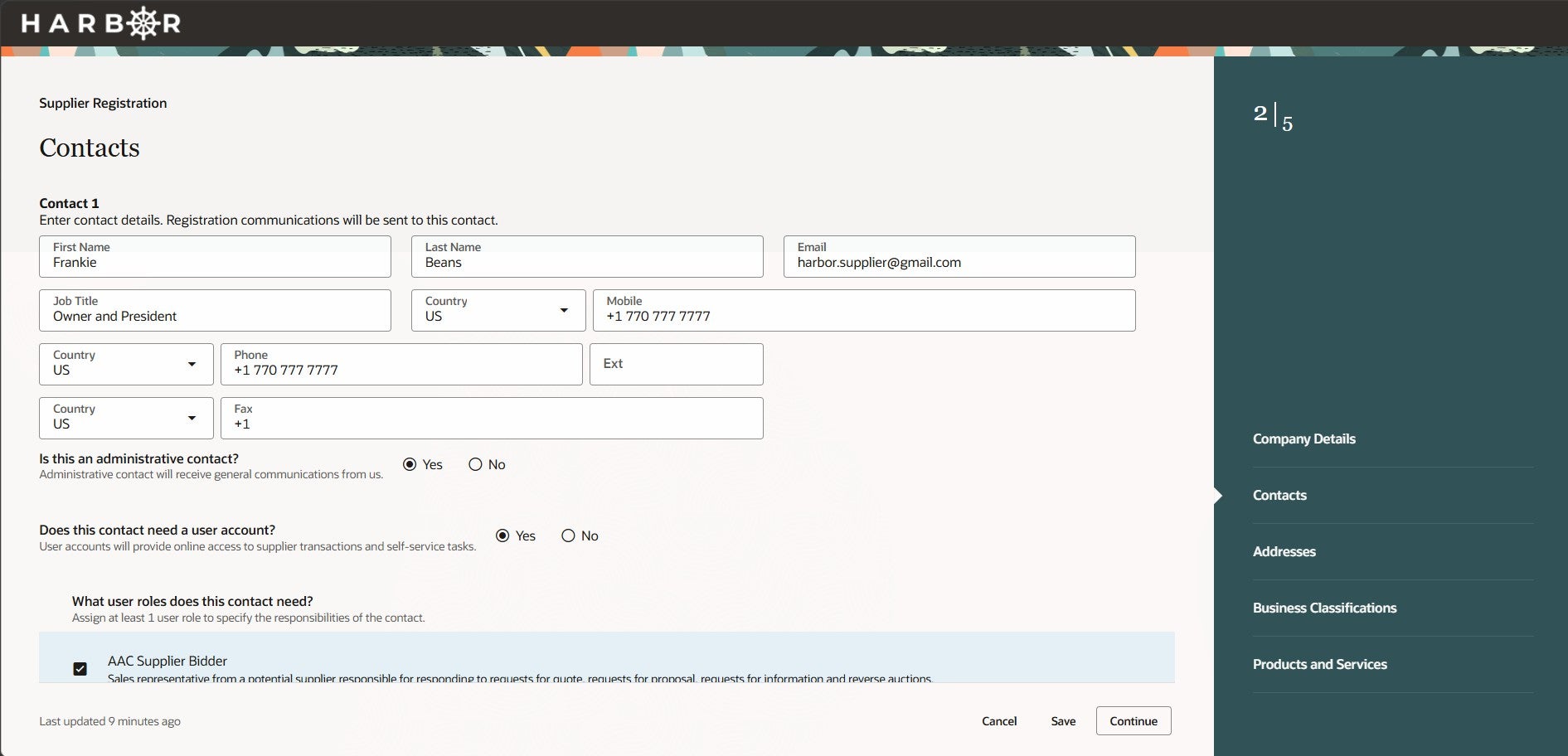
13Scroll down and answer the following question about the contact name you entered. "Is this an administrative contact?". If you select "Yes" this contact will receive general communications from the County. If you select "No", this contact will not recieve communications from the County.
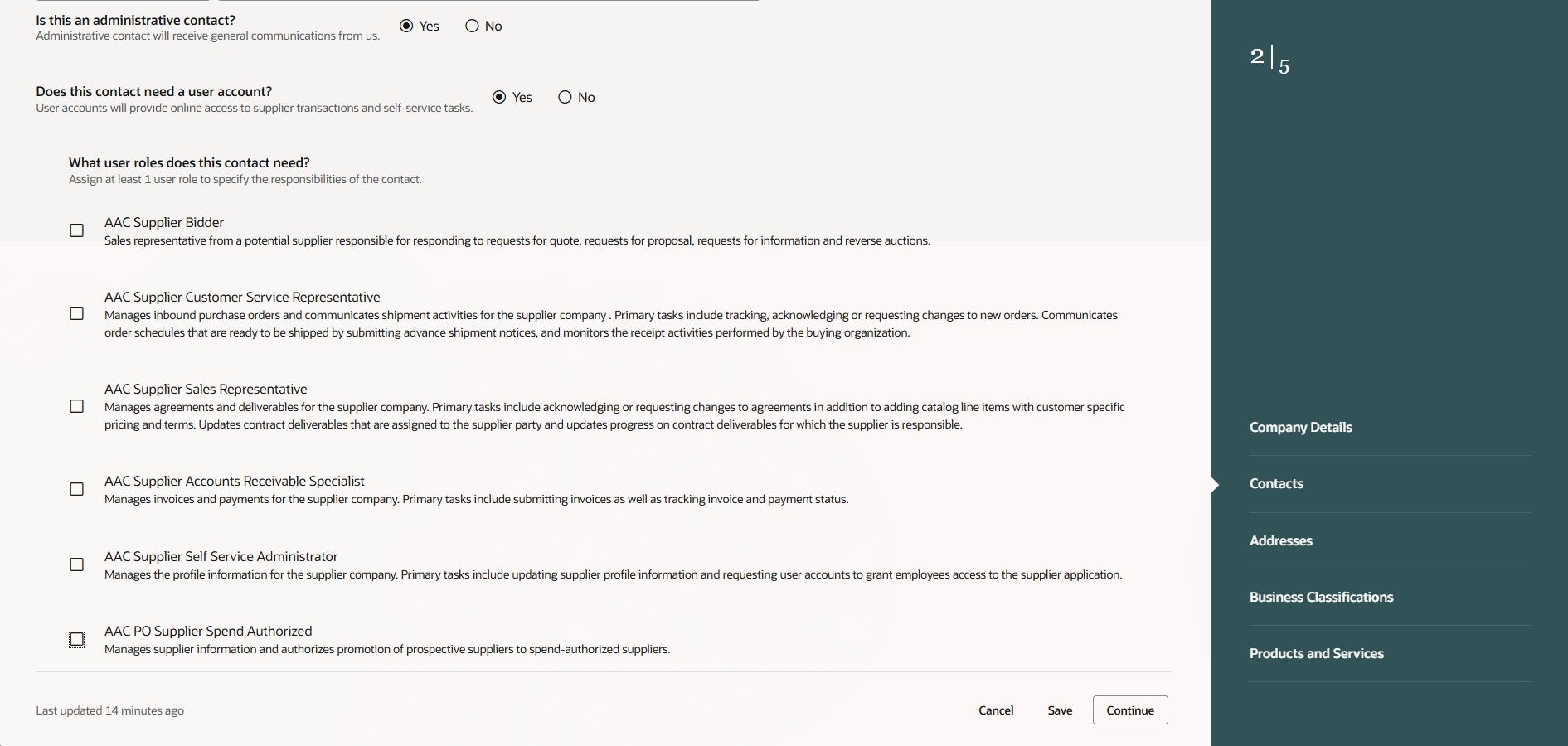
14Answer the question "Does this contact need a user account?". If you select "Yes", this contact will be given a user accounts that will provide online access to supplier transactions and self-service tasks. If you select "No", this contact will not have access to the online supplier portal.
15If you selected "Yes" to indicate this contact needs a user account, you will see options for which user roles this contact needs. (If you selected "No" for a user account, these roles will not be visible). Definitions for each role are provided. One person can have all of the roles, or any combination of different roles.
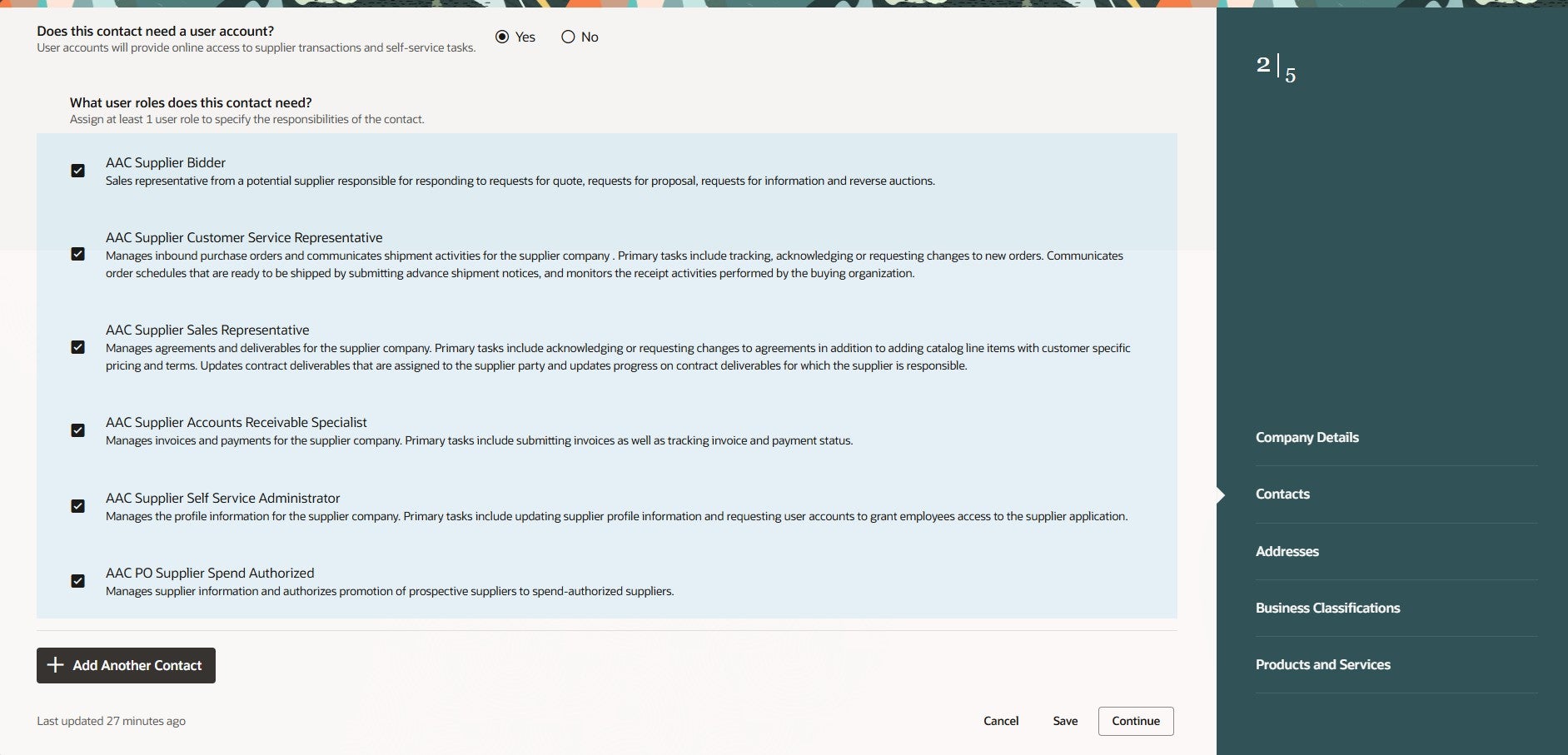
16If you would like to have add more contacts, click on the "Add Another Contact" button at the bottom of the Contacts page.
17Click the "Save" button and "Continue" button, to continue completing the registration process.
18Provide the address information for your business.
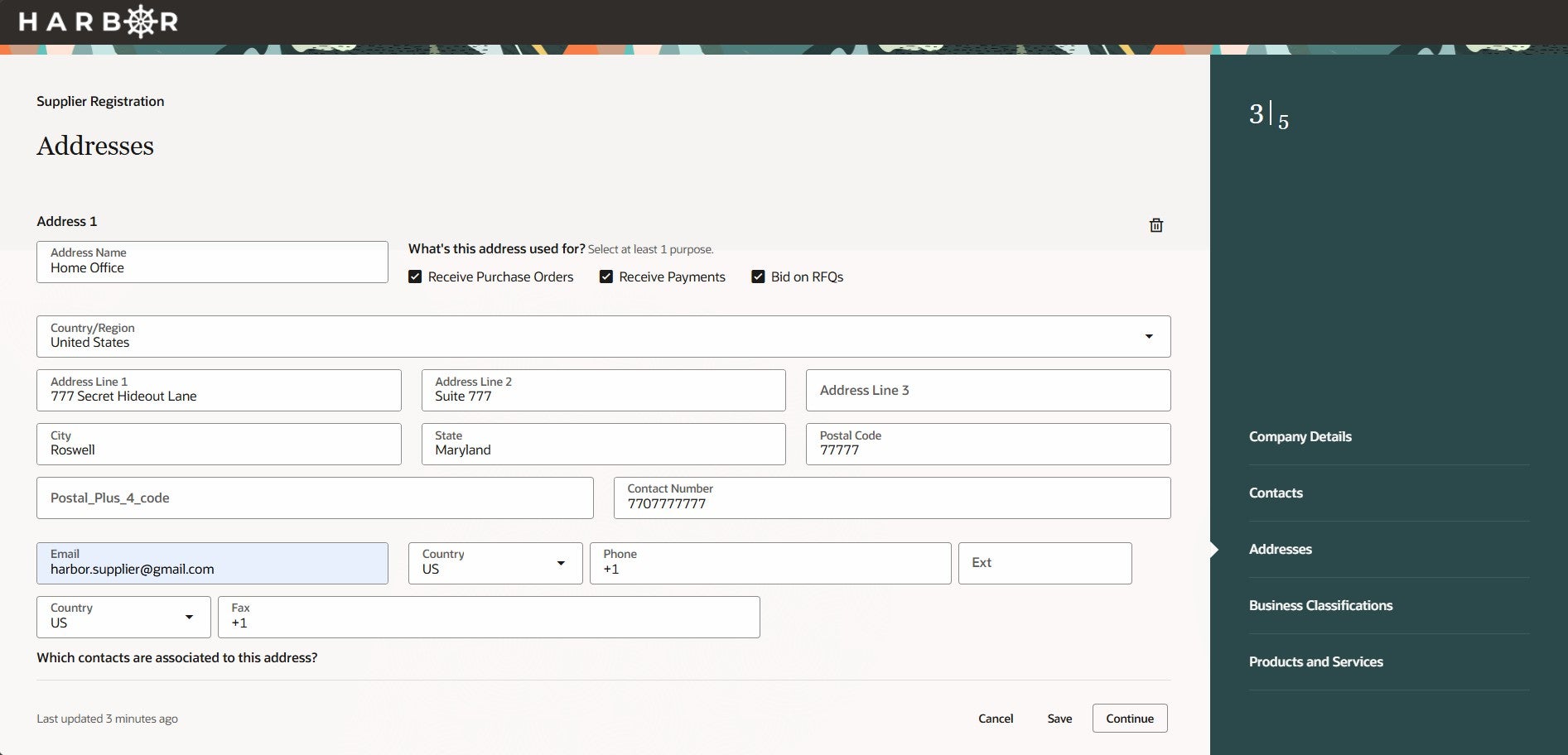
19Next to the field address name, select relevant options to the question "What's this address used for?" Select at least 1 purpose, which can include "Receive Purchase Orders", "Receive Payments" and/or "Bid on RFQs". A location can be used for one purpose or any combination of purposes.
20For this address, select which contacts are associated with the address.
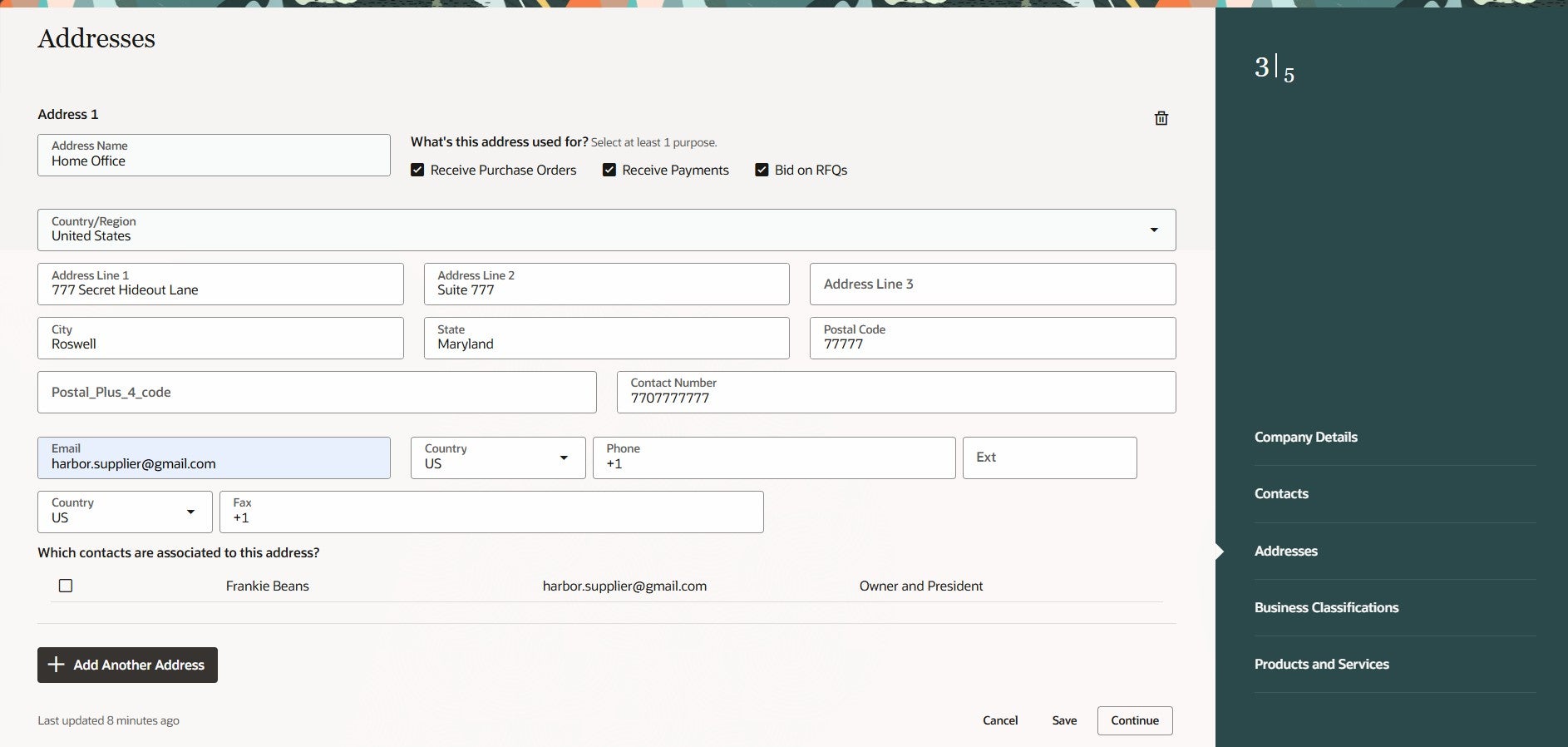
21If you would like to add multiple address for your business, click the "Add Another Address" button at the bottom of the page.
22Click the "Save" button and "Continue" button, to continue completing the registration process.
23Use the downdown menu to enter at least one business classification or select none applicable.
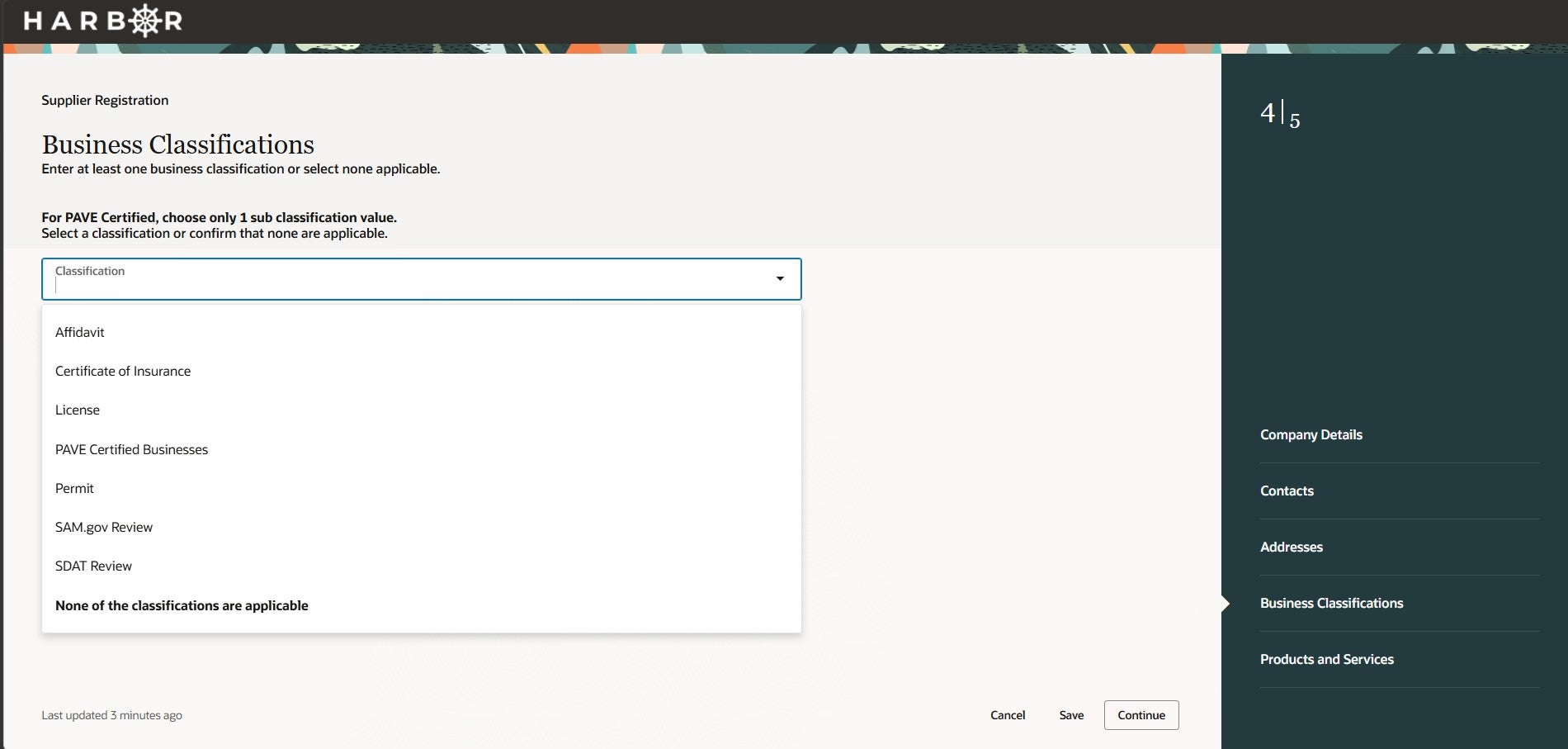
Most suppliers will need to provide most if not all of these items to become Spend Authorized in the system to meet contractual and tax requirements. Below is a brief explanation of each option:
- Affidavit – Select this if your company has submitted a required sworn statement or declaration as part of the registration or contracting process.
- Certificate of Insurance – Select this if your company carries required insurance (such as general liability or workers’ compensation) and has provided proof of coverage.
- License – Select this if your business operates under a professional, occupational, or trade license required by law.
- PAVE Certified Businesses – Select this only if your company is officially PAVE certified. If you are PAVE certified, choose one applicable PAVE sub‑classification, as required.
- Permit – Select this if your business requires and holds permits relevant to the goods or services you provide.
- SAM.gov Review – Select this if your company is registered in SAM.gov, typically required for federal or federally funded work.
- SDAT Review – Select this if your business is registered and in good standing with the Maryland State Department of Assessments and Taxation (SDAT).
24Click the "Save" button and "Continue" button, to continue completing the registration process.
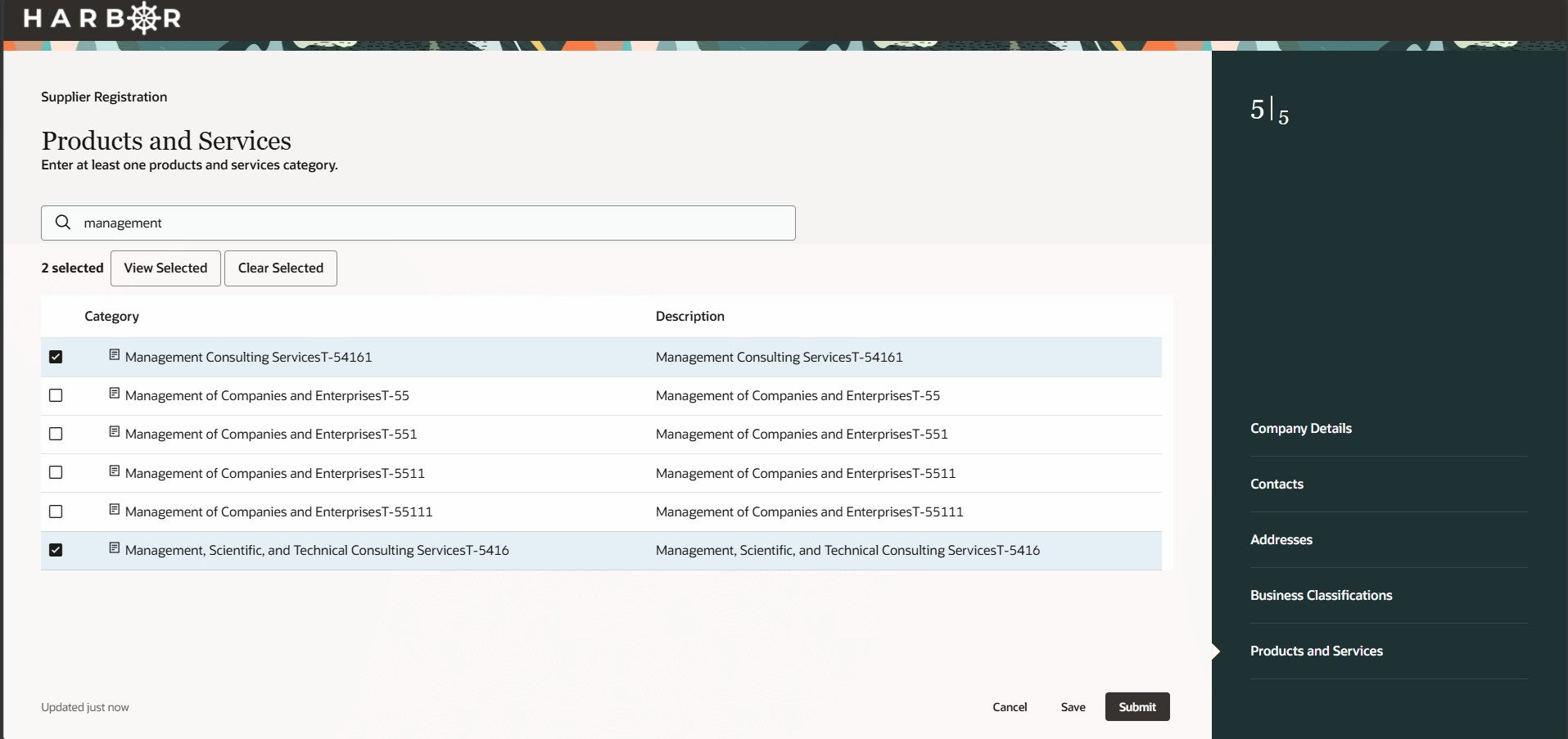
25Use the search feature to select at least one products and services category that descibes what your business provides for the County.
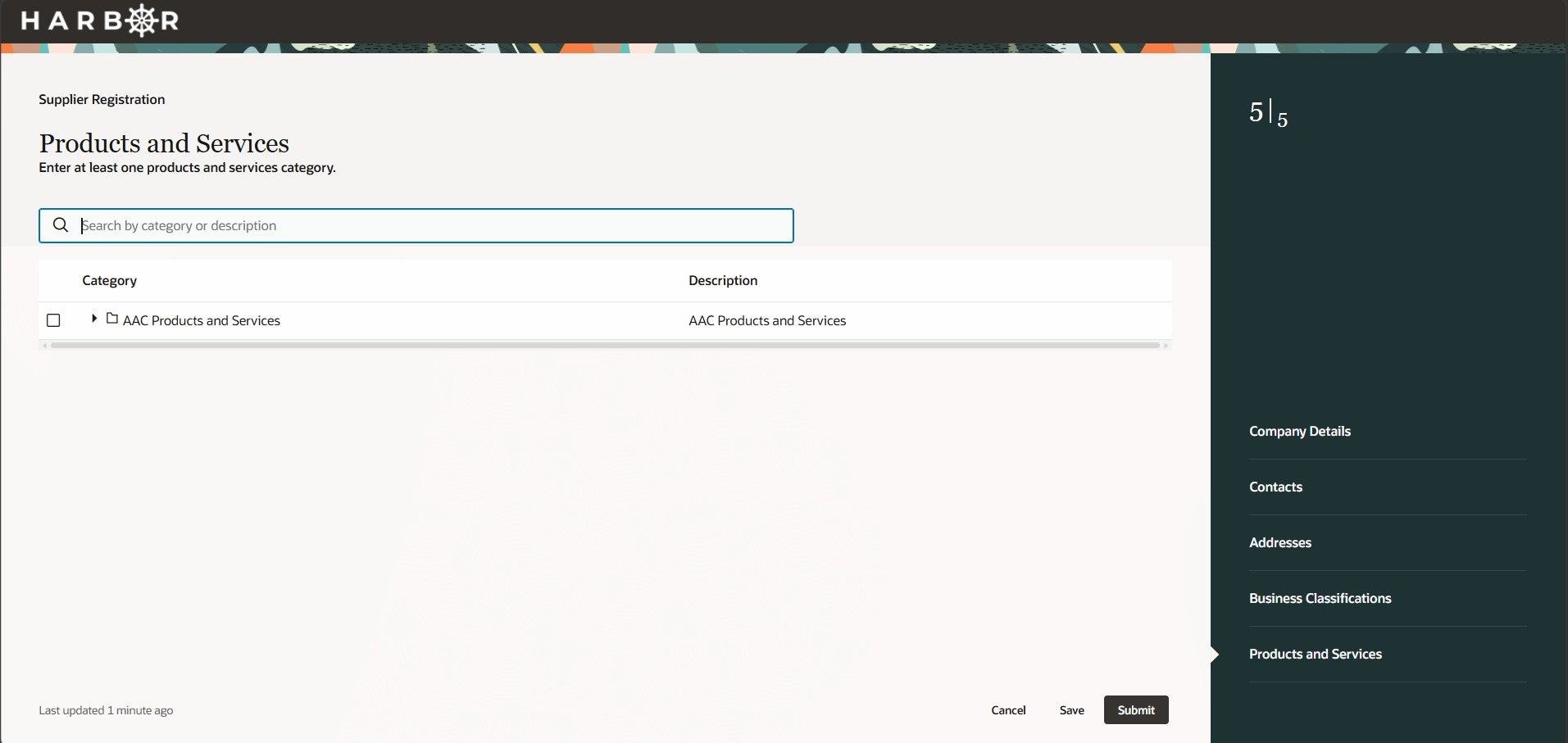
Select the product or service categories that best and most accurately reflect what your company currently offers. There is no required maximum, but it’s best practice to be selective rather than exhaustive.
As a general guideline:
- Choose categories that represent your primary goods or services
- Focus on what you are actively prepared to provide and support
- Avoid selecting categories that are only tangential or aspirational
Selecting relevant categories helps ensure you:
- Receive appropriate bid notifications and RFQs
- Are matched to opportunities that align with your actual capabilities
- Avoid confusion or follow-up questions during procurement reviews
- You can update or refine your selections later if your offerings change, so start with what most clearly fits your business today.
NAICS codes can be referenced HERE.
26After selecting at least one product or service, click the "Save" button, and "Submit" button to complete the registration process.
27You submital will generate a registration request number. Save this for your records. Any contacts listed as "administrative contacts" will recieve an email from the County with next steps.
THANK YOU for taking the time to register in Harbor, the County's new system that will modernize how we work together.