
Recreation Programs
How to Create an Account:
- Go to Recreation and Parks Registration Portal
- Select “Join” under the “Sign In” button
- Enter a valid email address as the primary account holder
- Do NOT use your child’s name as the primary account holder
- You will add your child(ren) or other family members after your information is completed.
- Follow the prompts to fill out your information.
- If prompted, your address is invalid. Use the recommended address format.
- Your sign-in will be the valid email address and password that you choose.
- Once you’ve completed all the required information for your account, submit the form and check your email for an account activation email.
- Click the activation link in your email to activate your account
- You cannot access your account without this step!
How to add Family Members to Account:
- Go to Recreation and Parks Registration Portal
- Log in to your account.
- On the right side of the page, under “Balance”, locate “Lastname’s family.”
- Under “Lastname’s family”, select “Manage Family Member.”
- In the gray banner, select “+ Add family member.”
- Provide the required information for your family member and submit the form
- If a family member is a child and does not have an email, please use your email address rather than a made-up email
- Important messages regarding registered programs will be sent to the email submitted
HOT TIP: Create a “Wish List” ❤︎ in your account to be ready for Registration Day
- Go to Recreation and Parks Registration Portal
- Log in to your account.
- Select “Activities” in the top blue bar of your account page (desktop) or the “Activities” box under “Join the Fun!” on our website (mobile).
- Browse the available programs or use the search bar to look up specific programs or topics.
- To review more details about each program, select the blue program title
- If you wish to enroll, select the blue “Enroll Now” link
- Use the drop-down menu to select the participant, then select “Add to cart.”
- You may go back to the list of Activities to enroll in multiple programs.
- When finished, select the shopping cart.
- Read the Waiver and select the check box.
- Select “Check out” to complete your enrollment.
- Follow the prompts to pay with a credit card.
- You will receive a confirmation email shortly after payment has been processed.
- Stay tuned for emails regarding camp forms that must be completed before camp starts!
How to make a Wish List:
- When browsing programs, you will see to the right of the program name, under the price and “Enroll Now” link, there is a heart icon ❤︎.
- When the heart is selected, a pop-up window with a drop-down menu will appear, asking you to select which participant you would like to enroll in that program (this step is optional but convenient for organizing).
- The heart will turn red ❤ when the program is added to your Wish List.
- Access your Wish List at the top of the page, between “My Account” and “Sign Out” or at the bottom of your profile page.
- When registration is open, and you are ready to enroll, go to your Wish List and select “Enroll Now.”
- Follow the registration instructions above.
Questions? Contact the Registration Office: recregistration@aacounty.org / (410) 222-7313




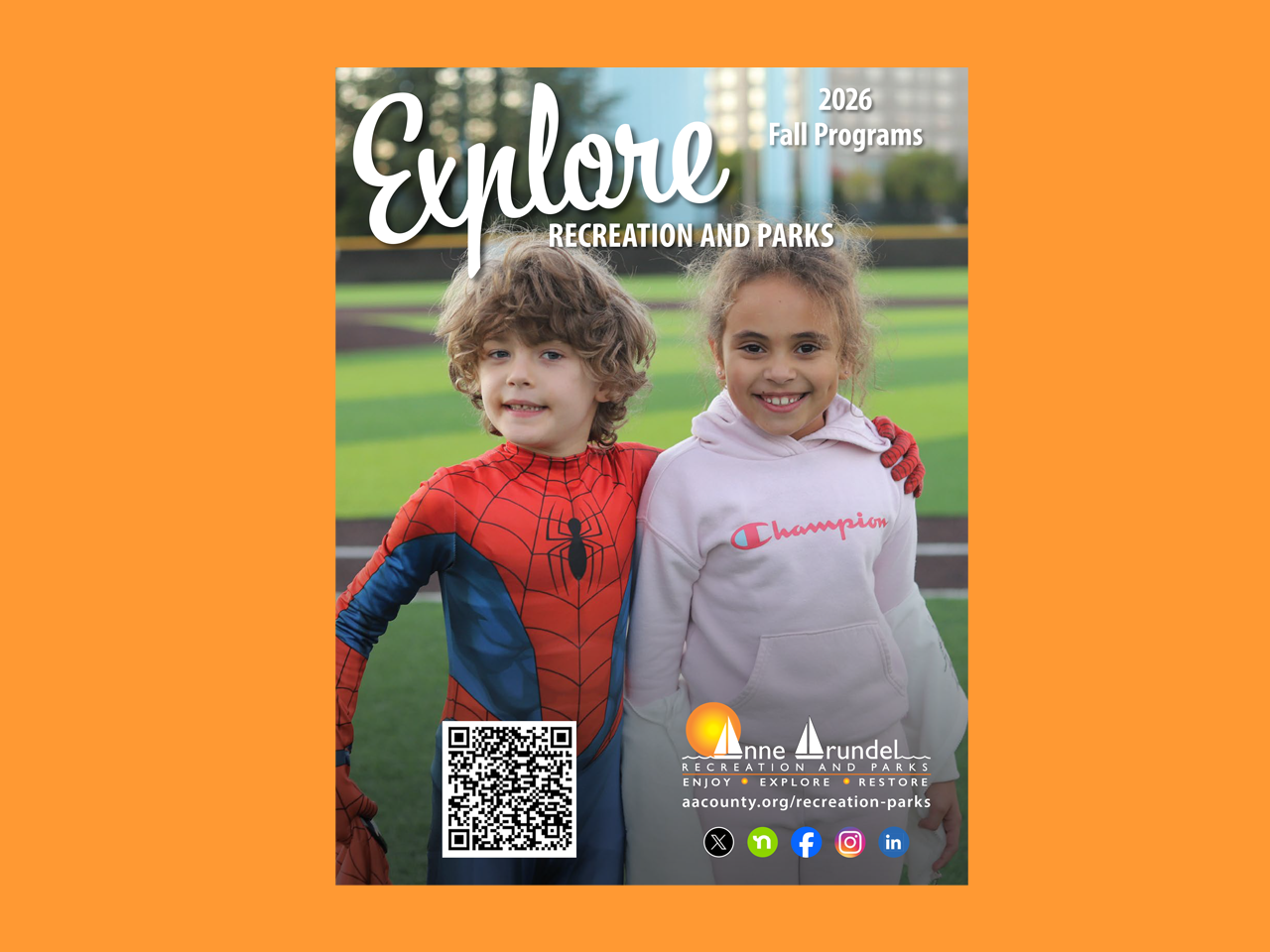
Fall Program Guide
Registration begins Monday, August 10, at 11:00 AM. Whether you’re looking to explore our scenic park trails, set off on scenic kayak paddles along the county’s waterways, or level up your game in our pickleball programs, we have you covered. This guide features the National Take a Hike Day (p.32) and over 8 pages dedicated to sports and athletics for children and adults (p.4-11).