Log in to the Harbor system
Before proceeding with this help guide, you must be logged into the Harbor financial system. For your security, Harbor requires Multi-Factor Authentication (MFA) to complete the login process.
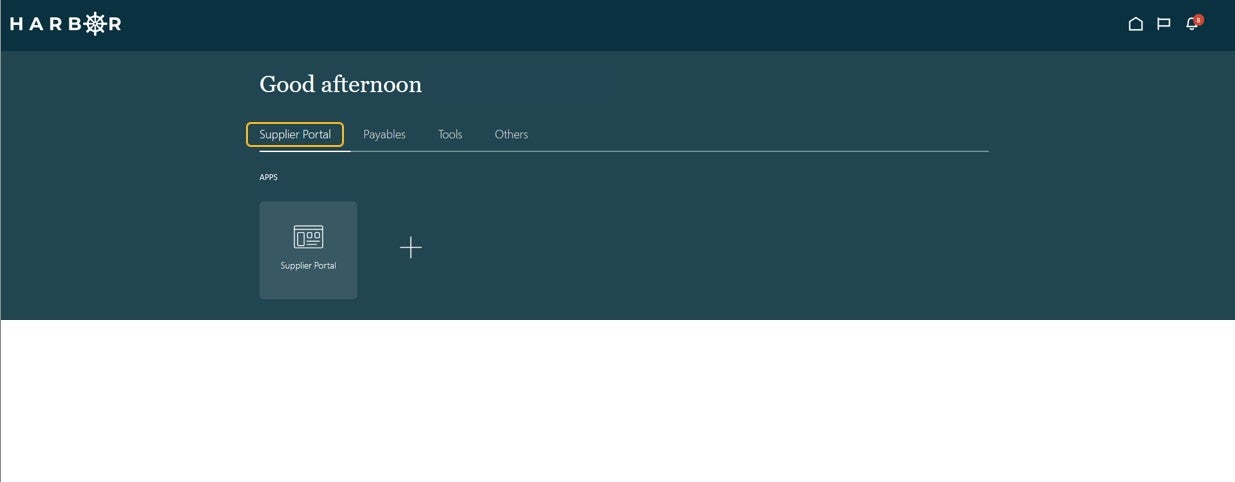
1Click on the Supplier Portal tab.
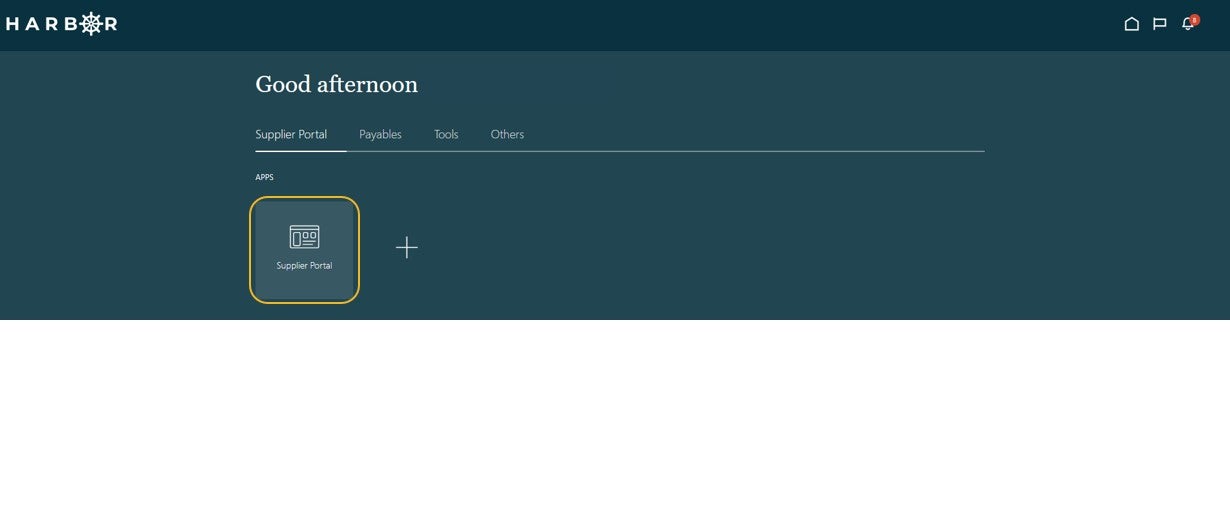
2Click into the Supplier Portal app to access the Work Area.
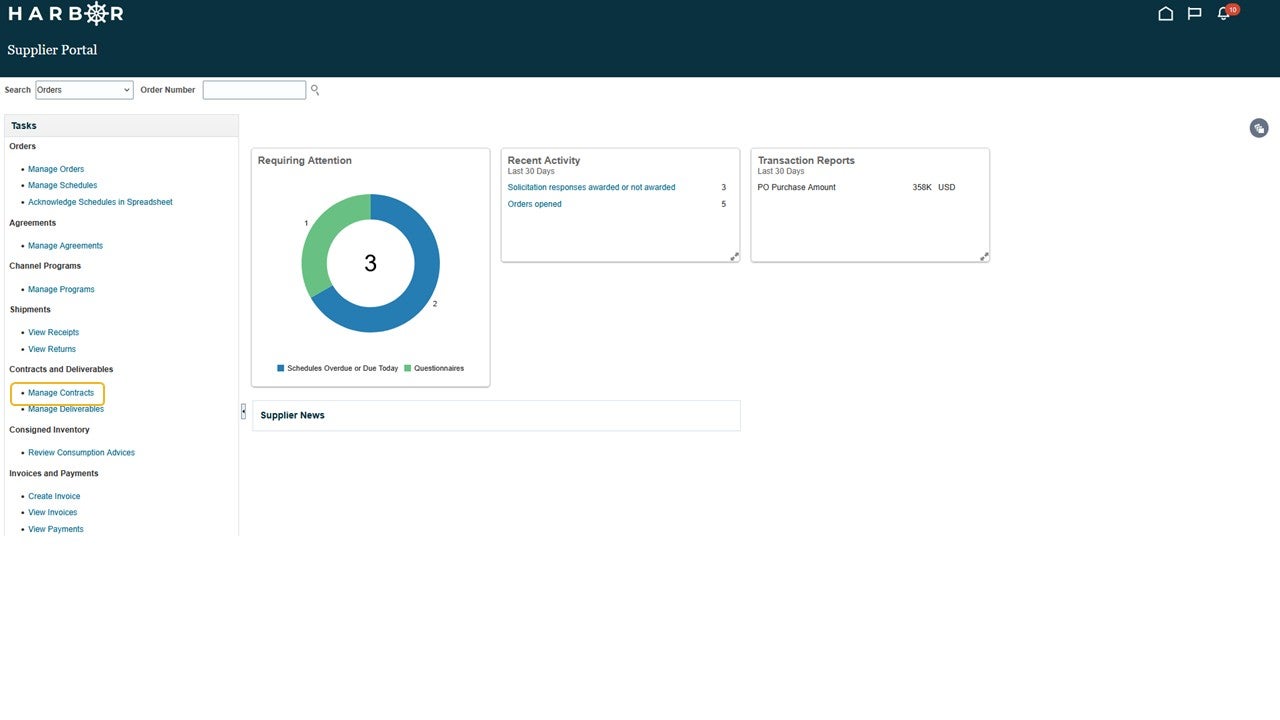
3To view contracts, click Manage Contracts within the task window.
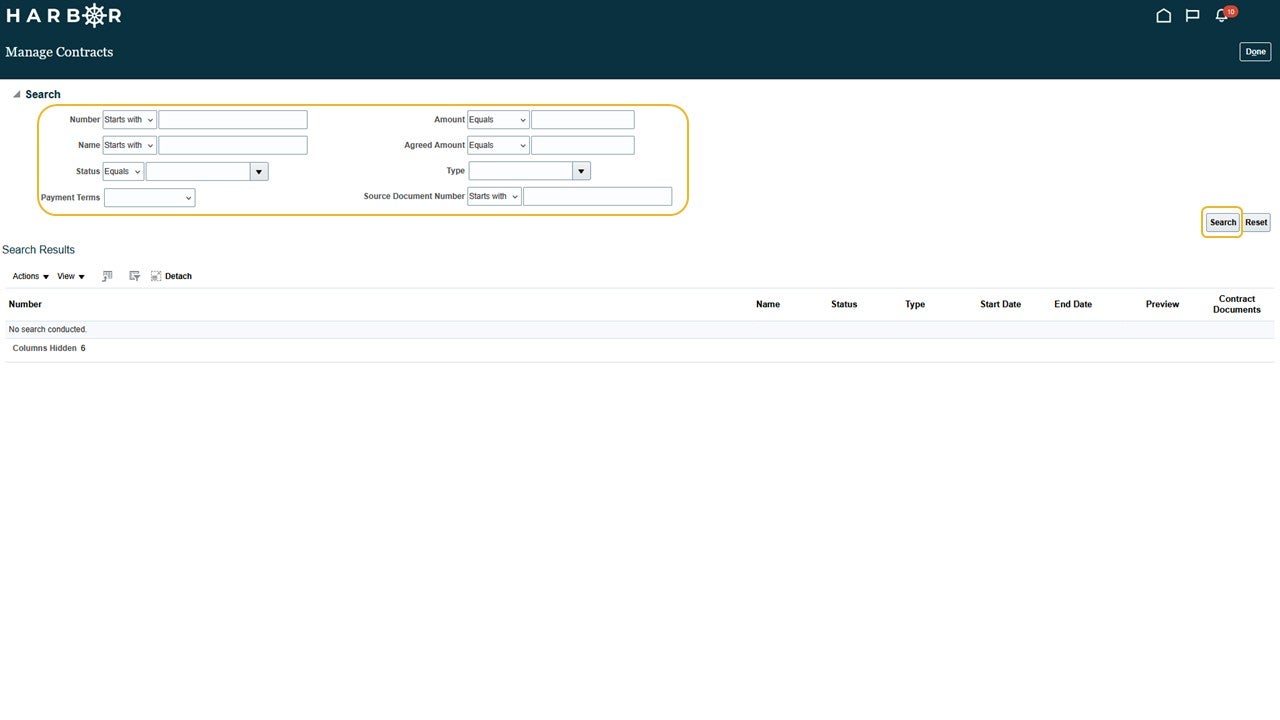
4Enter a search term in one of the search fields and click the search button.
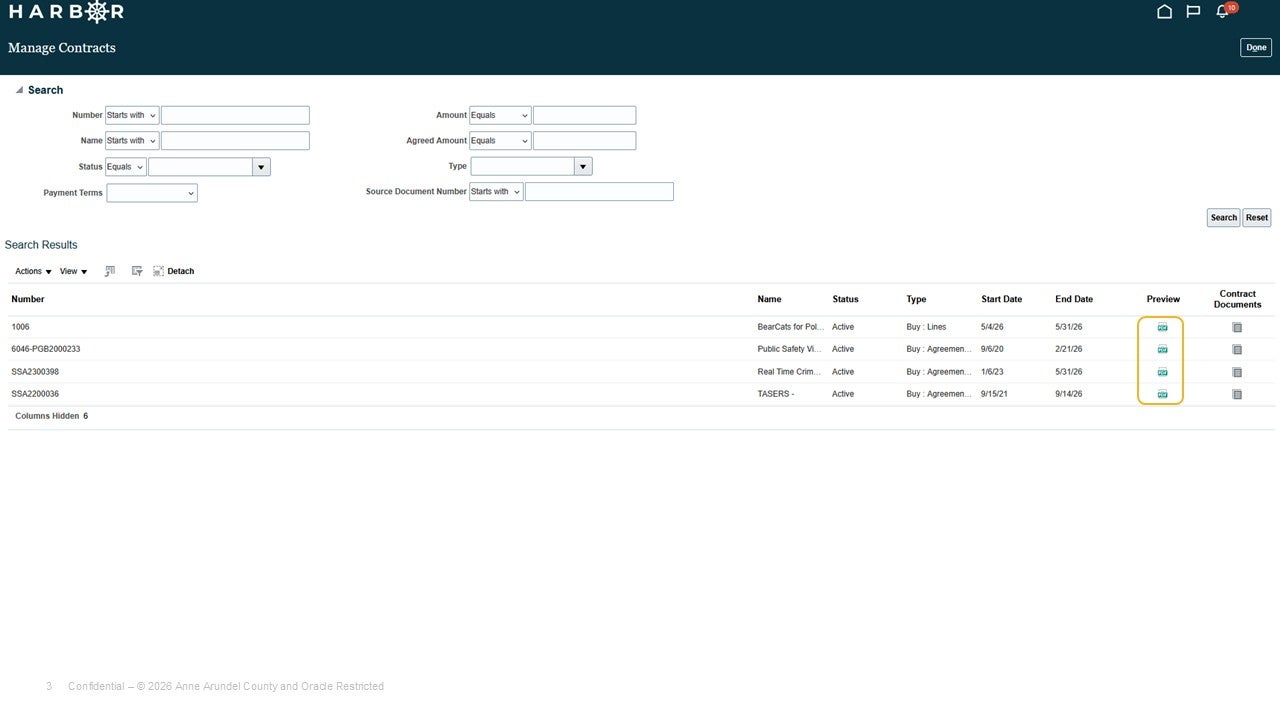
5Click Preview to view a preview of the contract details.
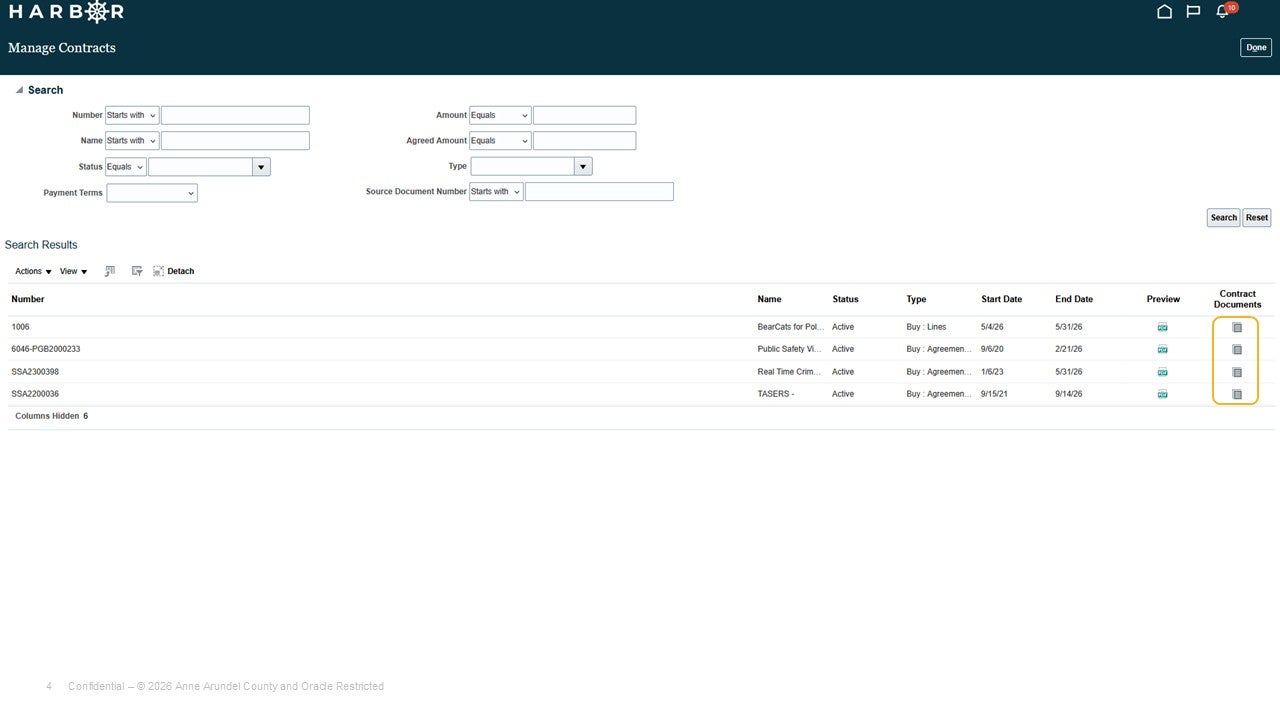
6Click the Contract Documents icon to view the detailed contract information.
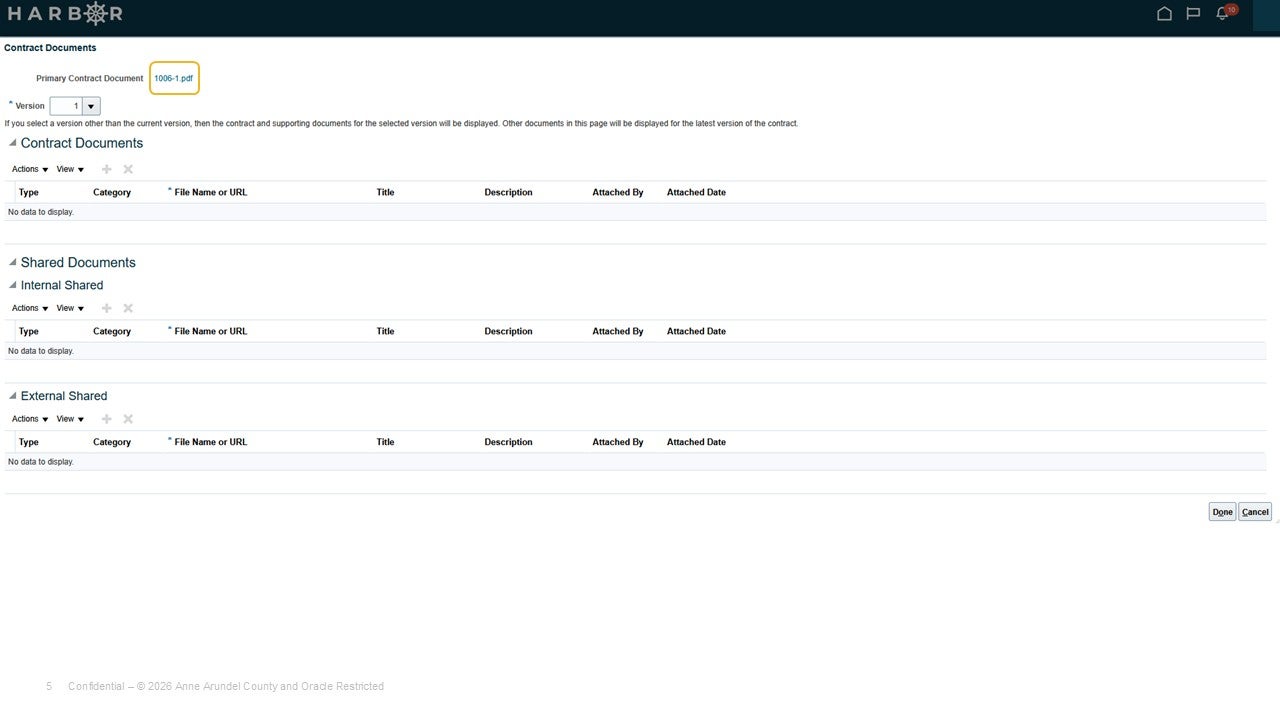
7Click the Primary Contract Document link to open the contract.
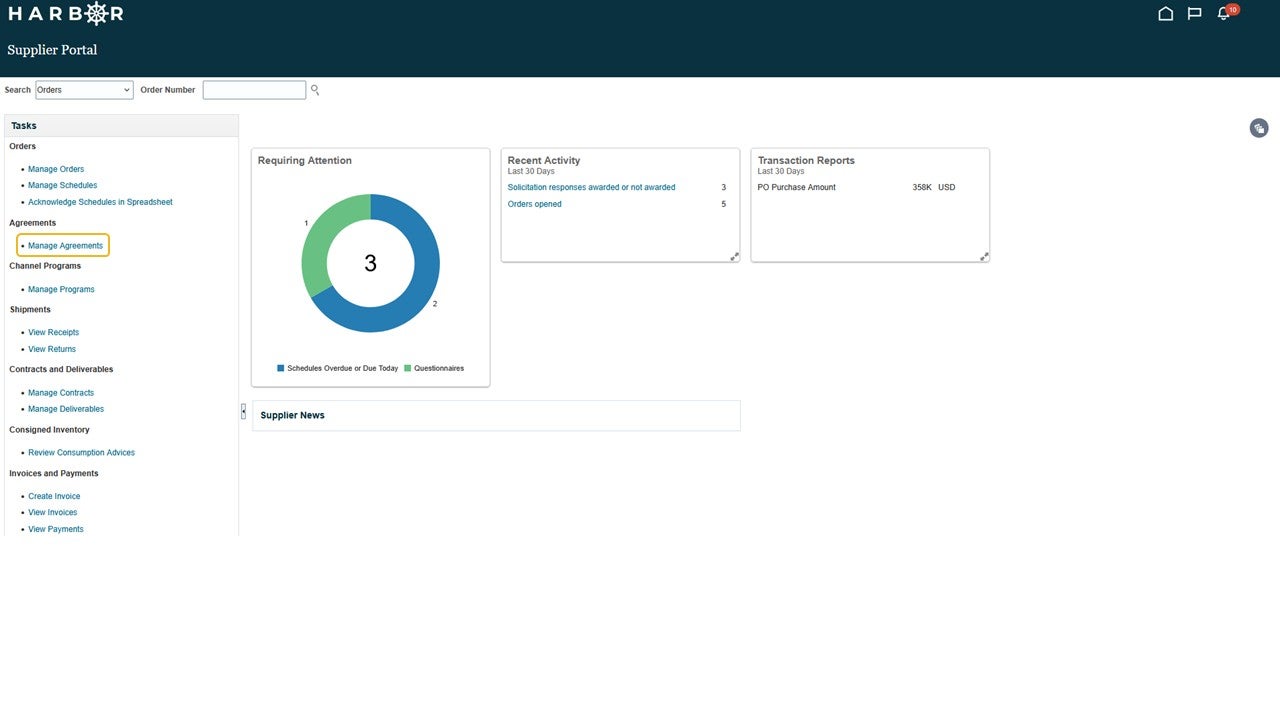
8To view agreements, click Manage Agreements within the task window.
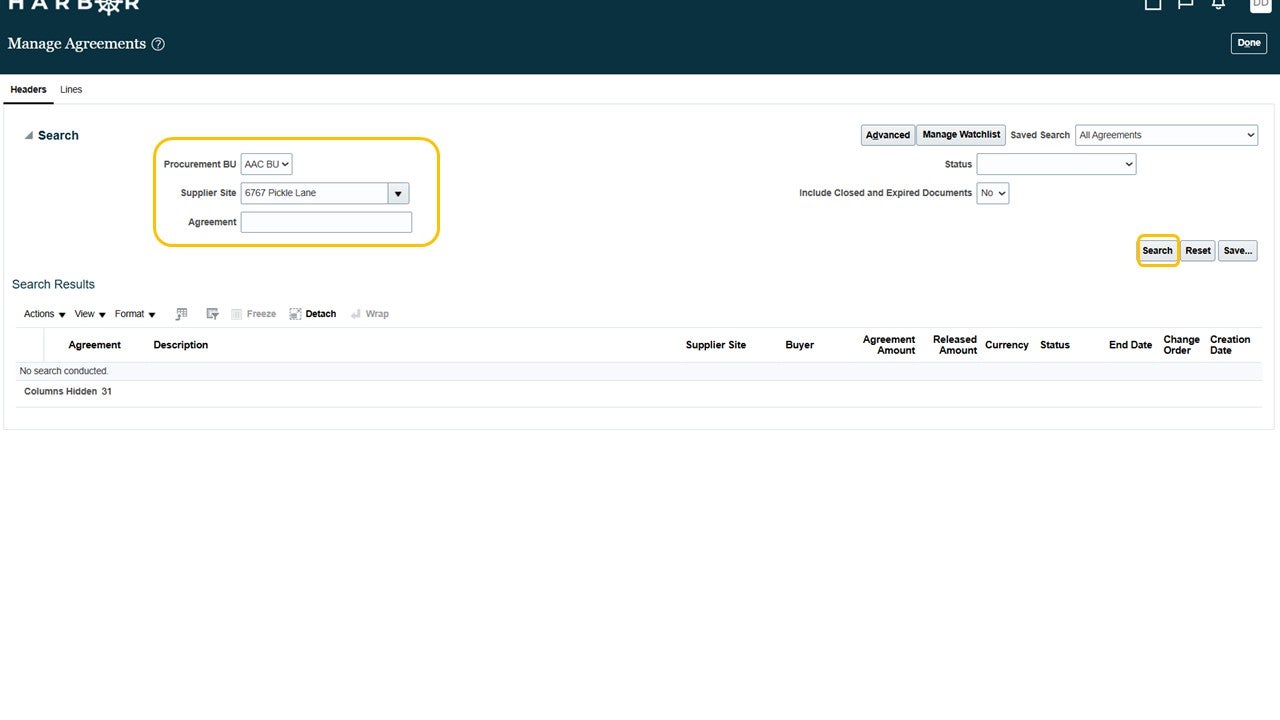
9Select AAC BU in the drop down menu for Procurement BU and enter the supplier site address to find relevant agreements. Click the search button.
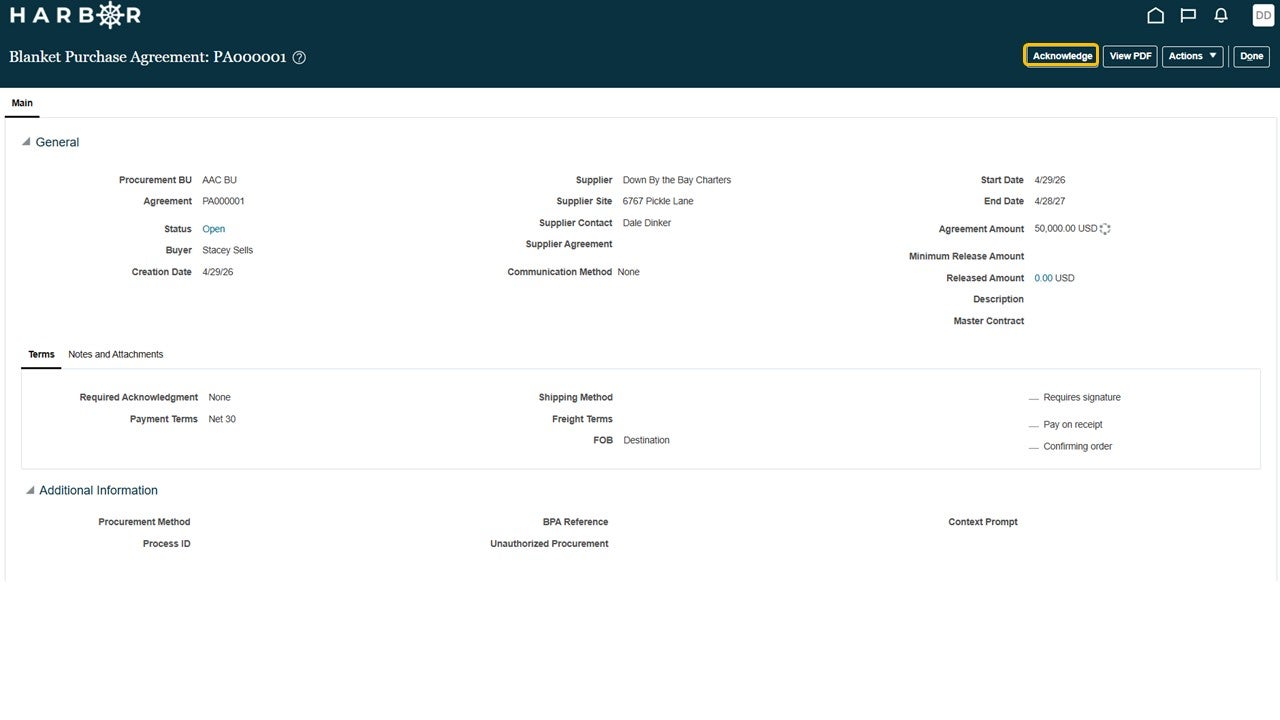
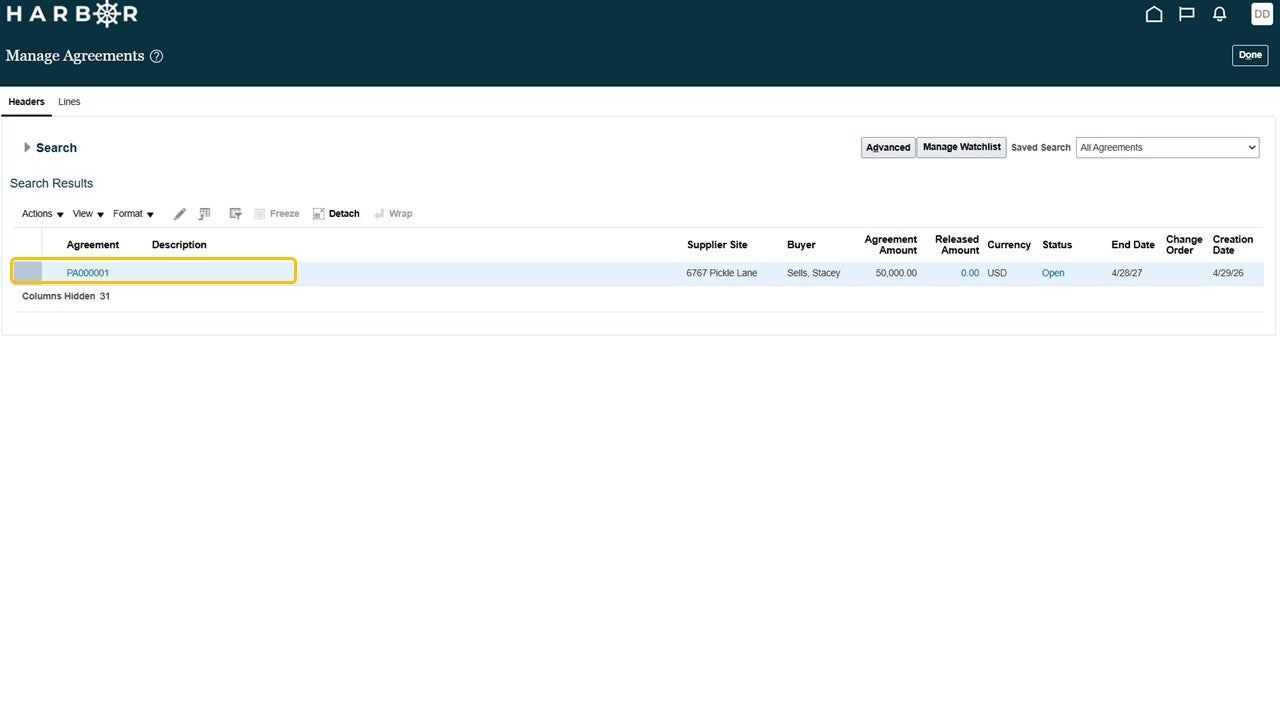
10Click on the agreement you would like to view or acknowledge.
11Click the Acknowledge button.