Log in to the Harbor system
Before proceeding with this help guide, you must be logged into the Harbor financial system. For your security, Harbor requires Multi-Factor Authentication (MFA) to complete the login process.
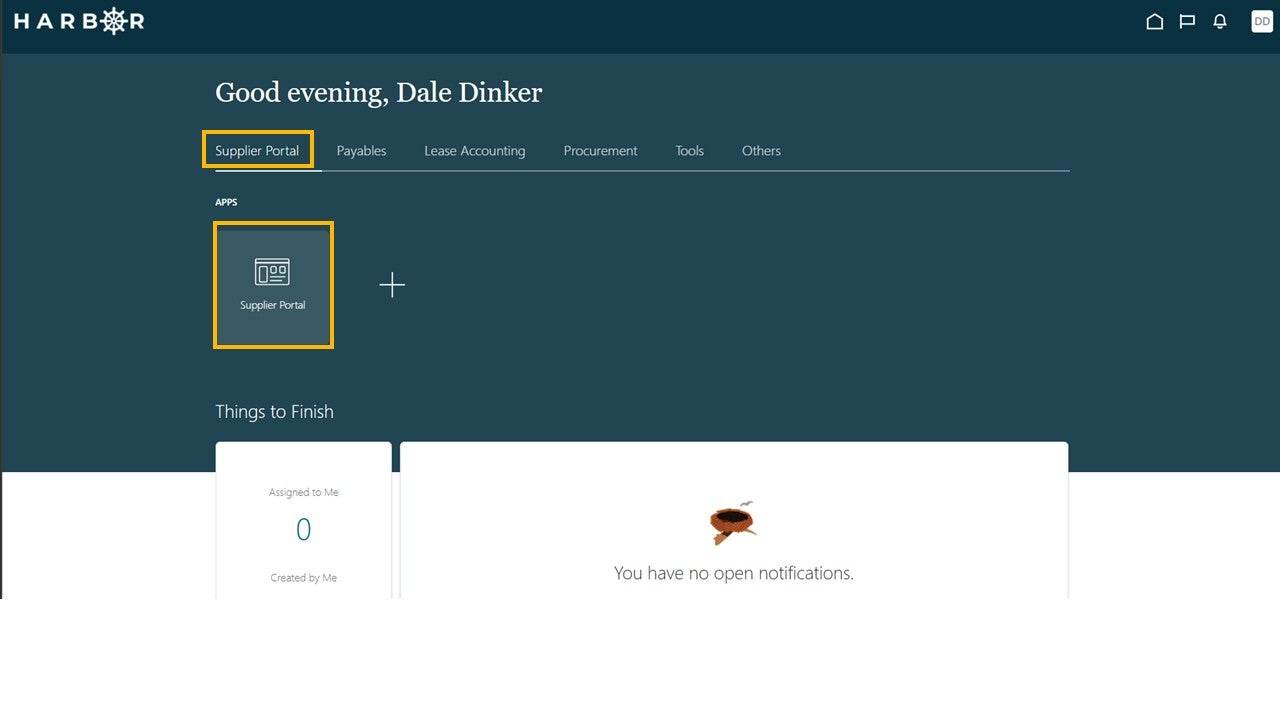
1Click on the Supplier Portal tab and click into the Supplier Portal app to access the Work Area.
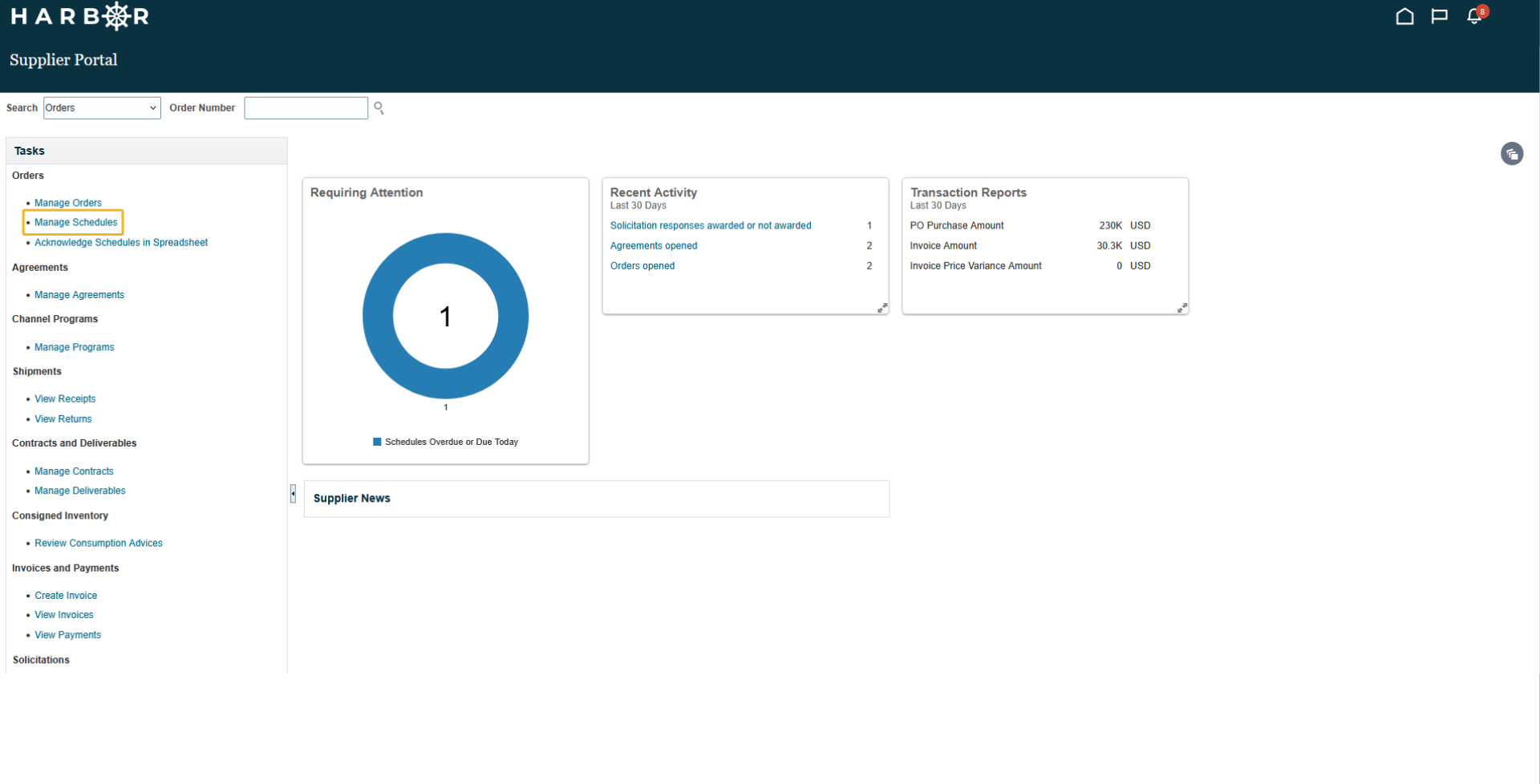
2Click Manage Schedules in the Tasks pane.
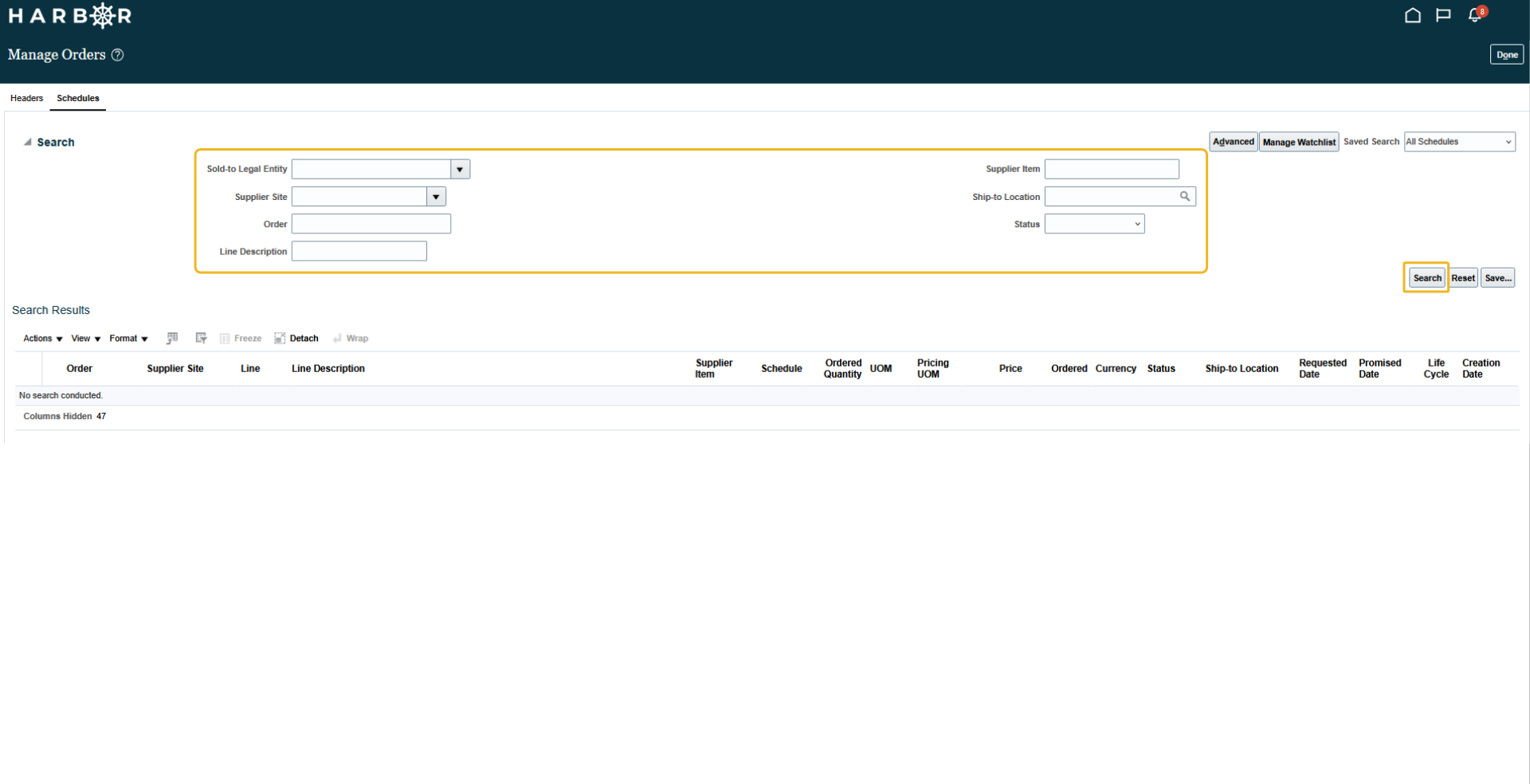
3Enter in the values for the relevant fields and click the Search button.
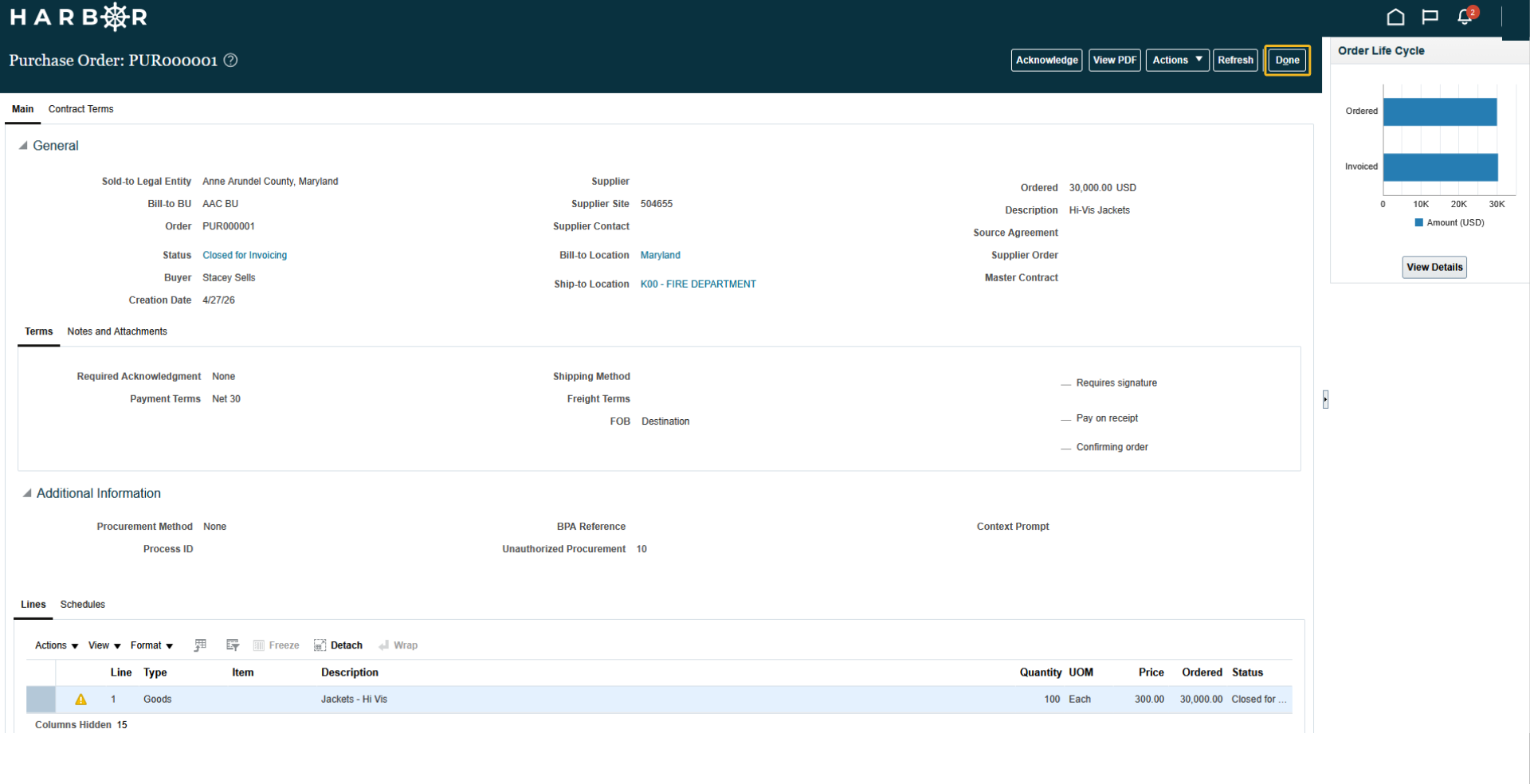
4Orders with a Warning Sign represents an Overdue Schedule.
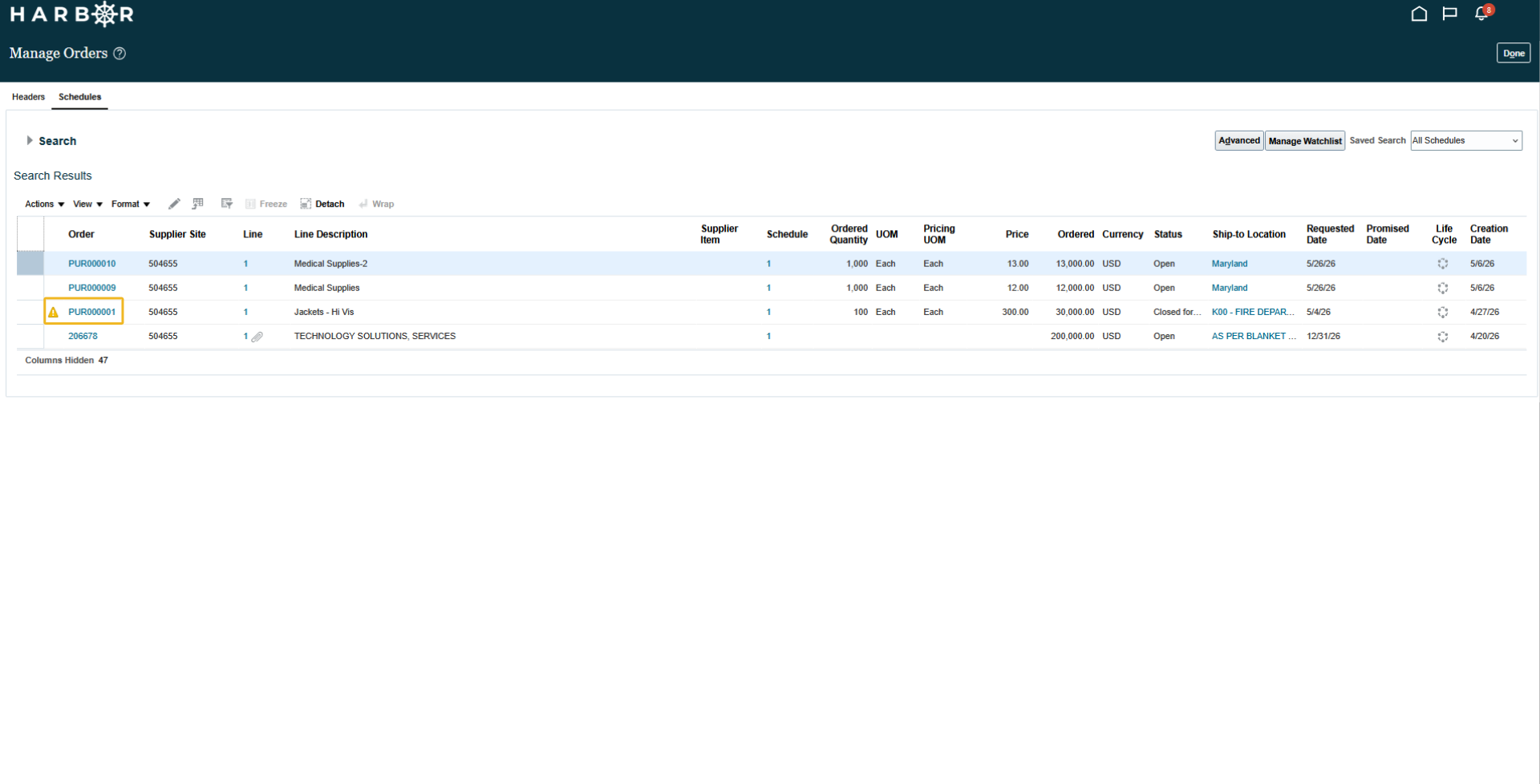
5Click the Order to view the open or closed schedules.
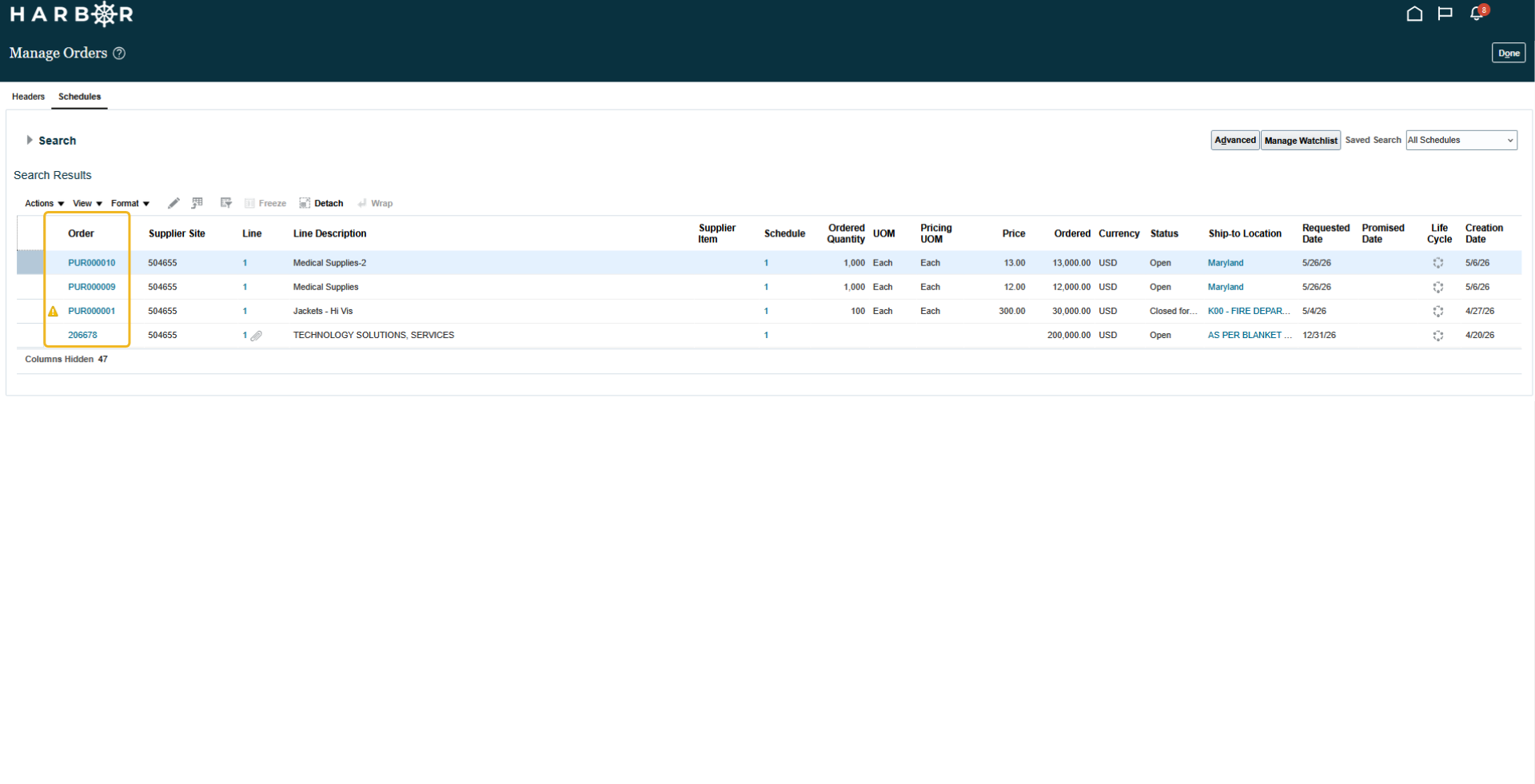
6Review the Schedule details and click Done.