Log in to the Harbor system
Before proceeding with this help guide, you must be logged into the Harbor financial system. For your security, Harbor requires Multi-Factor Authentication (MFA) to complete the login process.
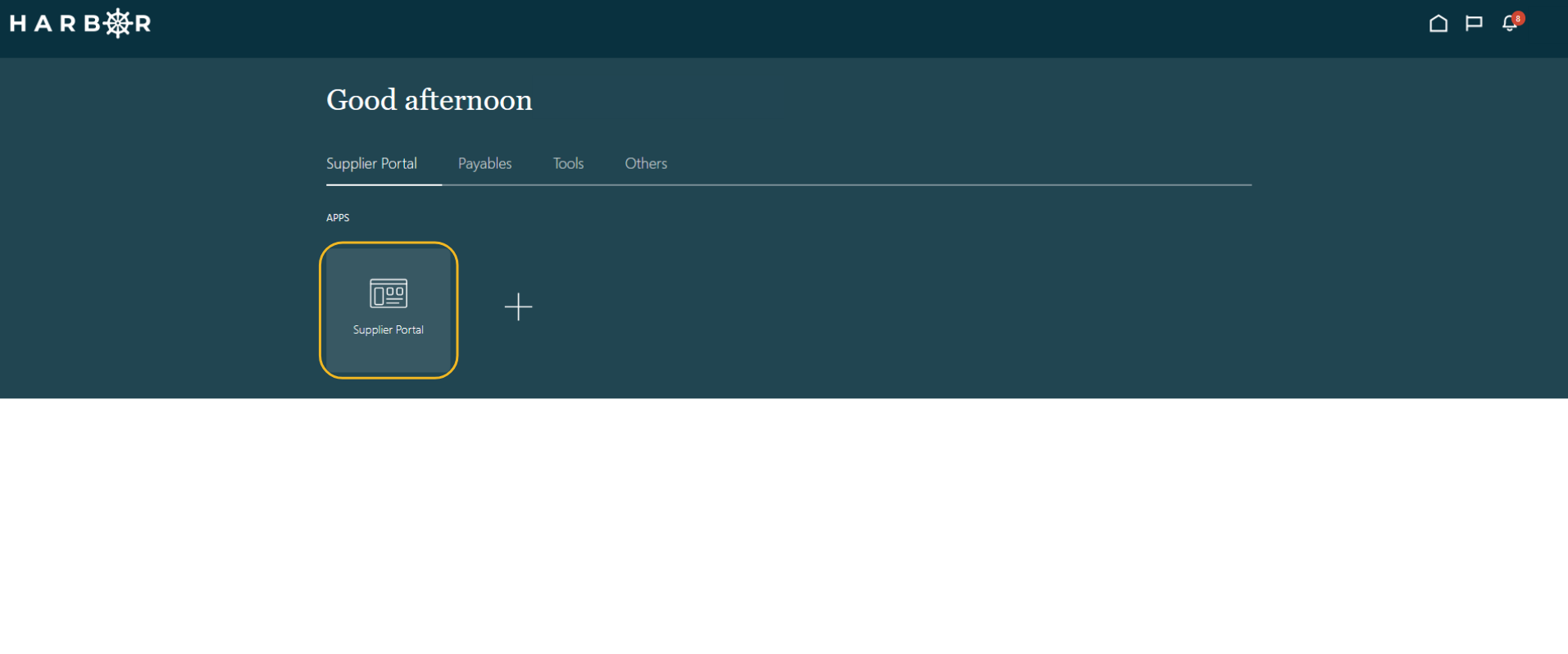
2Click into the Supplier Portal app to access the Work Area
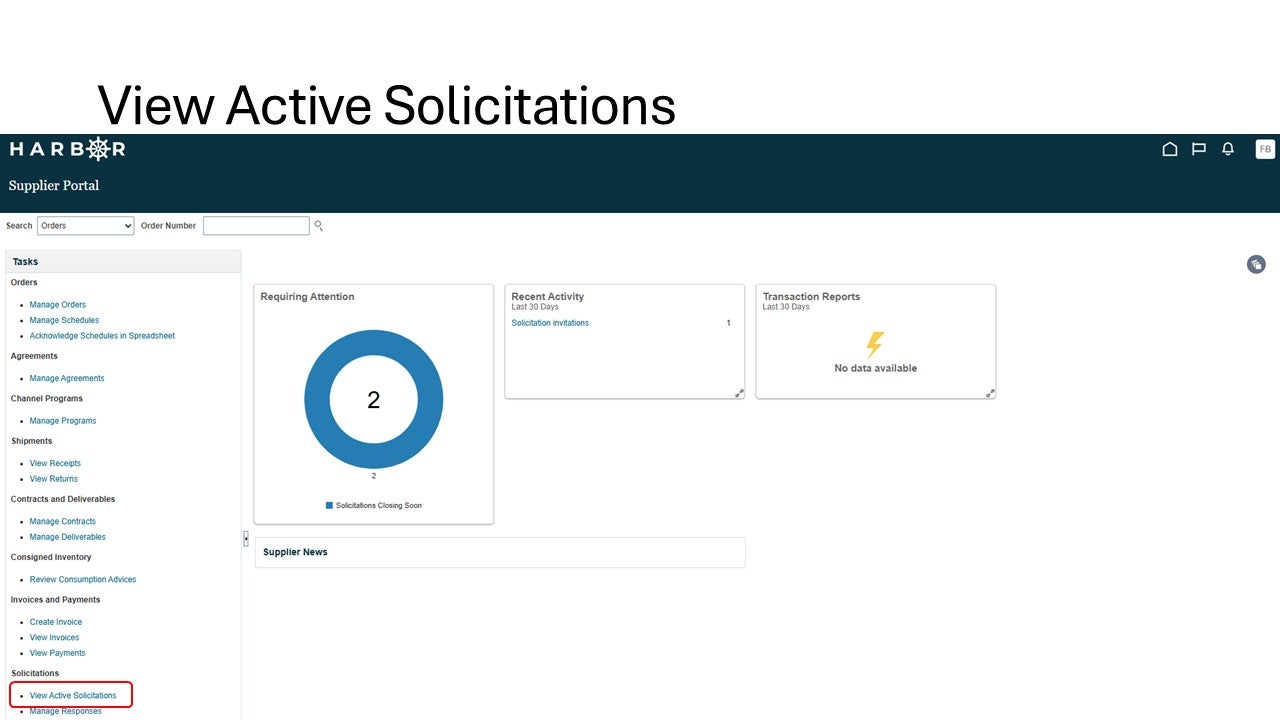
1Click View Active Solicitations
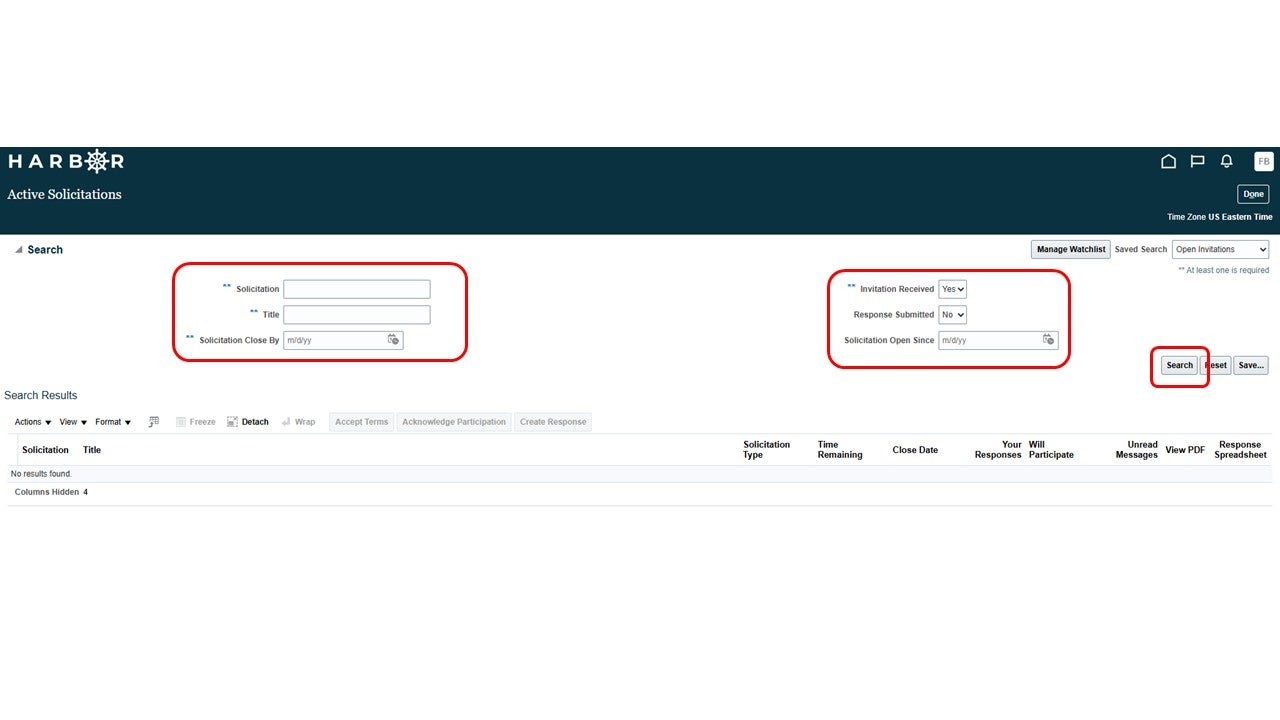
2Enter in one of the search fields and click Search
3Click on Solicitation
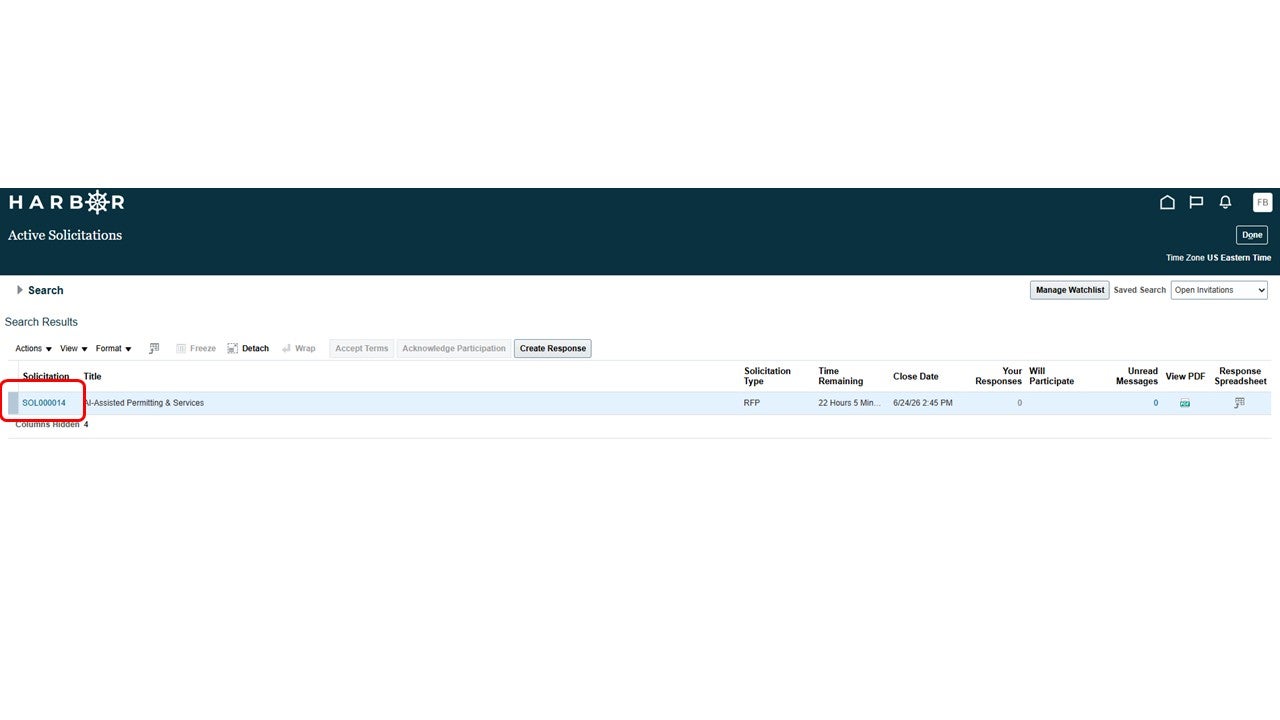
4To create a response to the RFP, click the Create Response button.
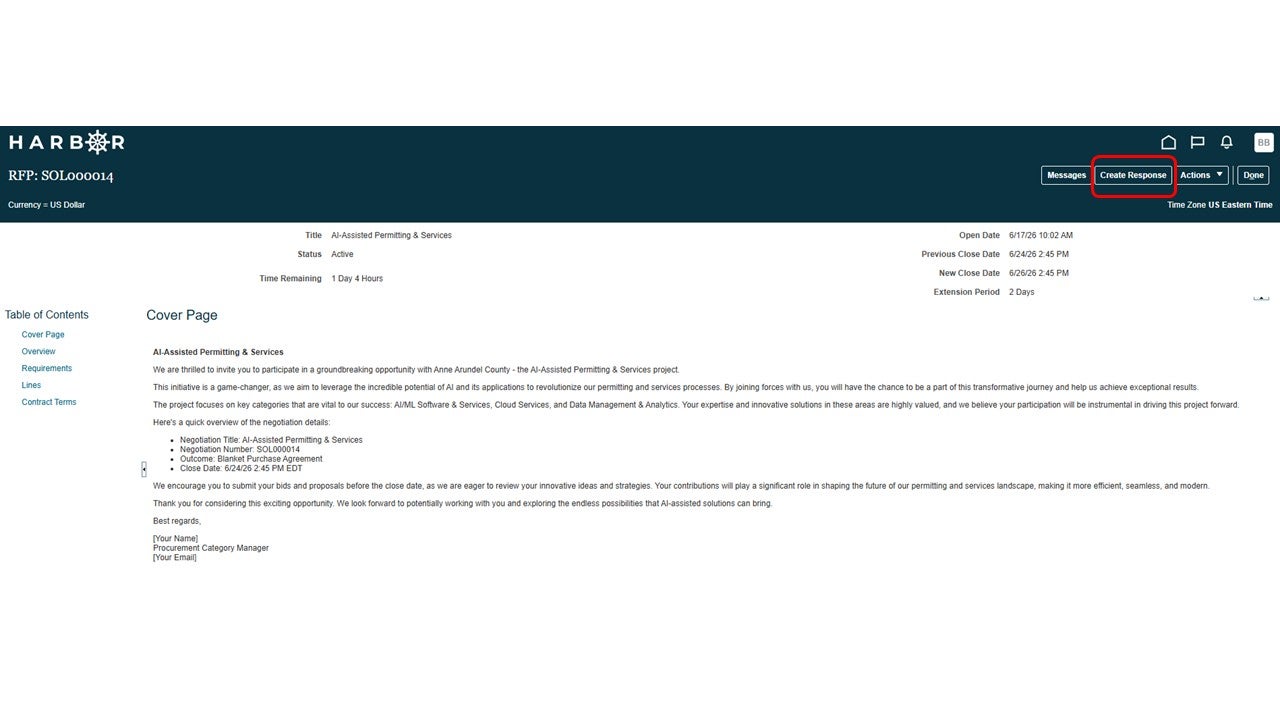
5To add attachements, click the + button
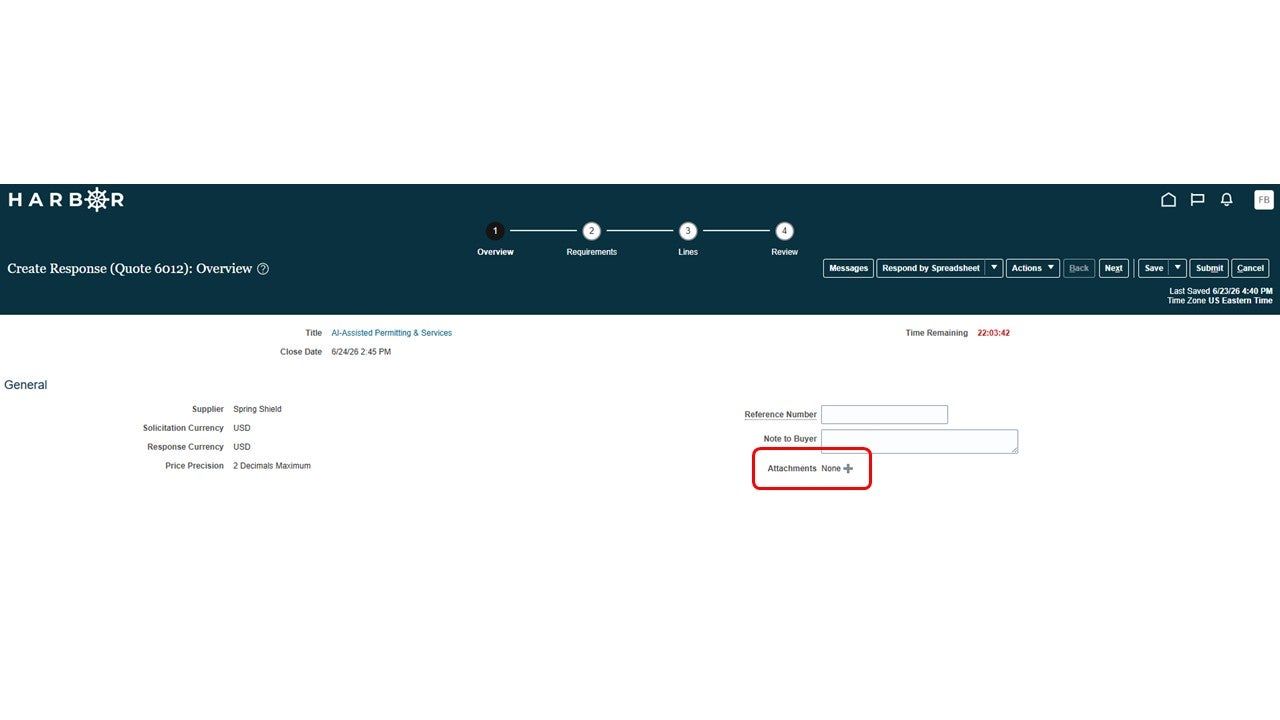
6The attachment diaglog box will open. Click the Choose File button.
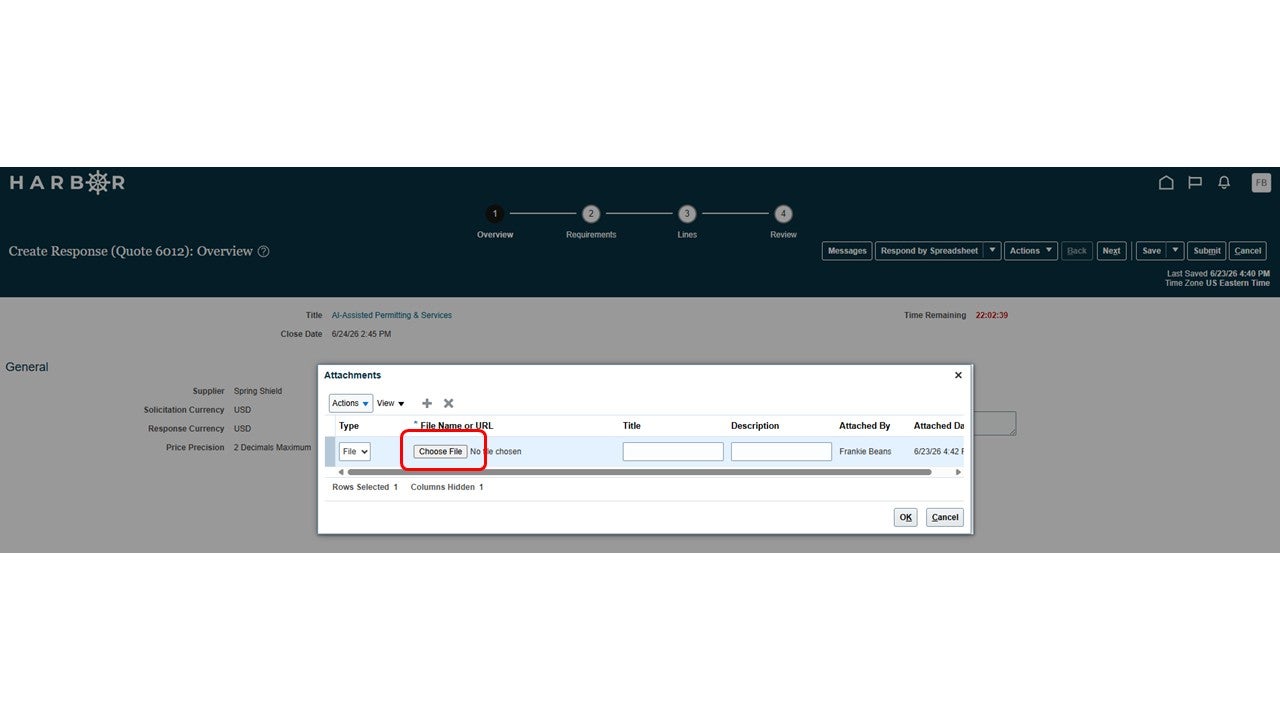
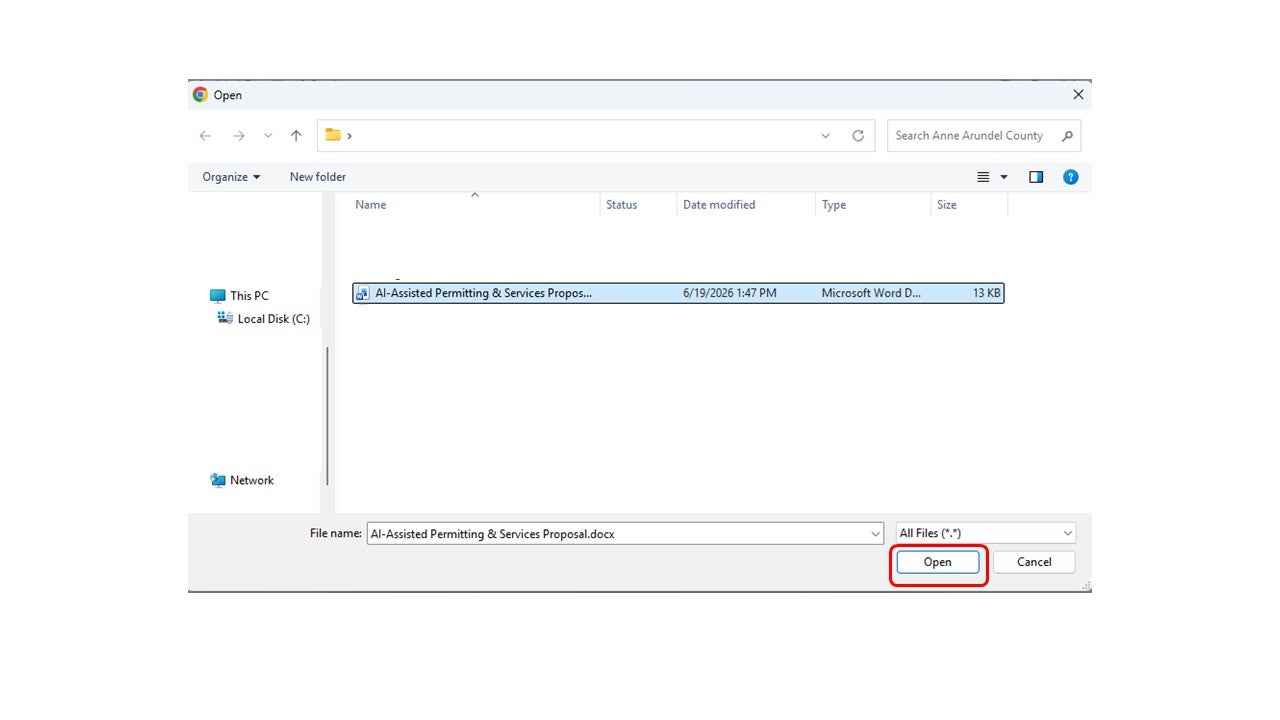
7Navigate to attachment's location, select file and click the Open button
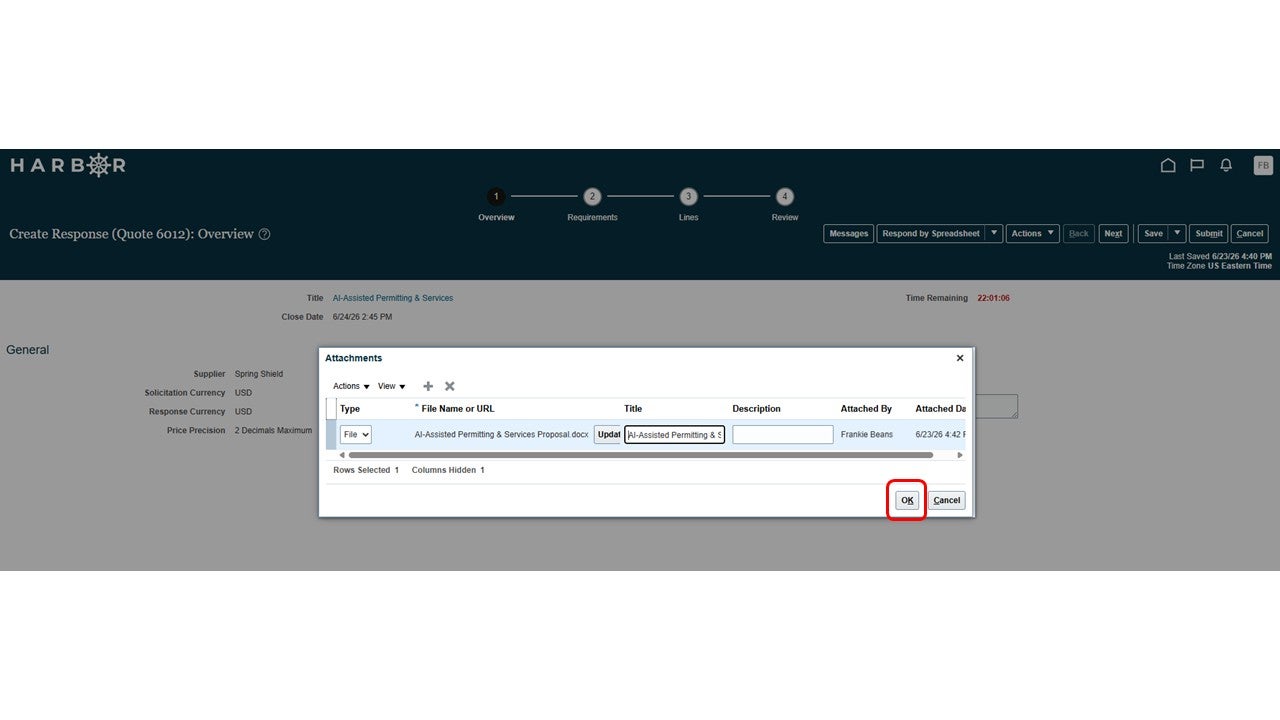
8Click the OK button on the attachments dialog box
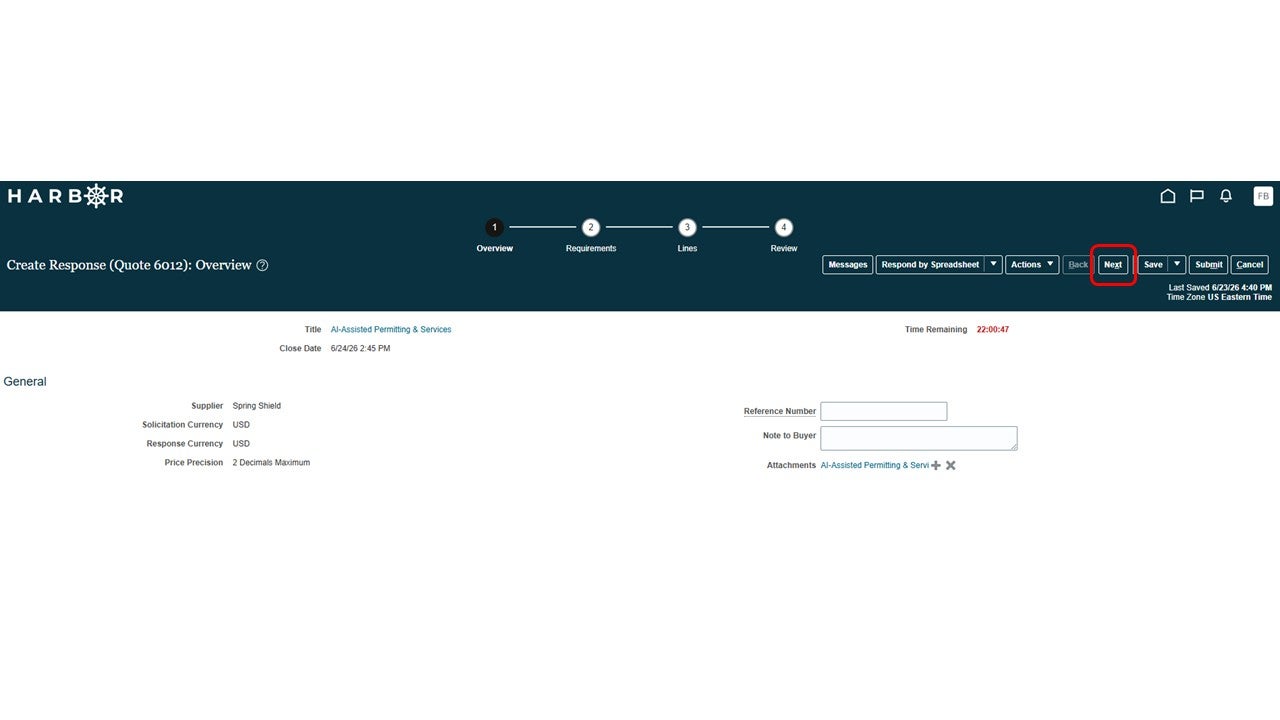
9Click the Next button
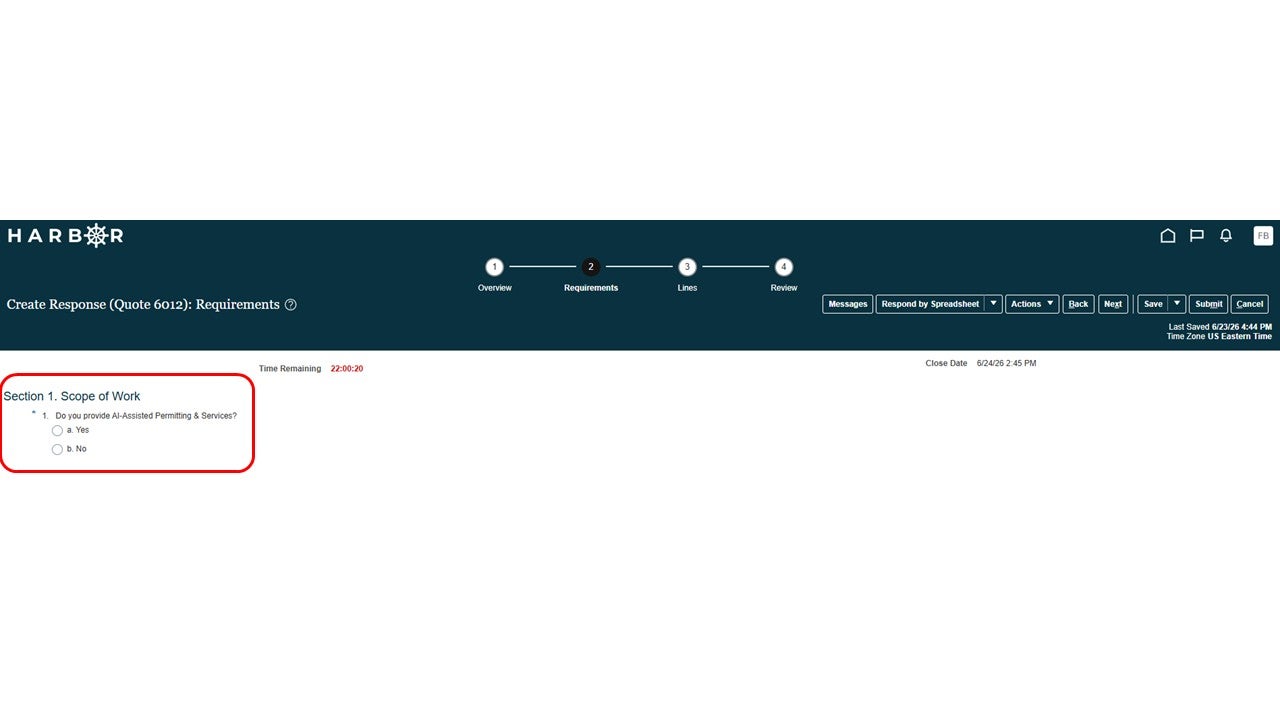
10Answer the requirements questions. Questions will vary by solicitation.
11Click the Next button
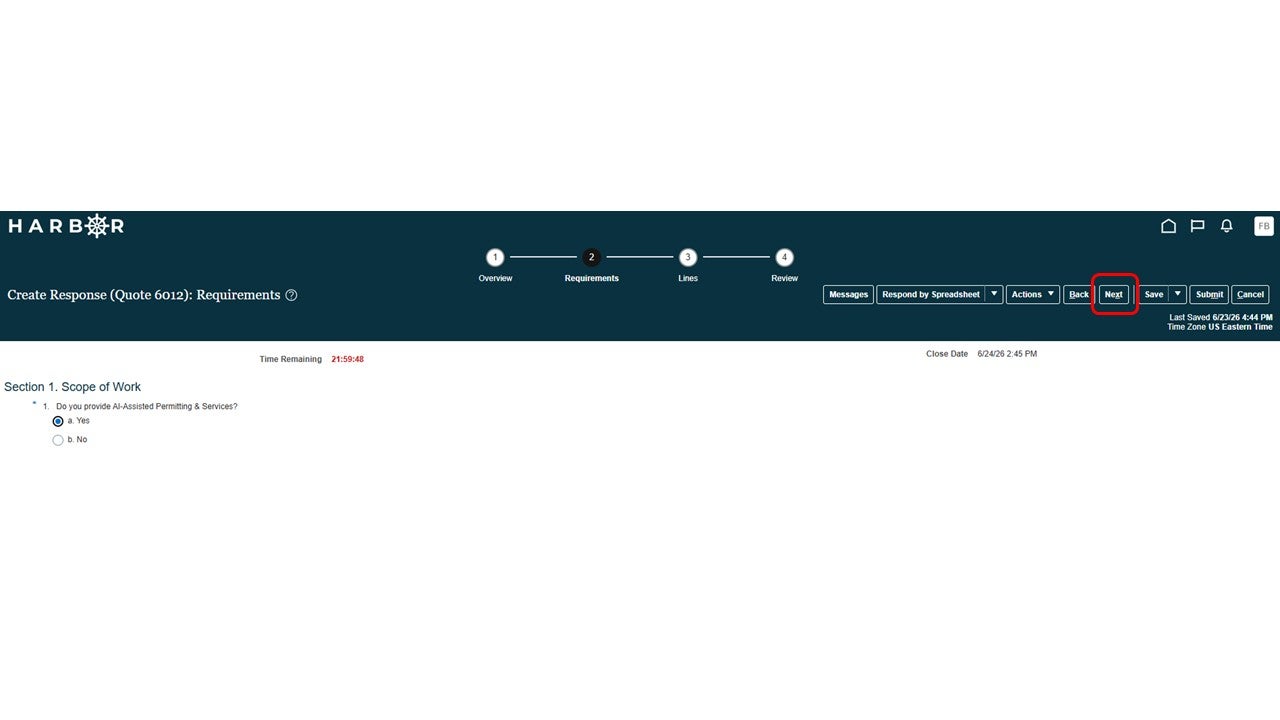
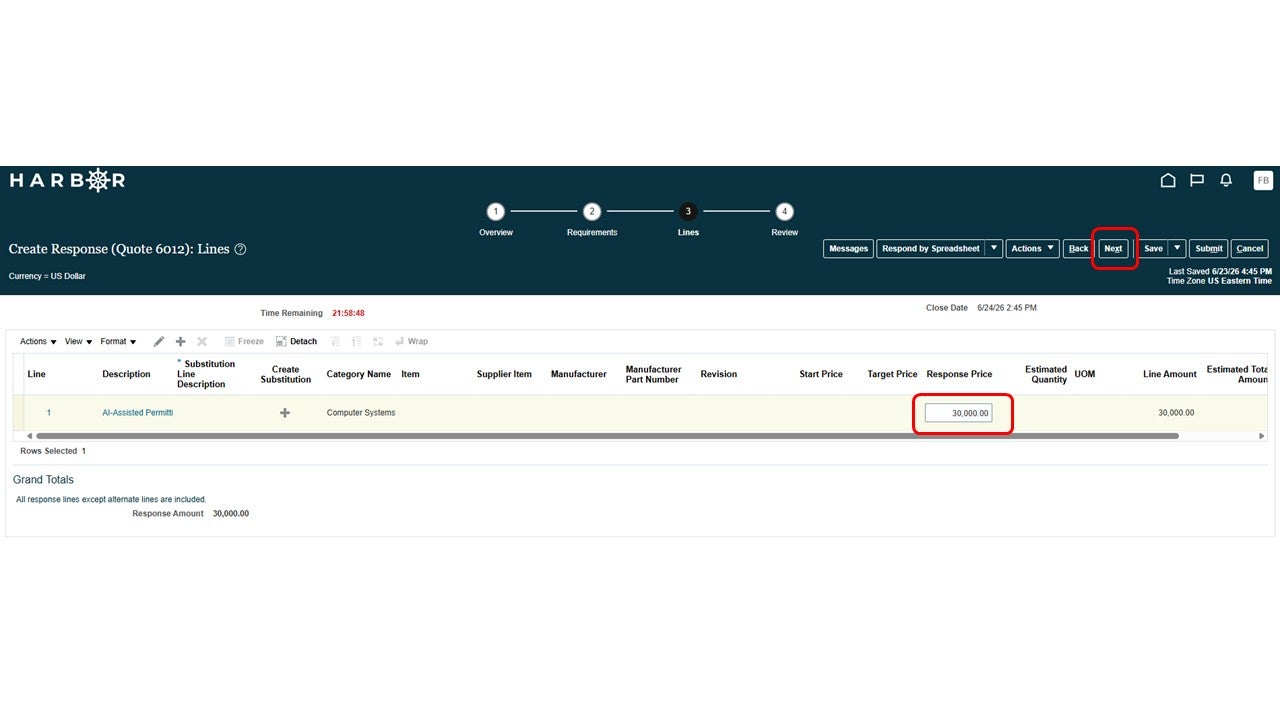
12Enter a Response Price and Click the Next button
13Click the Submit button
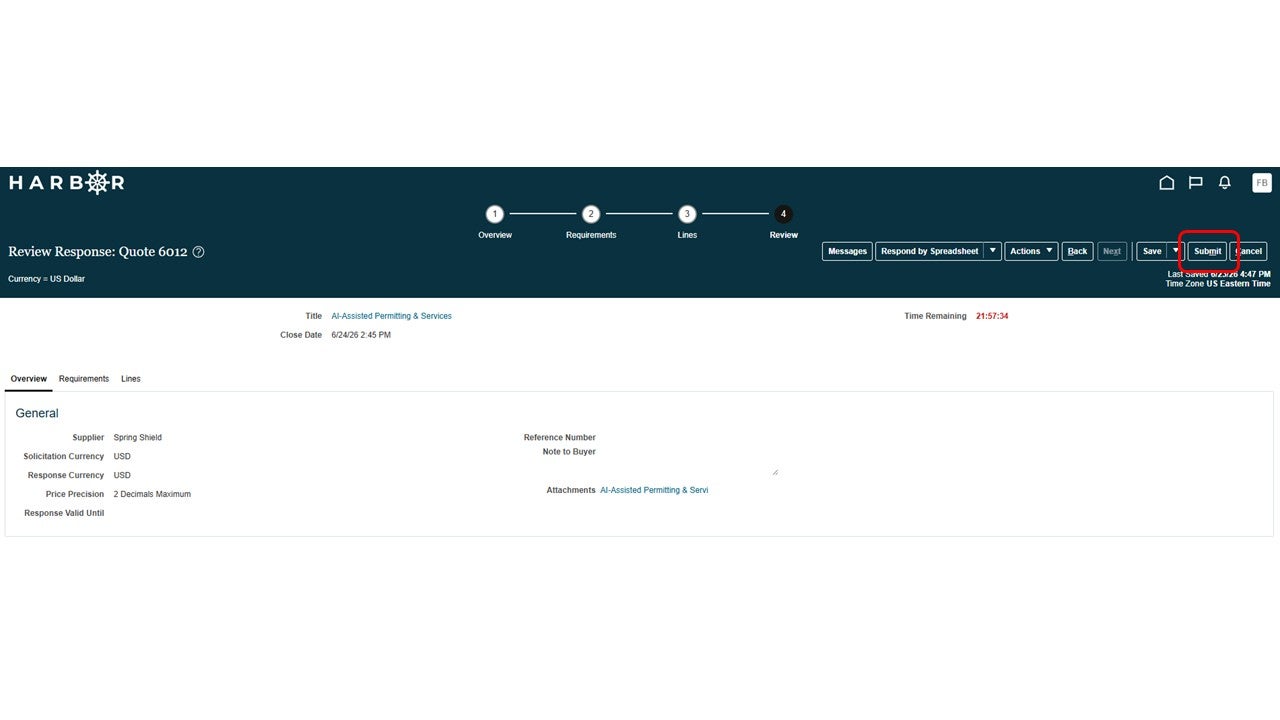
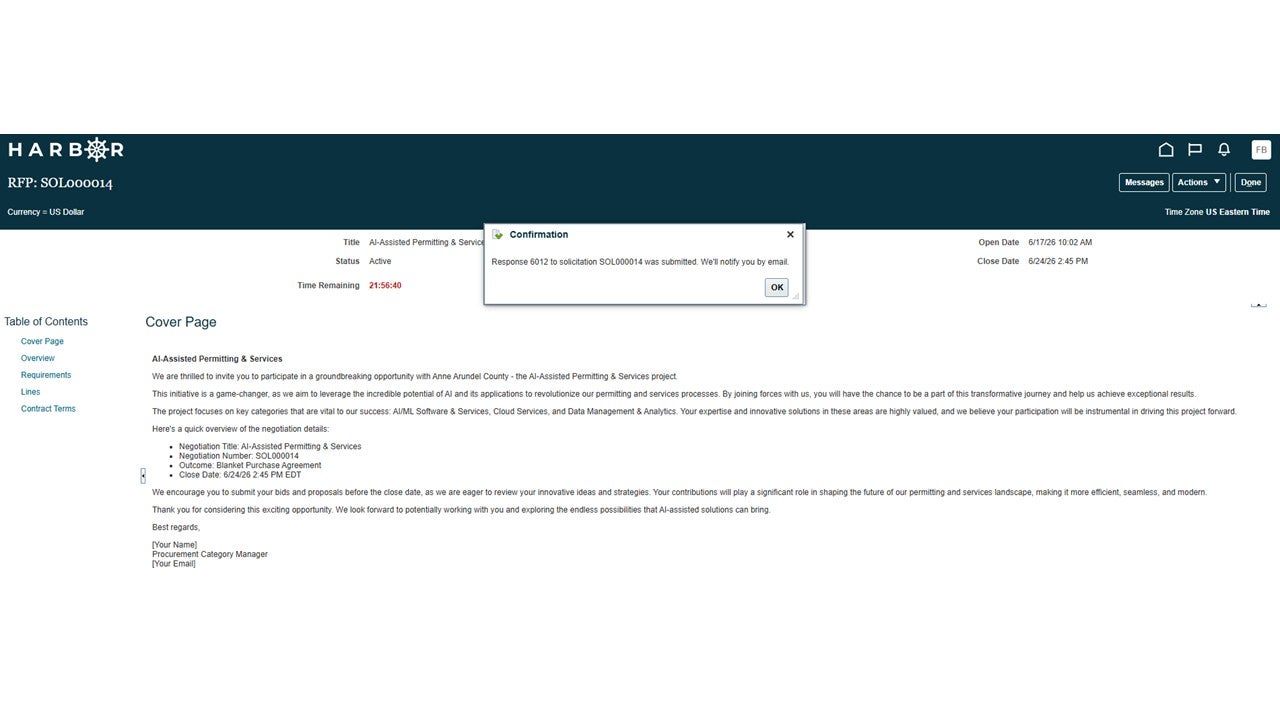
14A Confirmation window will pop up stating the response was submitted.