Log in to the Harbor system
Before proceeding with this help guide, you must be logged into the Harbor financial system. For your security, Harbor requires Multi-Factor Authentication (MFA) to complete the login process.
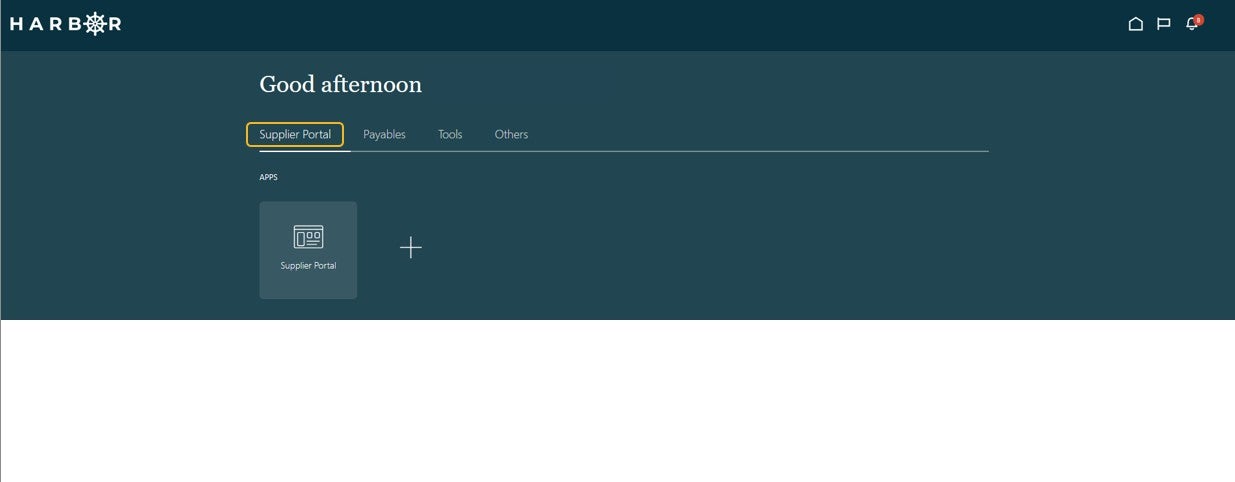
1Click on the Supplier Portal tab.
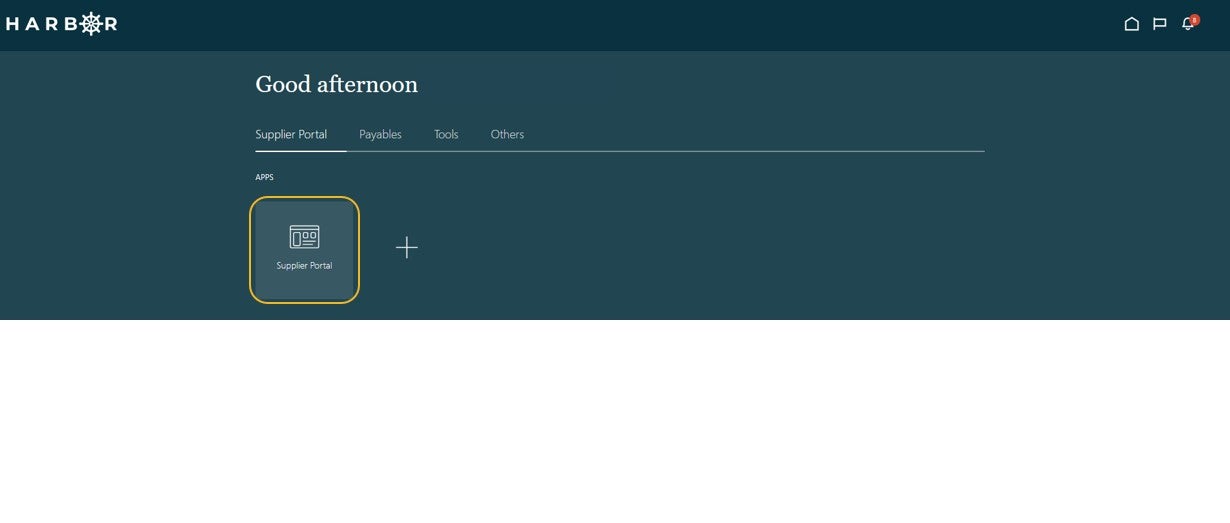
2Click into the Supplier Portal app to access the Work Area.
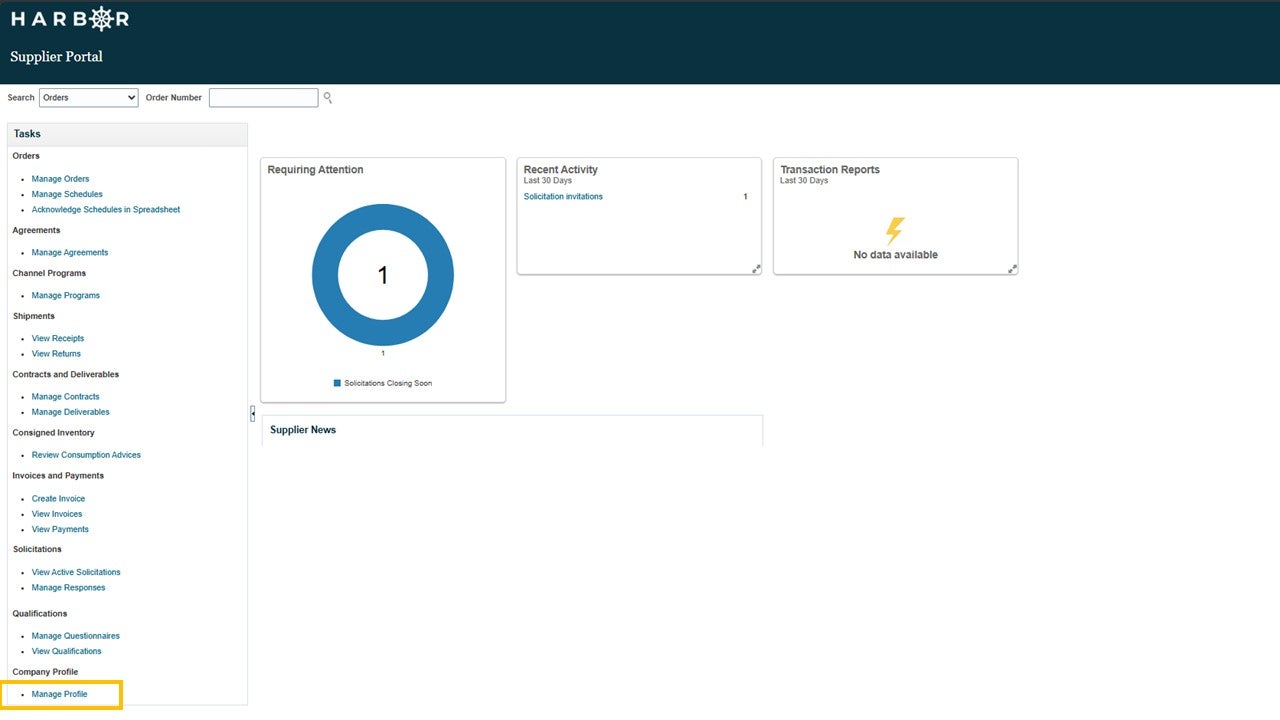
3Select "Manage Profile" within the task window on the left side of the screen.
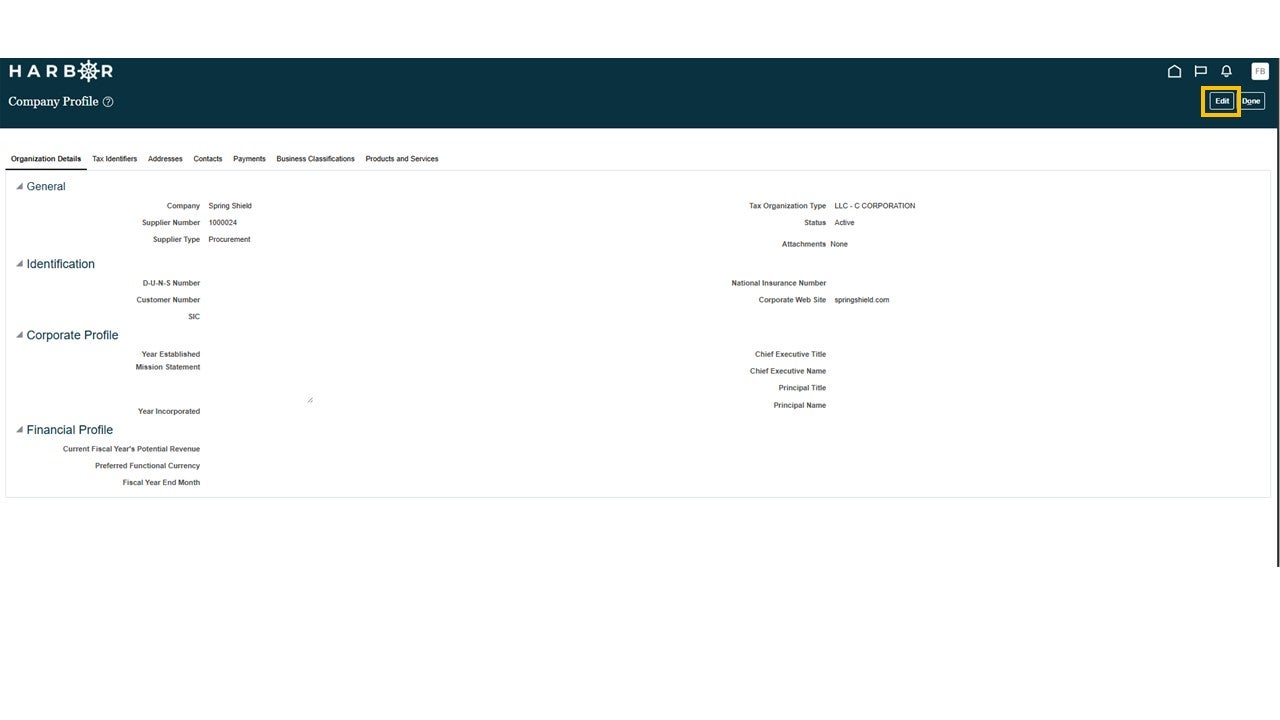
4Click on the Edit button in the top right side of the screen.
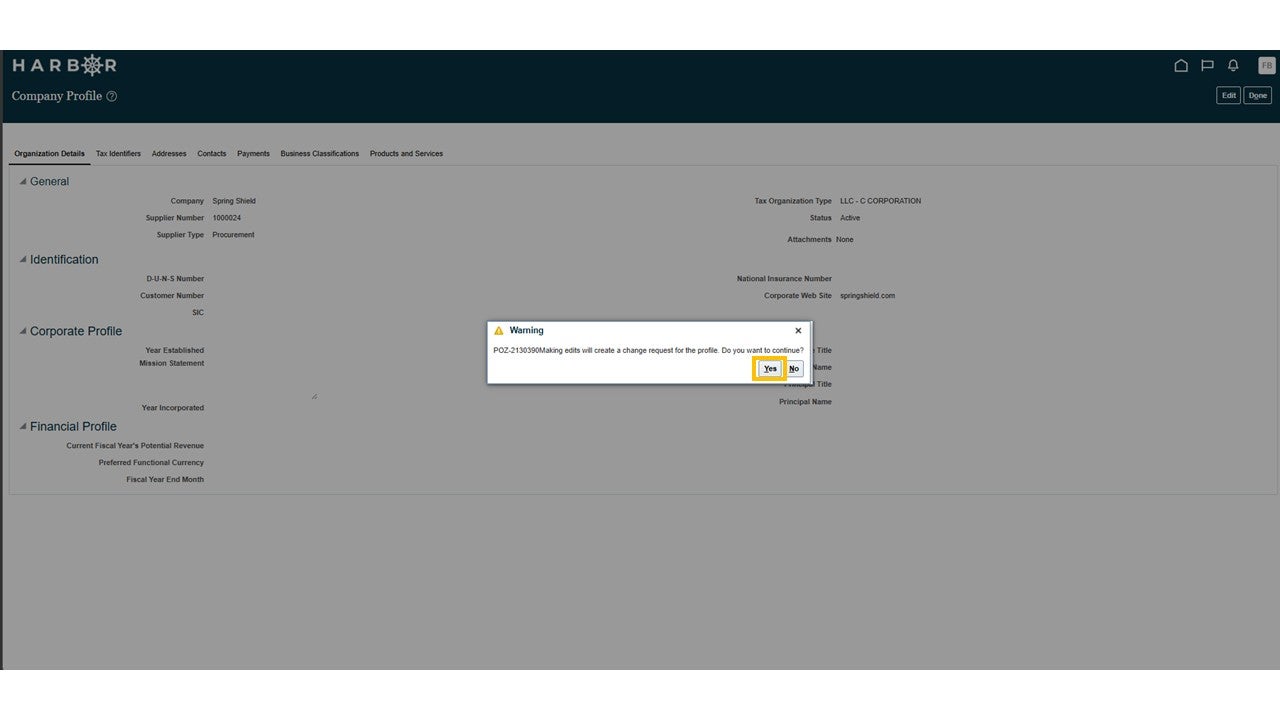
5A warning window will pop up that says "Making edits will create a change request for the profile. Do you want to continue?" Click the Yes button.
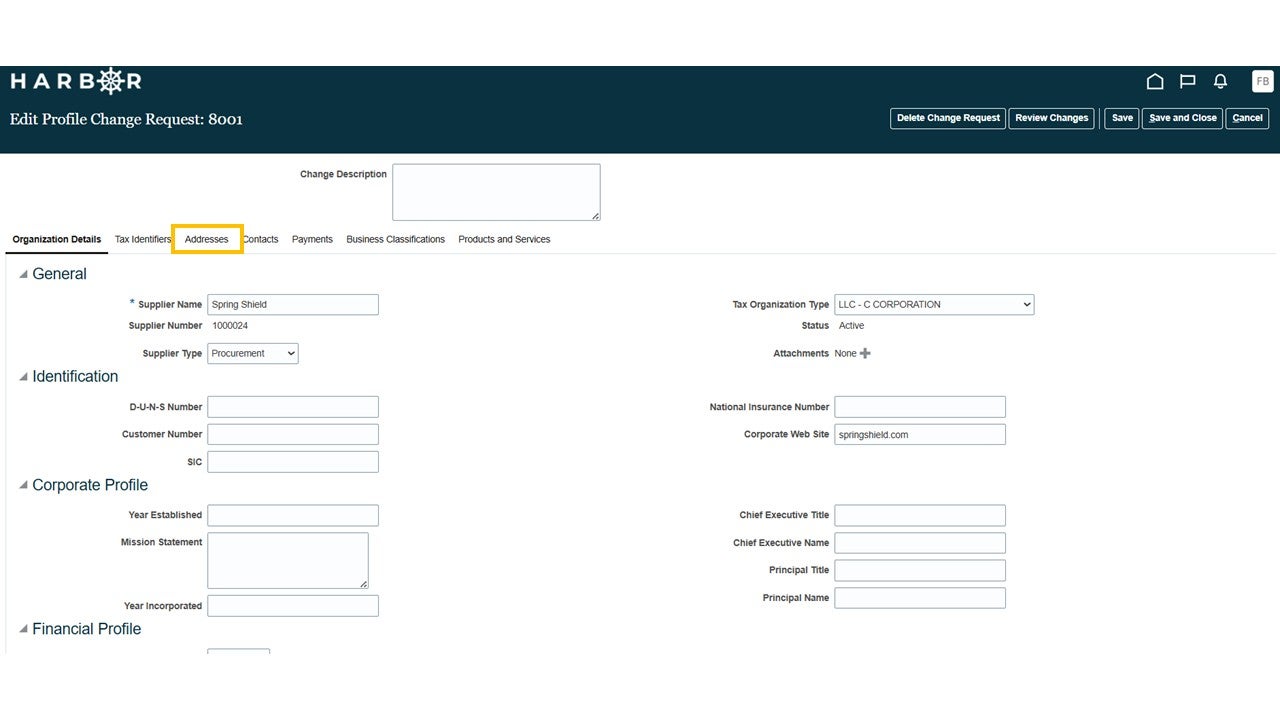
6Click on the Addresses button.
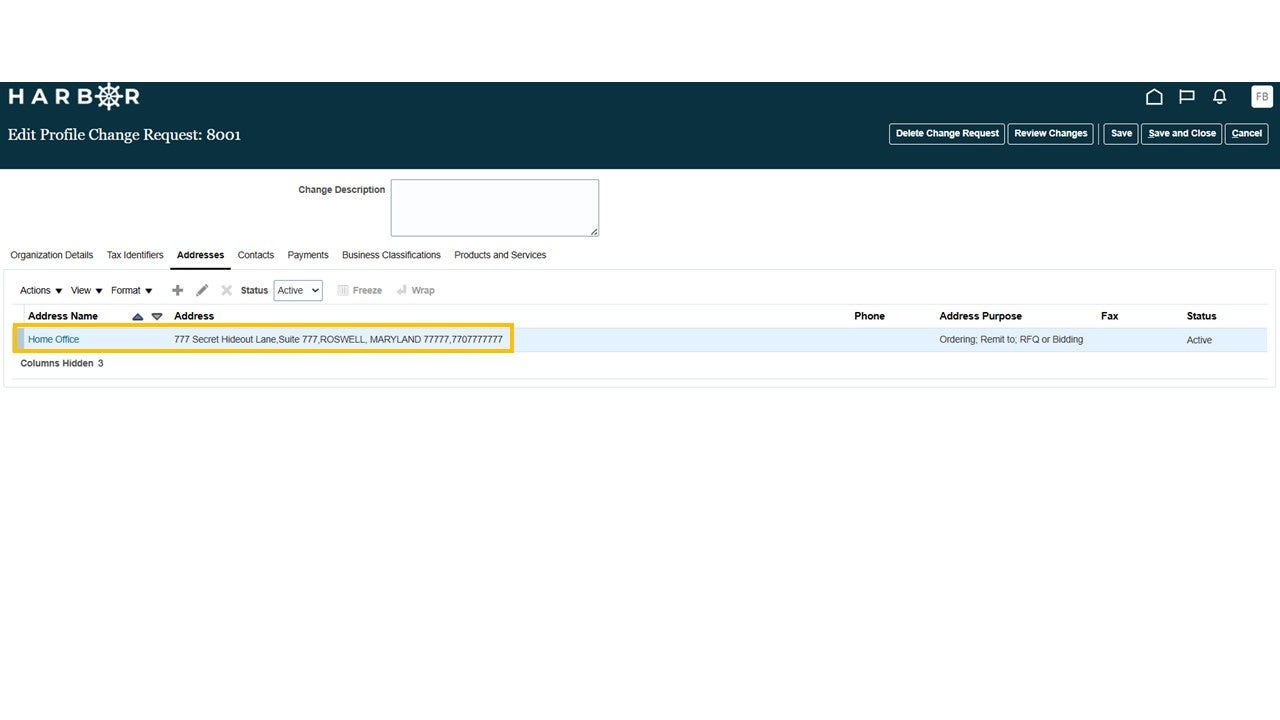
7Select the address you would like to use as the remittance address.
8An edit address pop-up window will appear. Within the category of "Address Purpose", select "Remit to", then click OK.
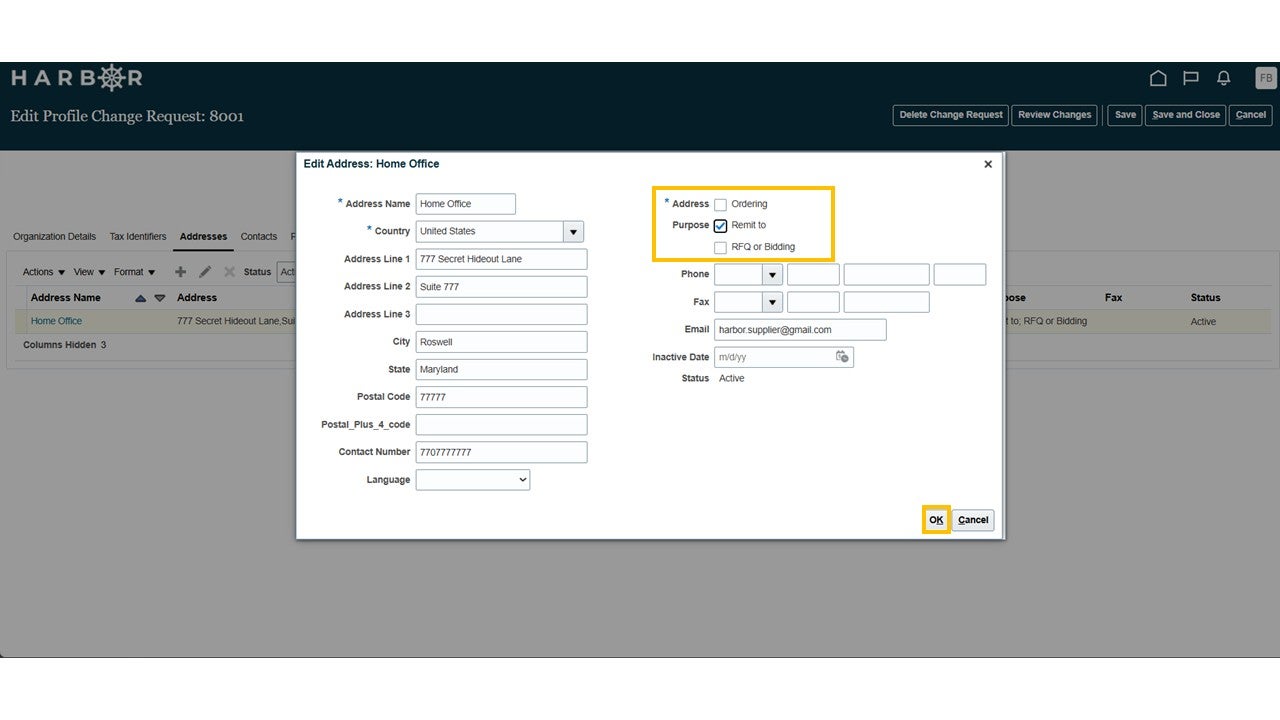
If you would like the same address used for ordering or Requests for Proposals (RFP) / Bidding, those options can also be selected.
9Write a short summary of the change in the change description box.
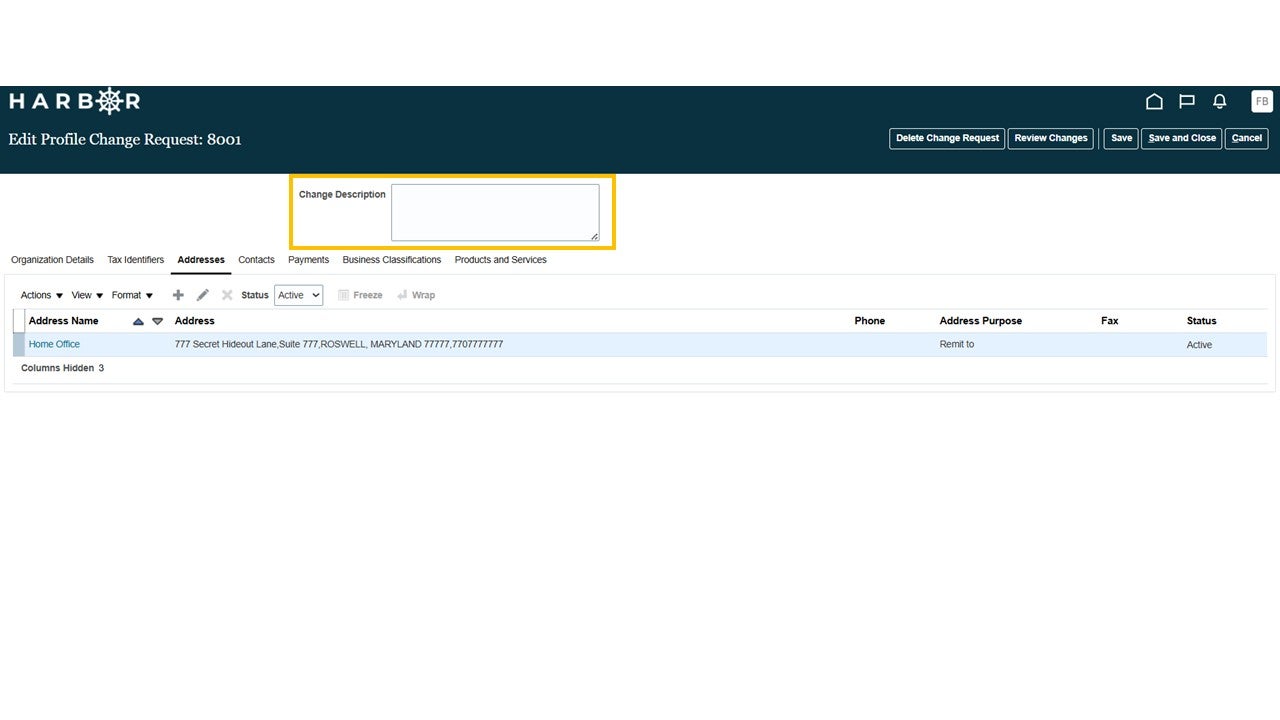
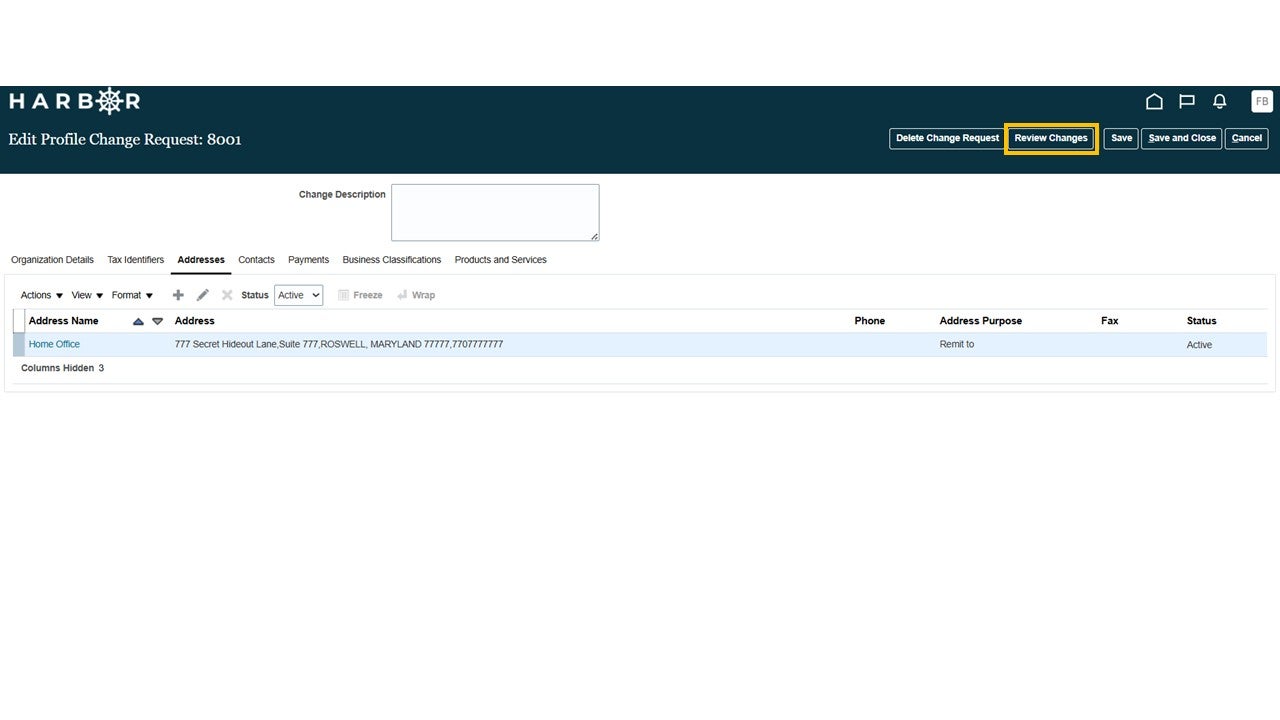
10Click Review Changes.
11Click Submit.
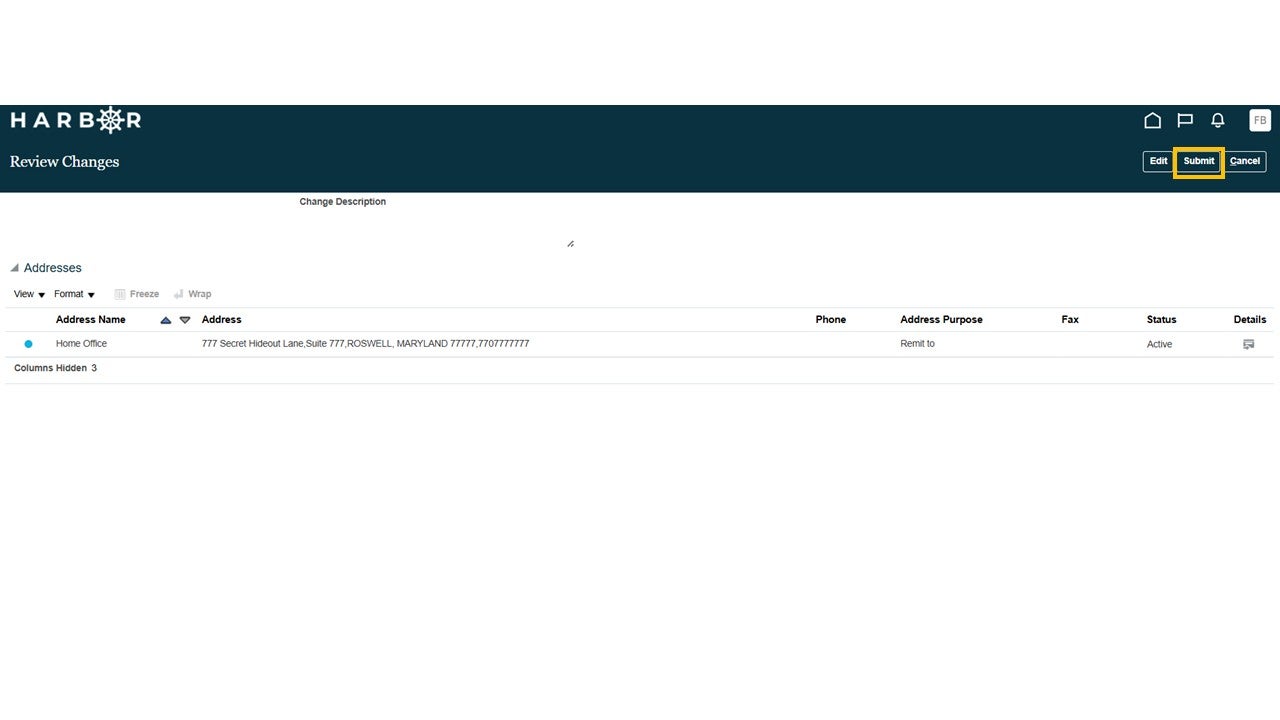
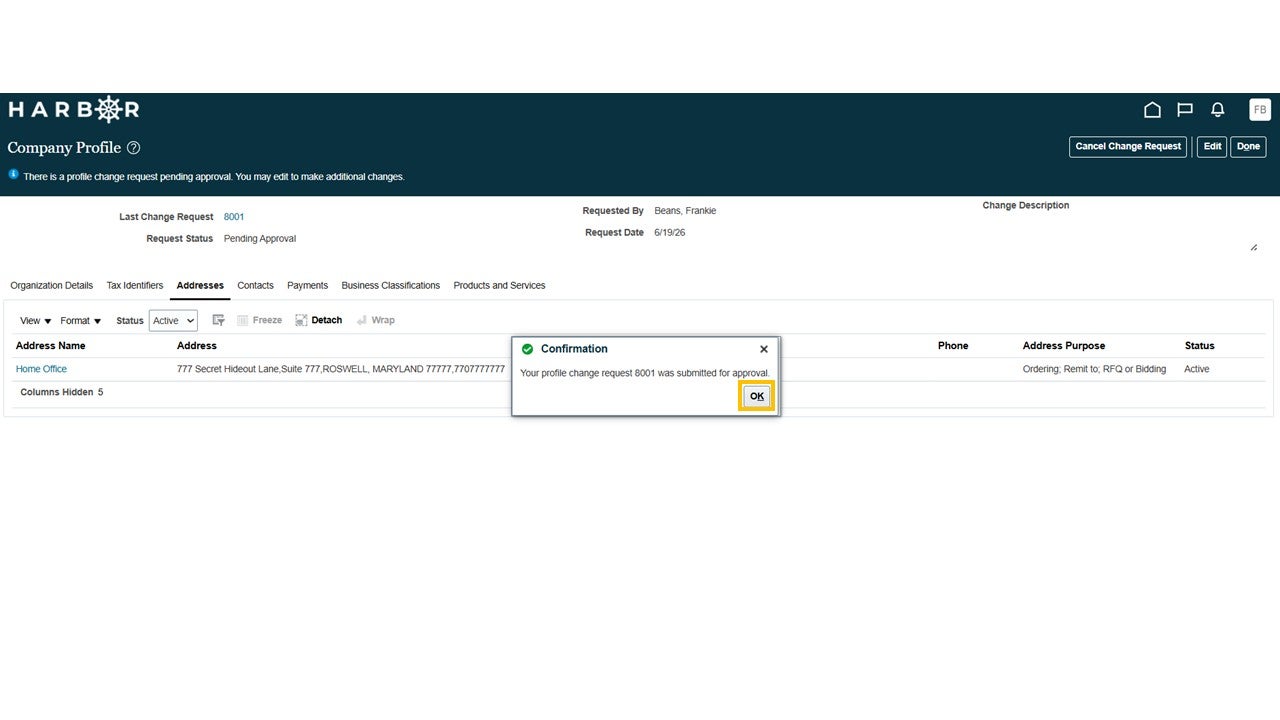
12A confirmation pop-up window will appear. Click OK.