Log in to the Harbor system
Before proceeding with this help guide, you must be logged into the Harbor financial system. For your security, Harbor requires Multi-Factor Authentication (MFA) to complete the login process.
Create an Invoice
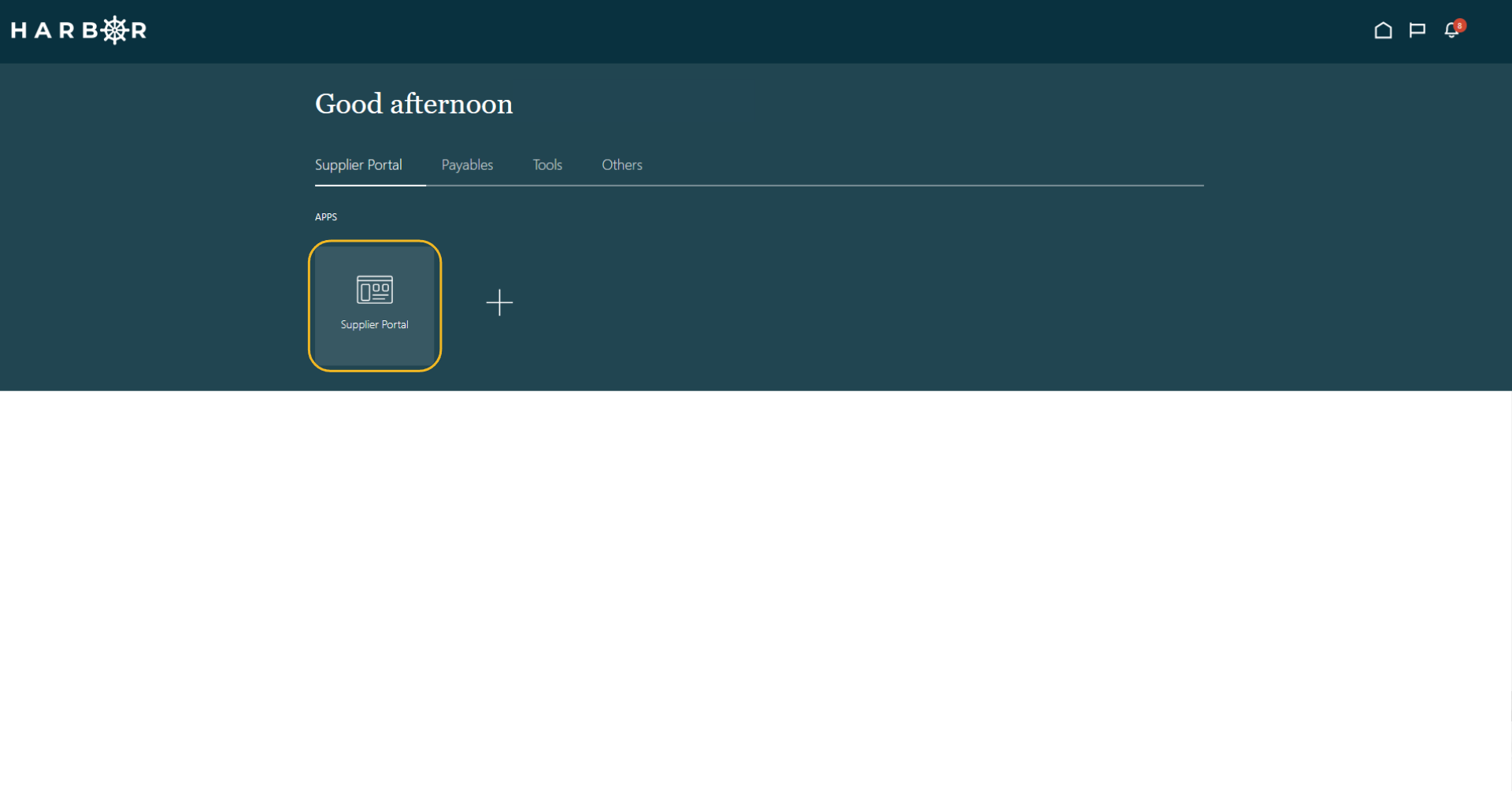
1Click into the Supplier Portal app to access the Work Area
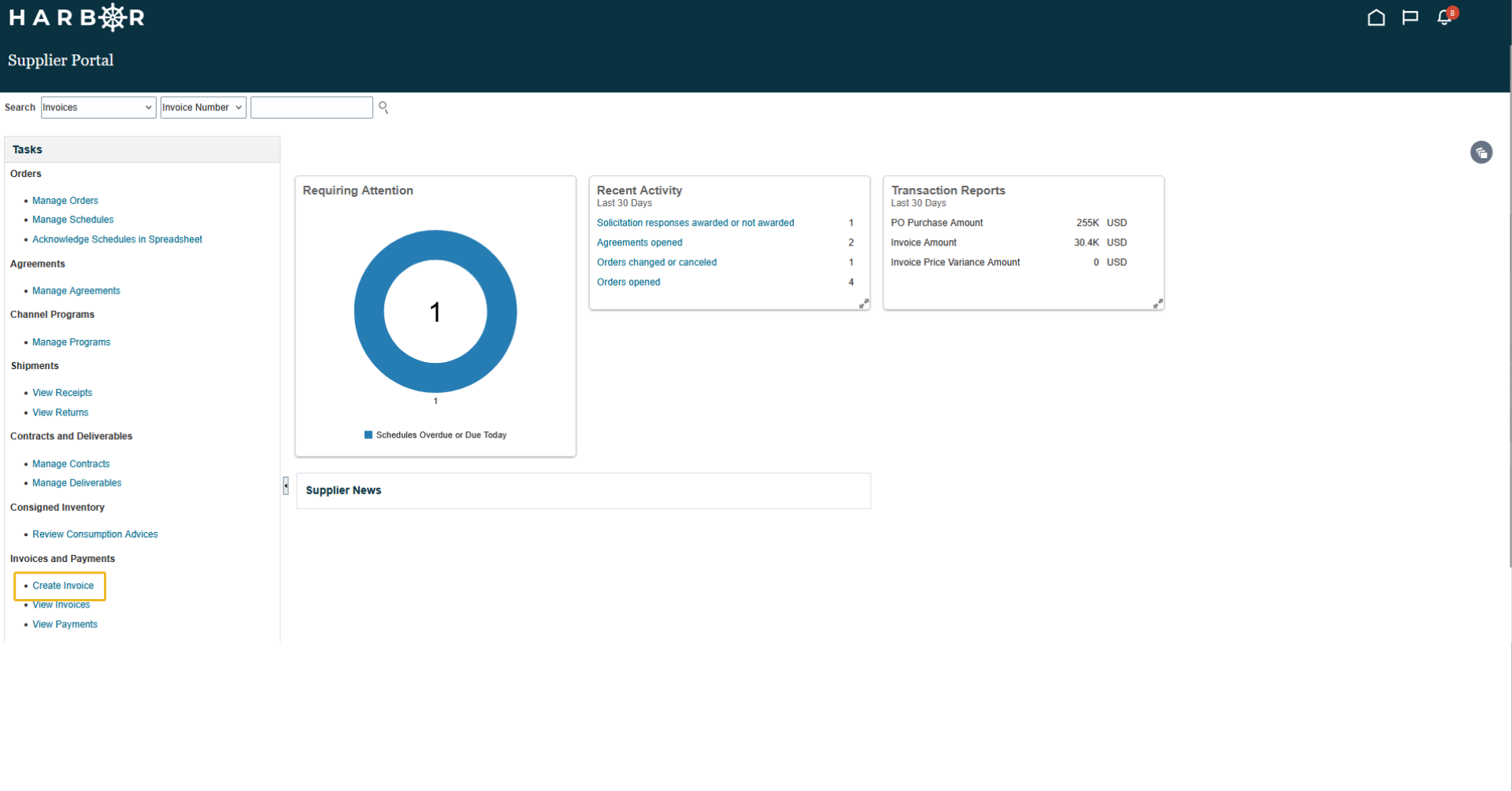
2Click Create Invoice in the Tasks pane
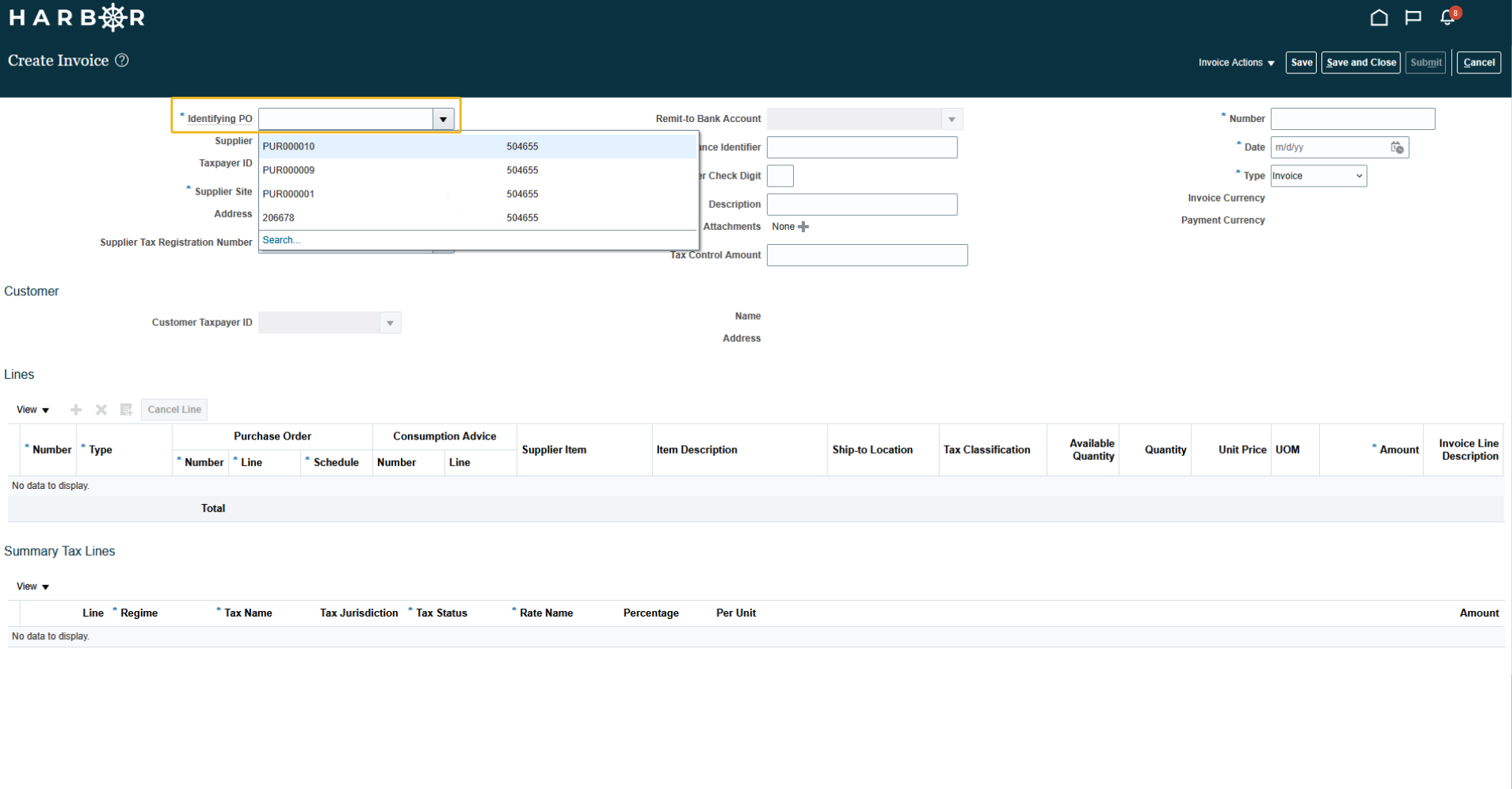
3Search and Select the Existing Purchase Order
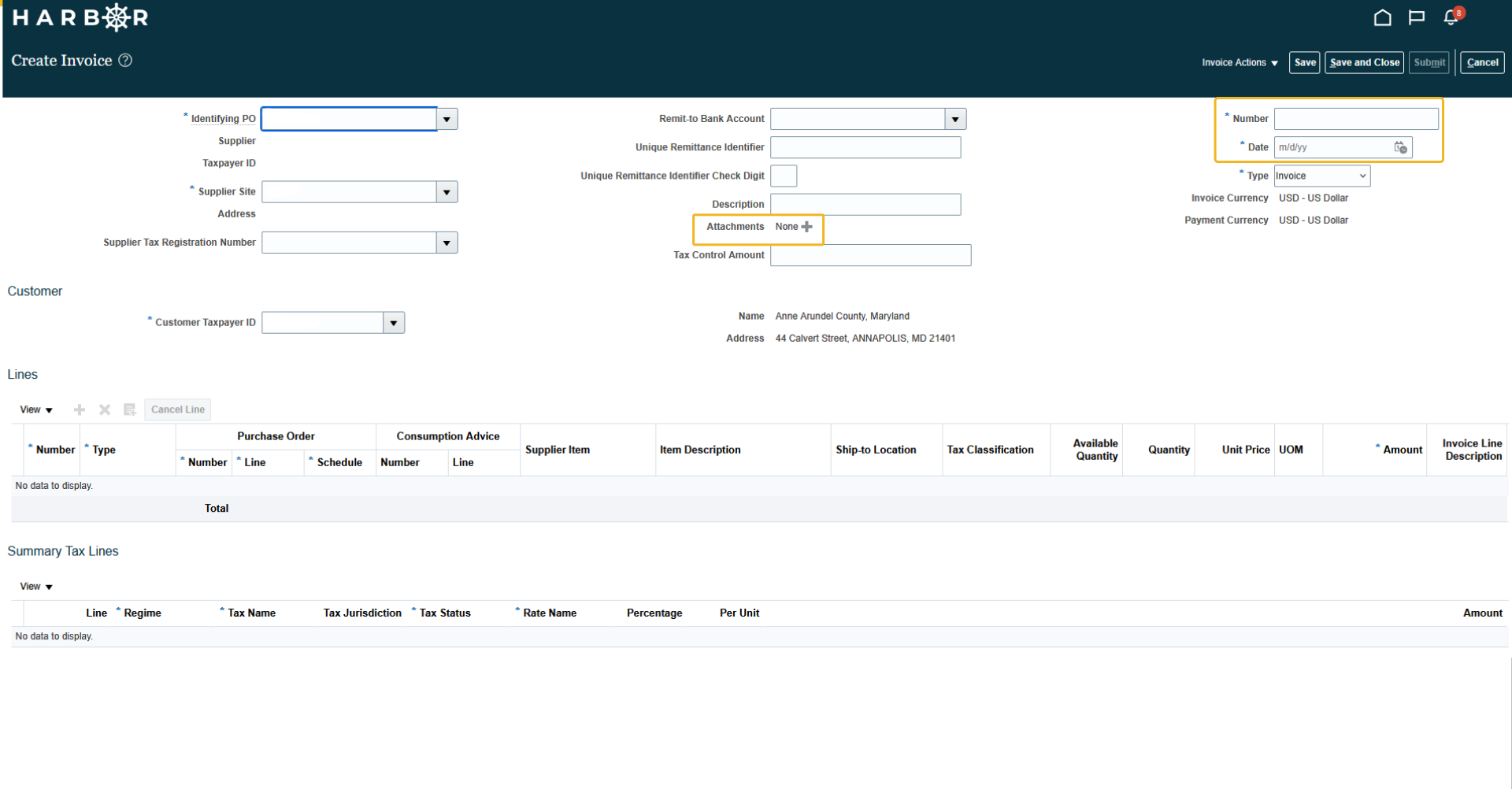
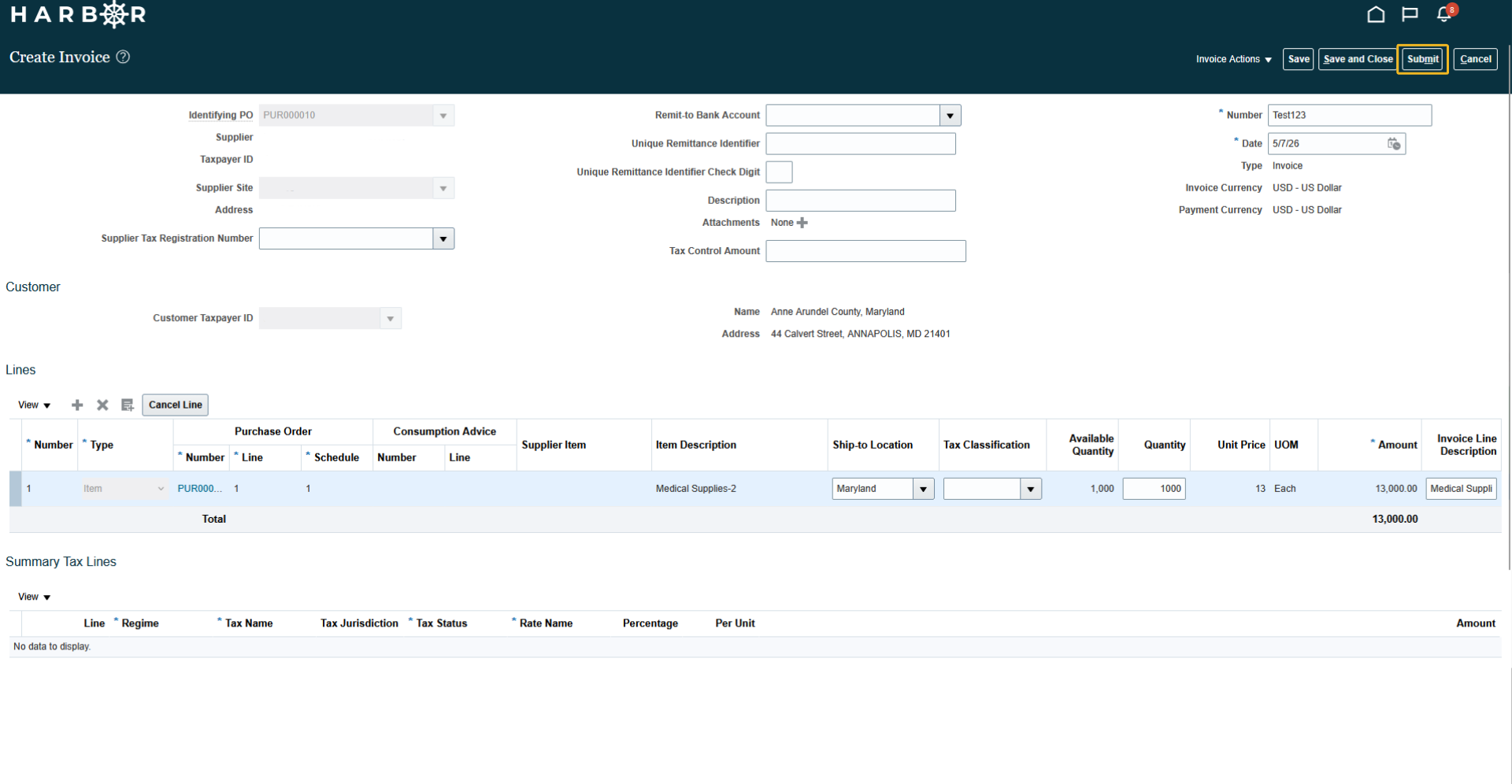
4Enter a Number and Date for the Invoice and include the required Attachments
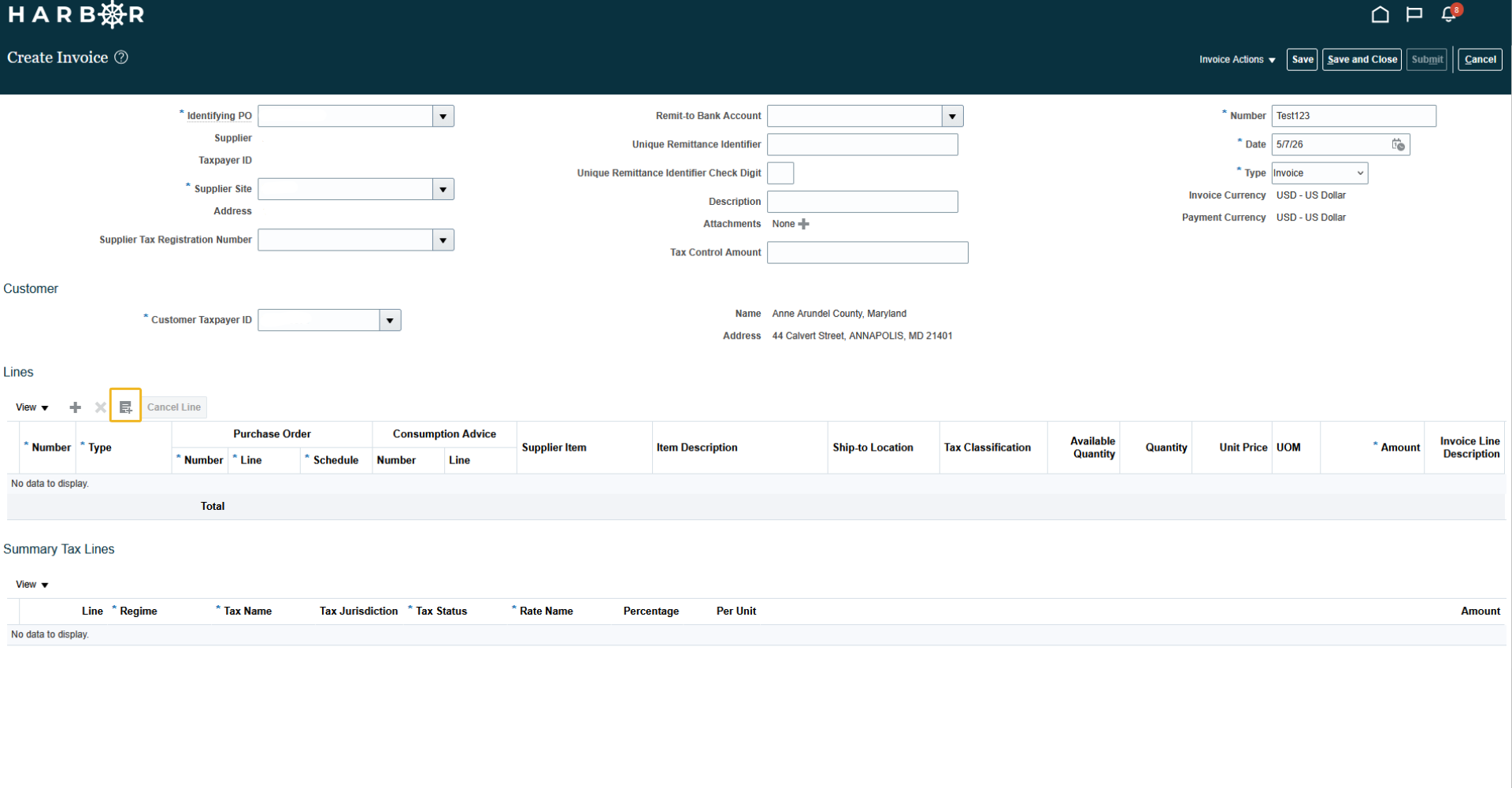
5Click on the Select and Add icon in the Lines area
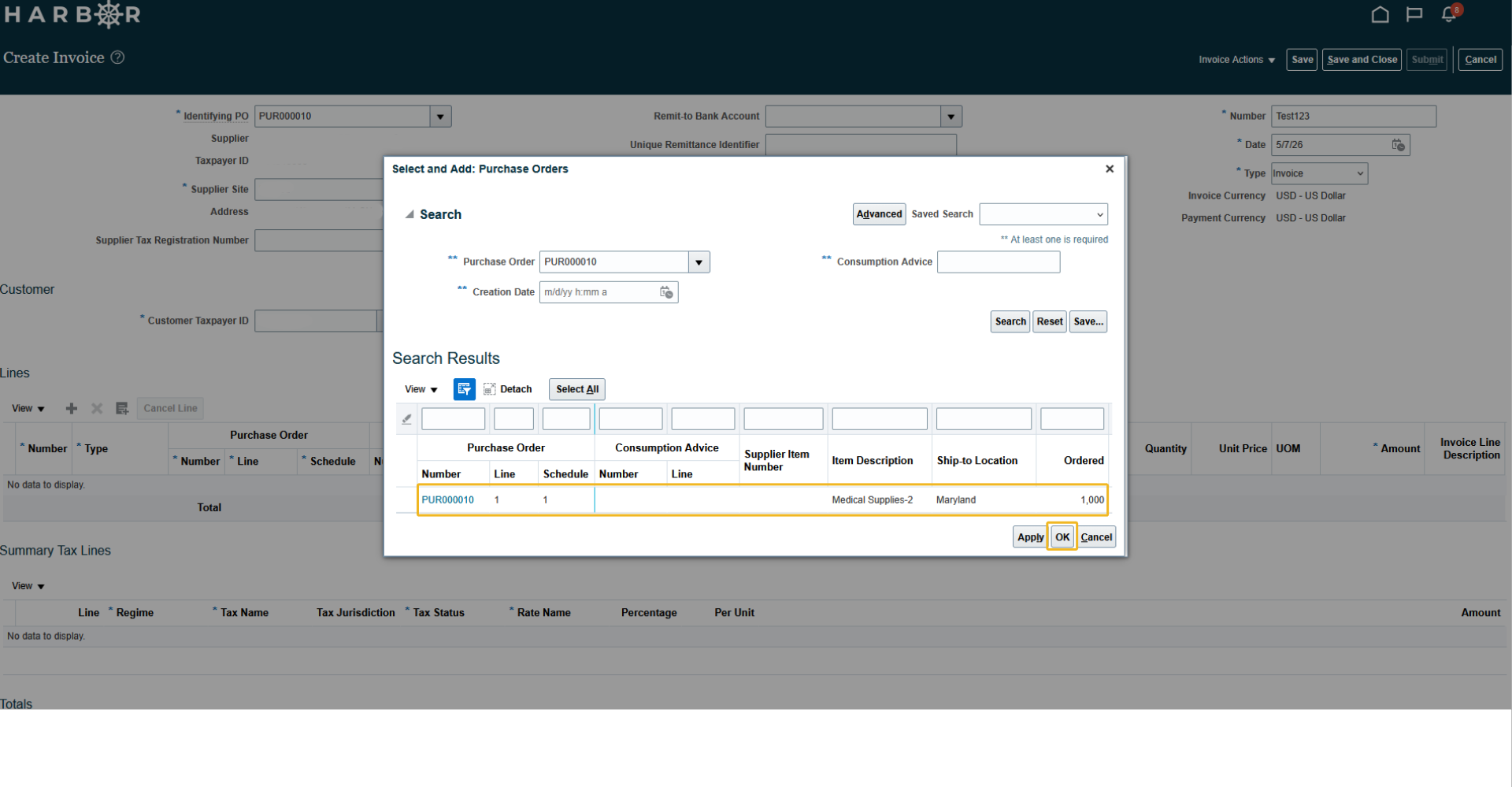
6Click on the line and click OK
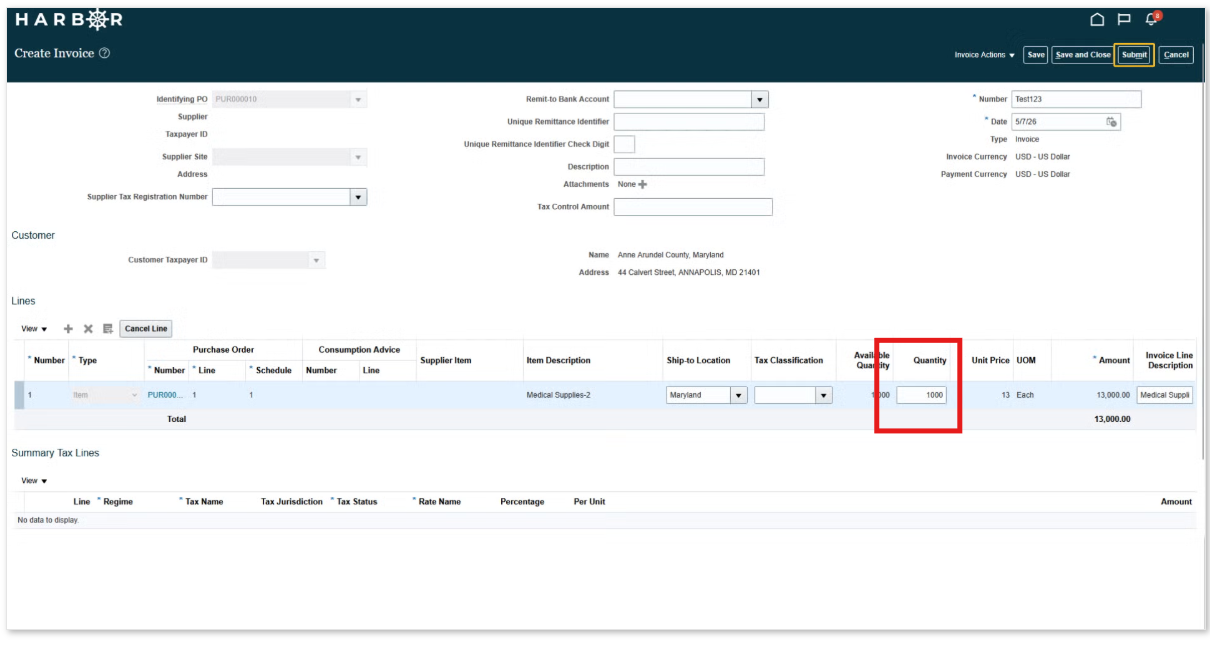
7Edit the quantity or the amount on the invoice line if needed. Click Submit.
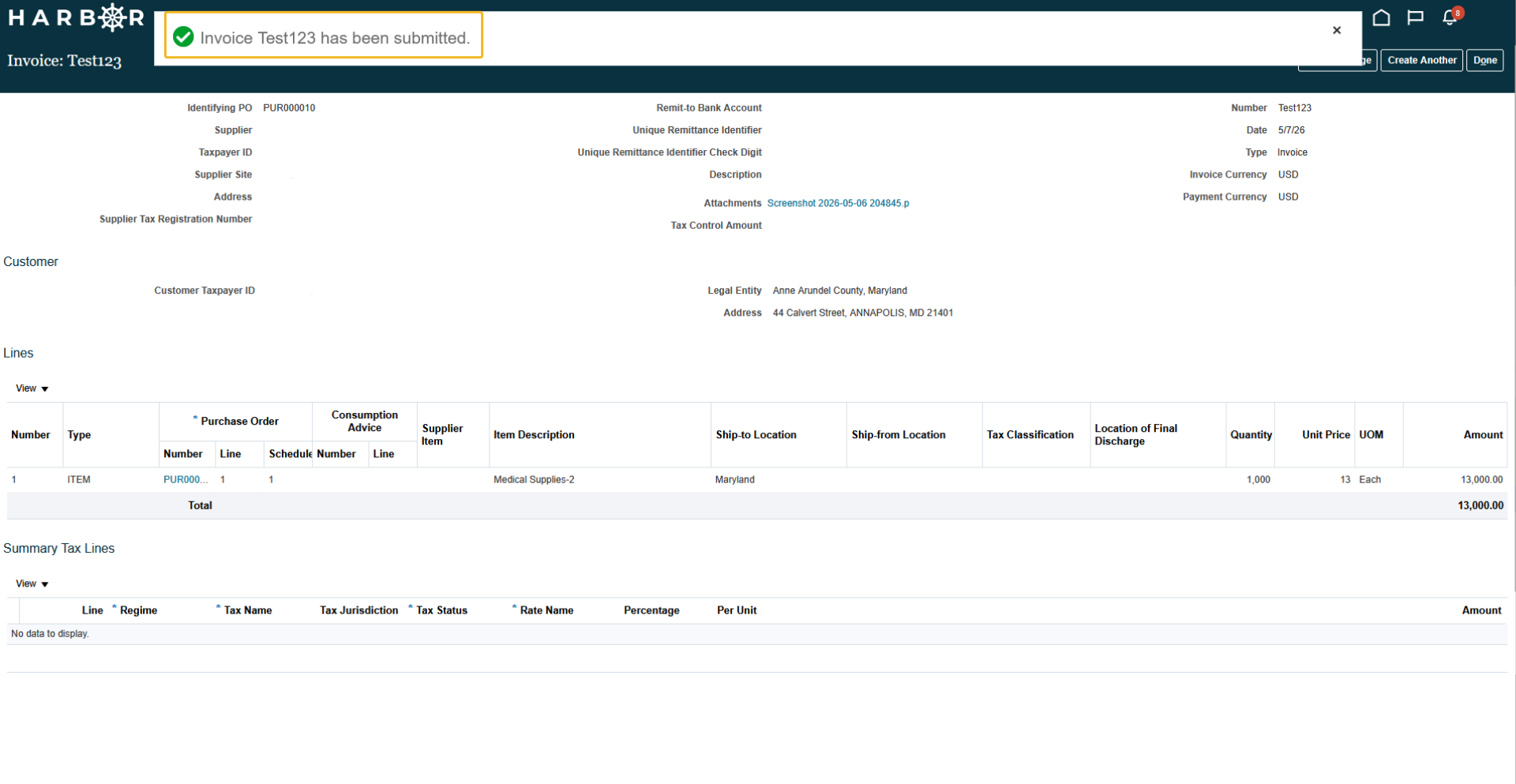
8A Confirmation message will show that the Invoice has been successfully submitted
View an Invoice
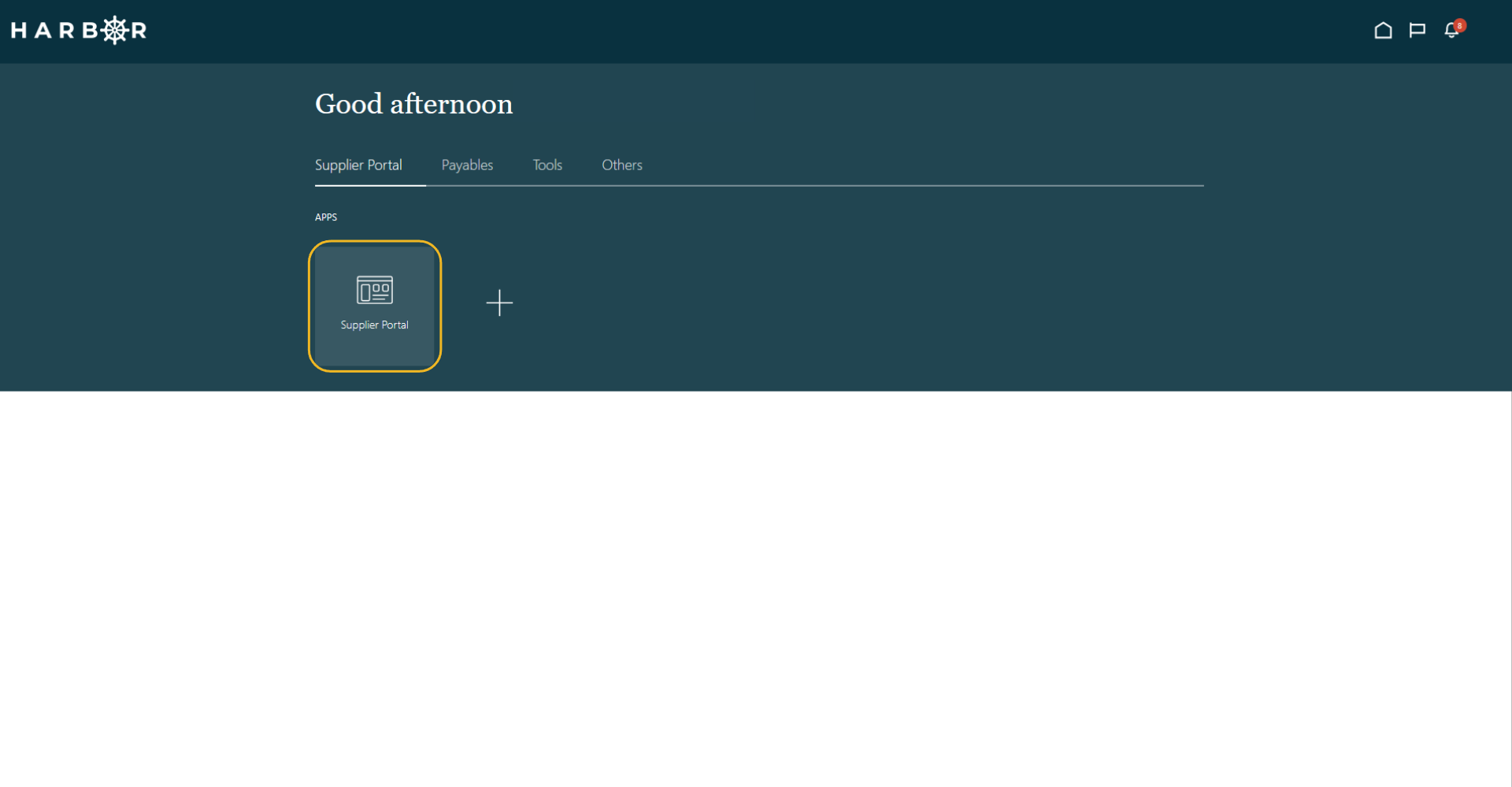
1Click into the Supplier Portal app to access the Work Area
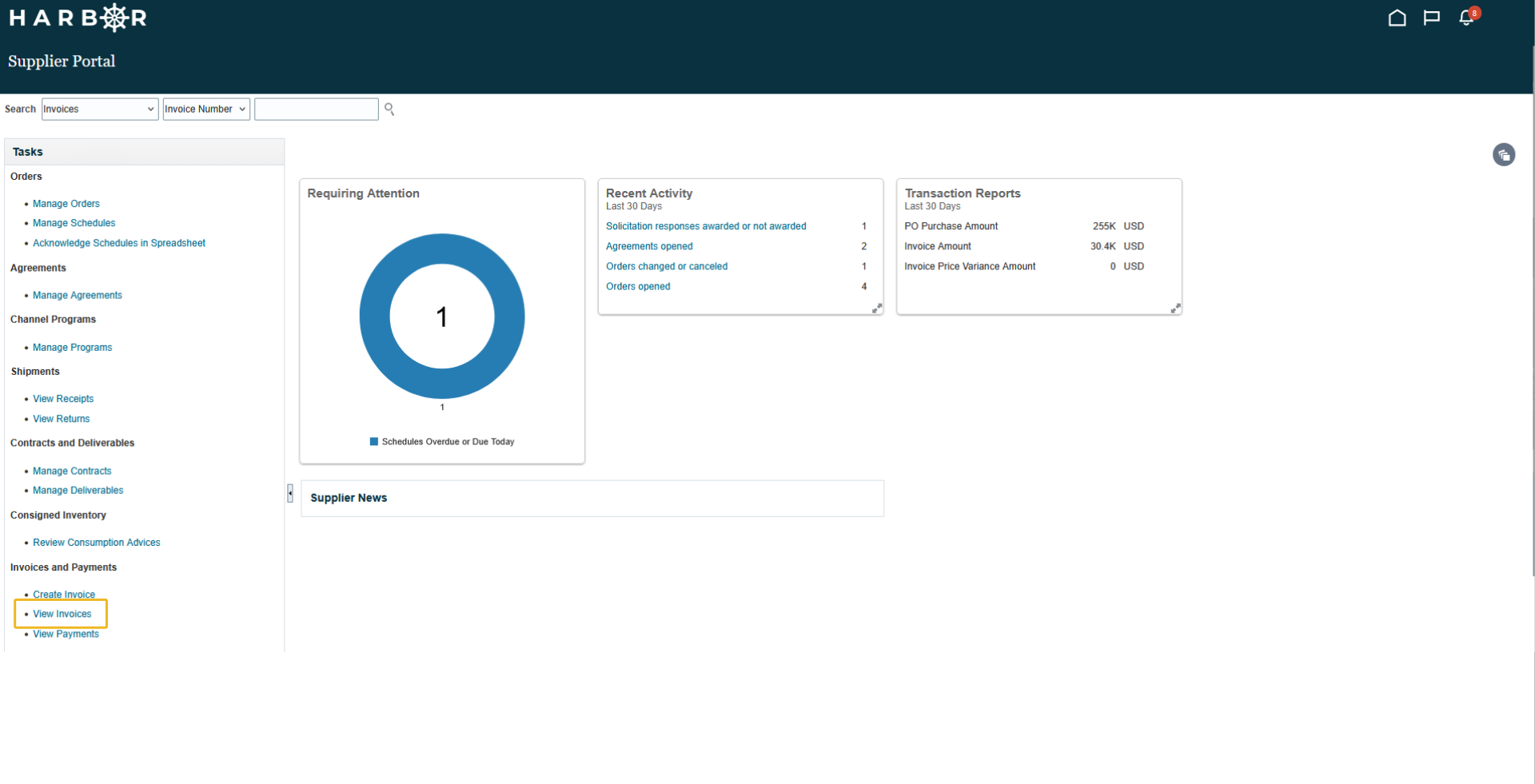
2Click View Invoice in the Tasks pane
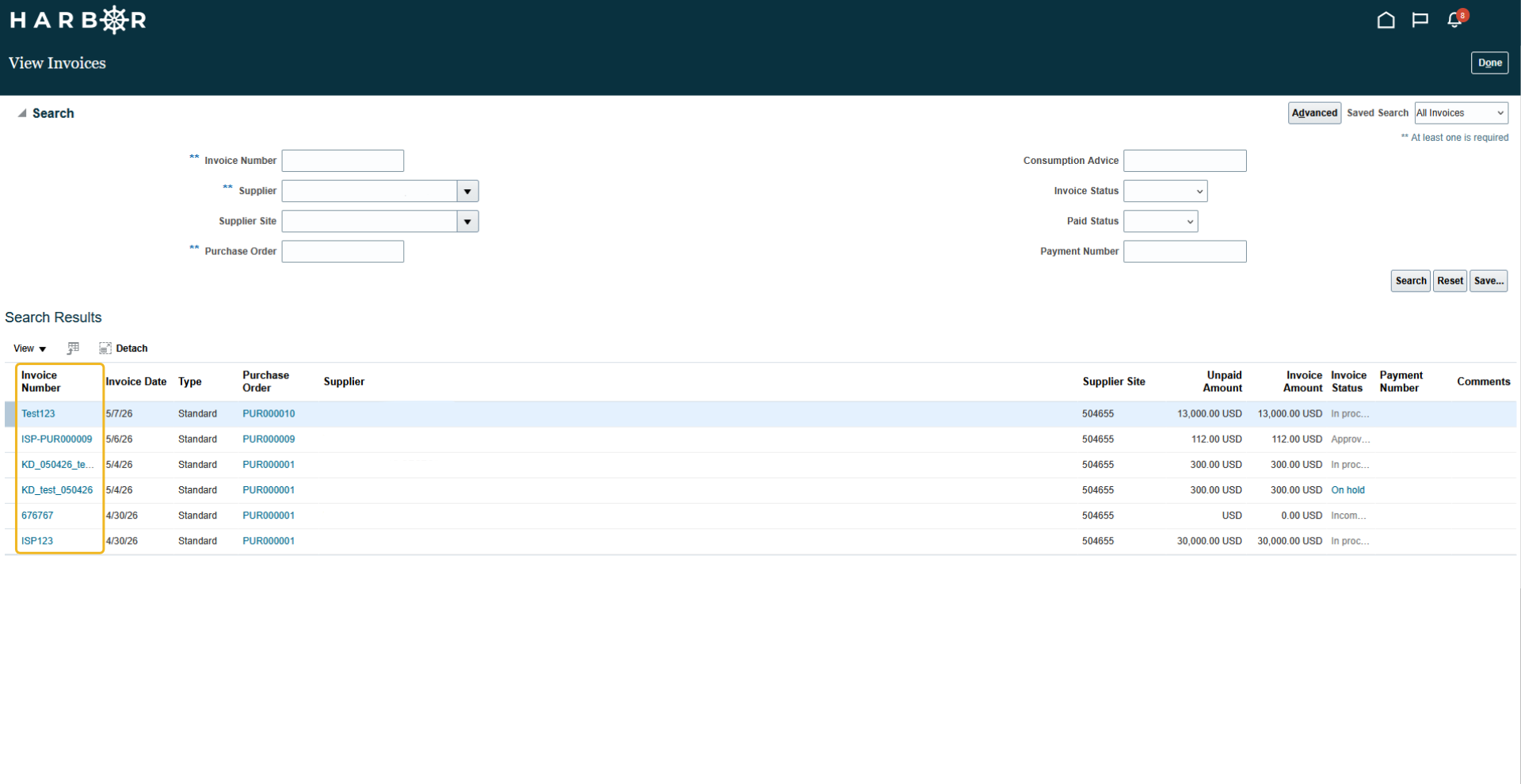
3Enter in a value in one of the required fields and click Search
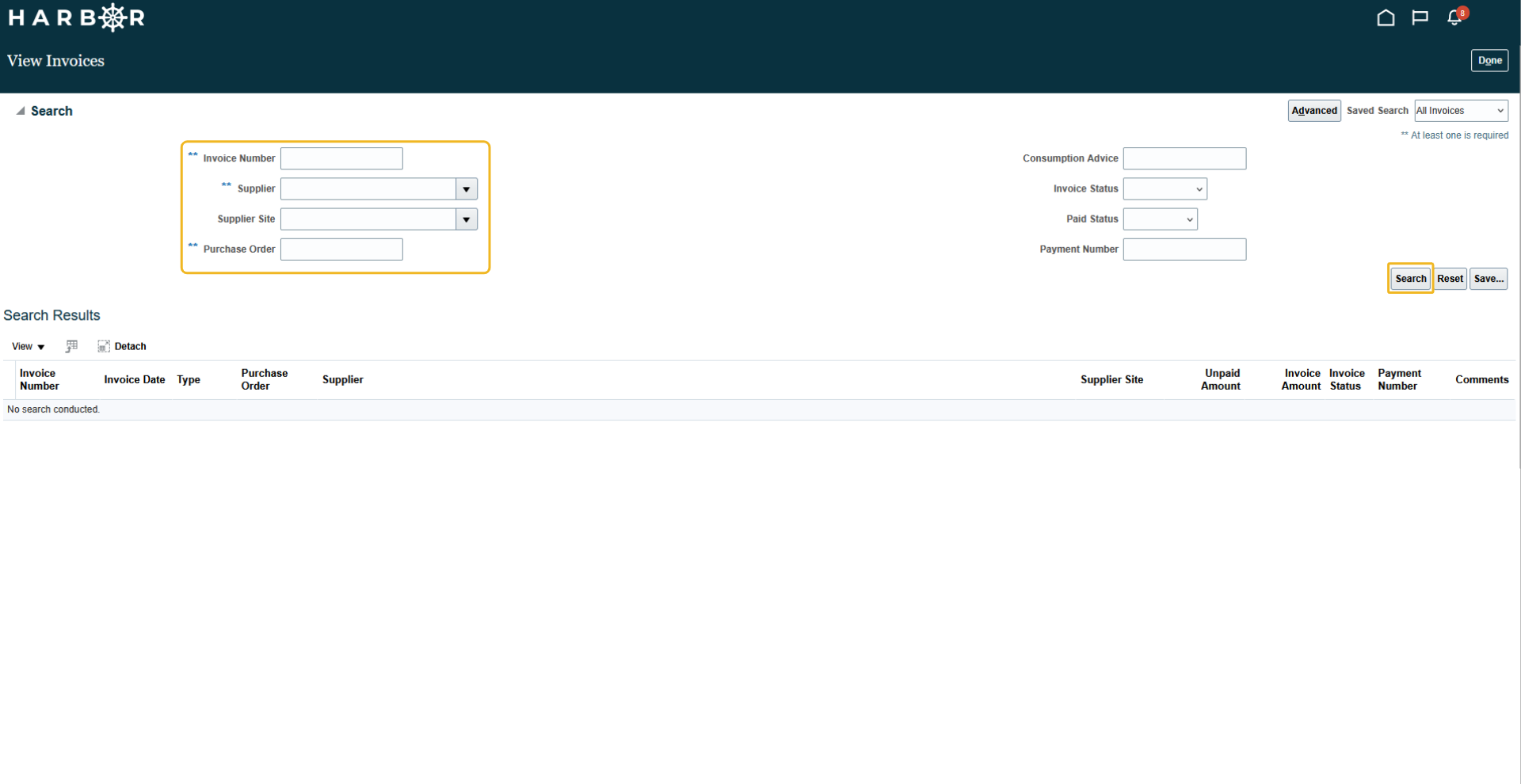
4Click on the Invoice Number to view an invoice