
The link to the Land Use Navigator is https://www.aacounty.org/lun
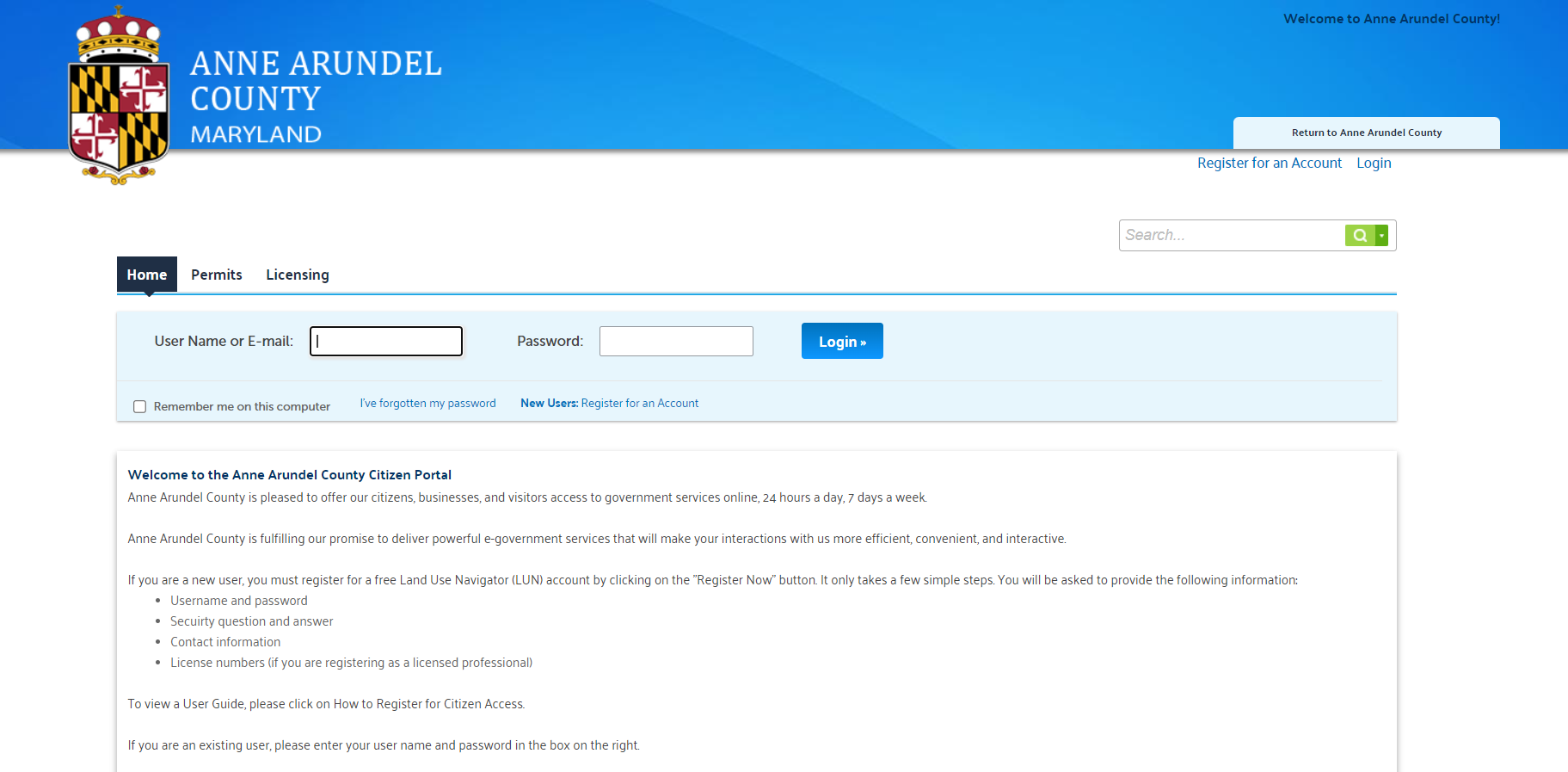
*You Do Not Need To Be Logged In To Search For Existing Records In The Land Use Navigator But May Be Limited To Accessibility To Certain Documents And/Or Information. For More Information Related To A Record That Is Not Attached To Your LUN Account, Please Submit A Maryland Public Information Act Request.
Navigate To The Relevant Tab & Select Search Criteria
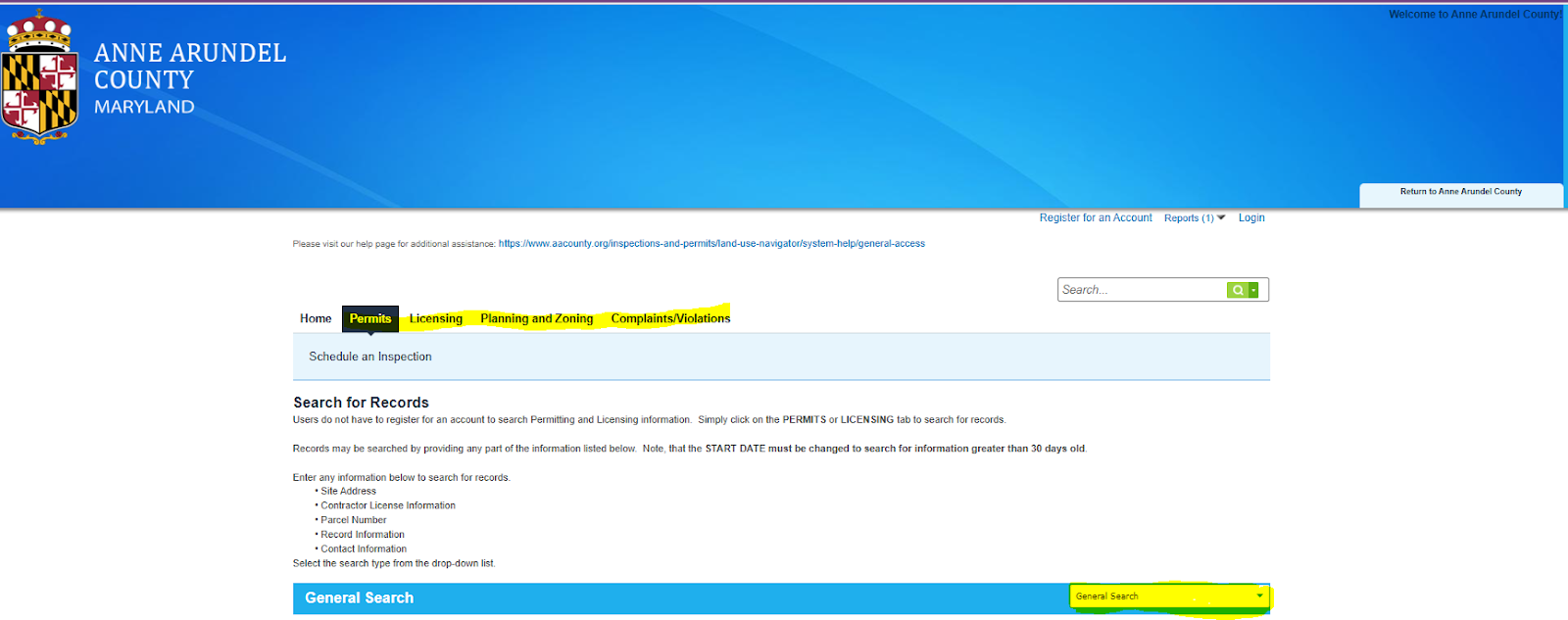
Choose any of the criteria below to search for records
- General Search
- Search By Address
- Search By Licensed Professional Information
- Search By Record Information
- Search For Trade Name
- Search By Contact
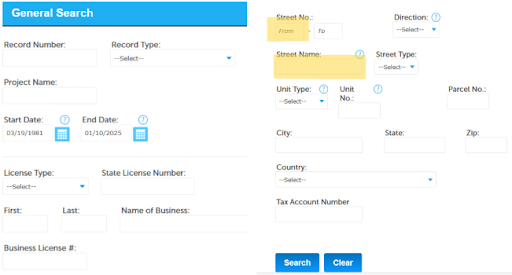
For the most accurate results, in the search bar, enter the street number and the first part of the street name.
For example, if your address is "123 Main Street," enter "123" for the street number and "Main" for the street name
Select Search to view results
Register for LUN Account
To create a new LUN user click Register for an Account
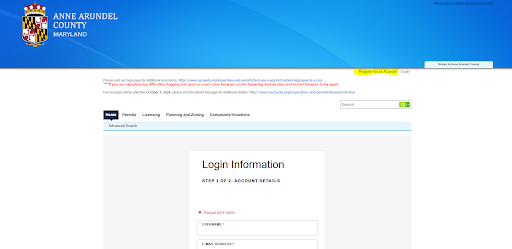
Enter a Username unique to this account, the email address you wish to receive any email communications to, a password, and a security question
Accept the terms of service and click Continue
Create Contact Information
Select a Contact Type for your Public User. Individual for a single person or Organization for a business.
Enter contact details and select Add Address. When adding an address be sure to choose address type "mailing address" as it is required to move forward
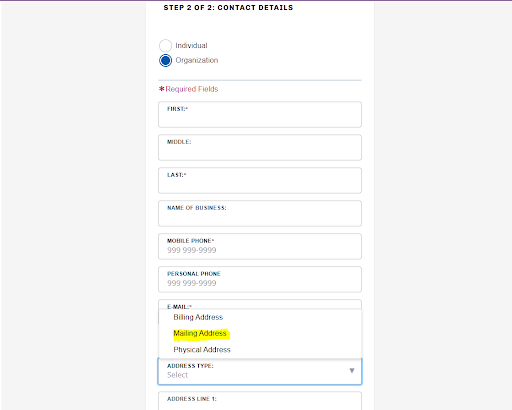
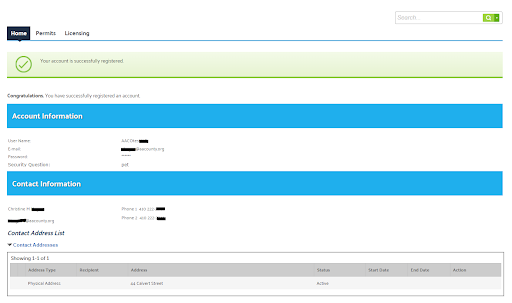
After all fields are entered, select the Continue button. The screen below will display. Write down your username and password
*If you do not have an existing LUN account please refer to the General Access section for instructions to create an account*
After you create your Public User account, you may log in to the Land Use Navigator
After logging in you will be taken to a welcome screen with quick links
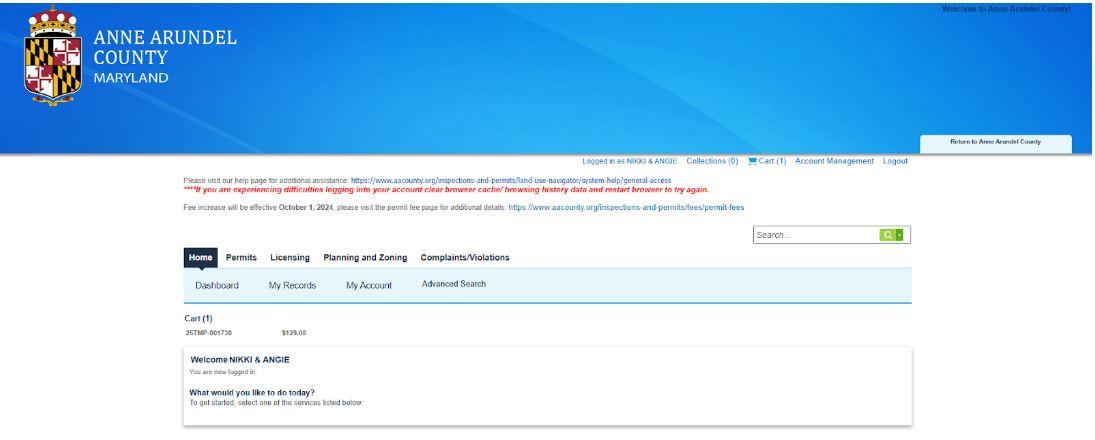
The Dashboard tab will show any items saved in your cart, collections, and Work in Progress permits.
The My Records tab displays all records applied for, claimed, and/or attached to an account. You may also select records to add to a collection, add to your cart, request a revision or renewal, and pay fees due, when applicable
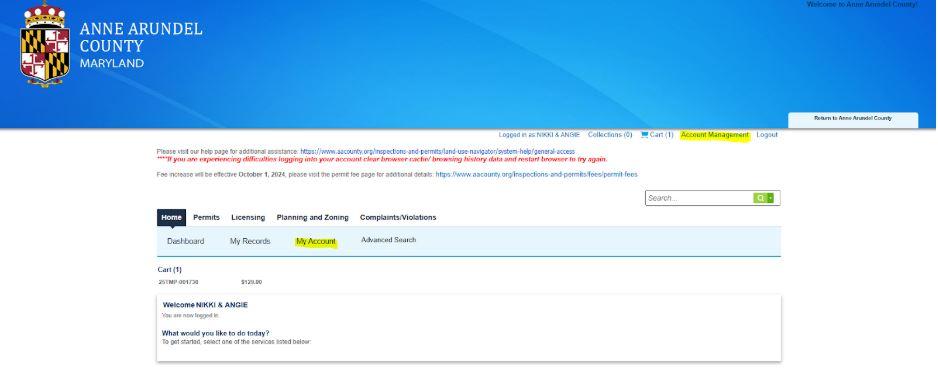
The My Account tab will allow you to manage your account
*If you do not have an existing LUN account please refer to the General Access section for instructions to create an account*
Log in to the Land Use Navigator and from your home page
Select My Account OR Account Management to update your details, change your password, associate additional contacts, and add a license or delegate.
These would be contacts associated with your Public User account, not with a specific record
To add contacts to a specific record please send a request to permitcenterhelp@aacounty.org
- Both the delegator and the delegee need to have an active LUN account to allocate permissions
- If you do not have an existing LUN account please refer to the General Access section for instructions to create an account
Log in to the Land Use Navigator and from your home page
Select My Account or Account Management
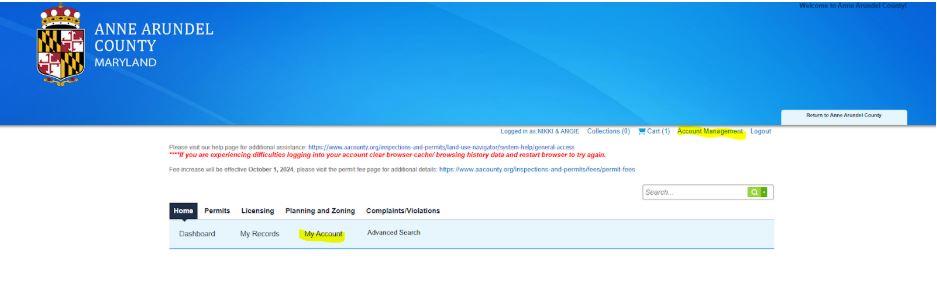
Scroll to the bottom and select Add Delegate.

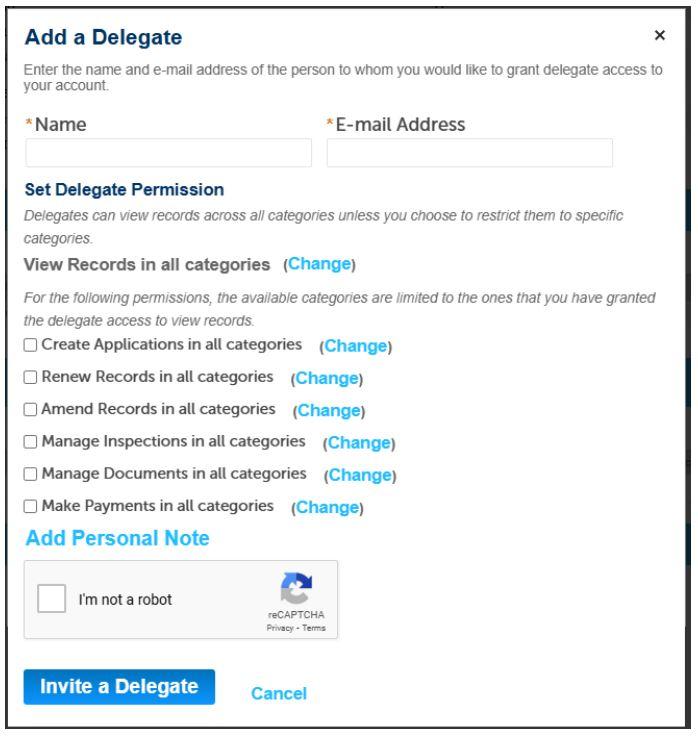
- A pop-up will generate and you can select which permissions you would like your delegate to have. As a default, the delegate has full viewing access.
- To alter what record types a delegate can interact with, select the Change button next to the permission action, and select the record types you would like for them to access.
- Failure to select permissions will give the delegate only the ability to view records.
- After you choose delegate permissions, select Invite a Delegate
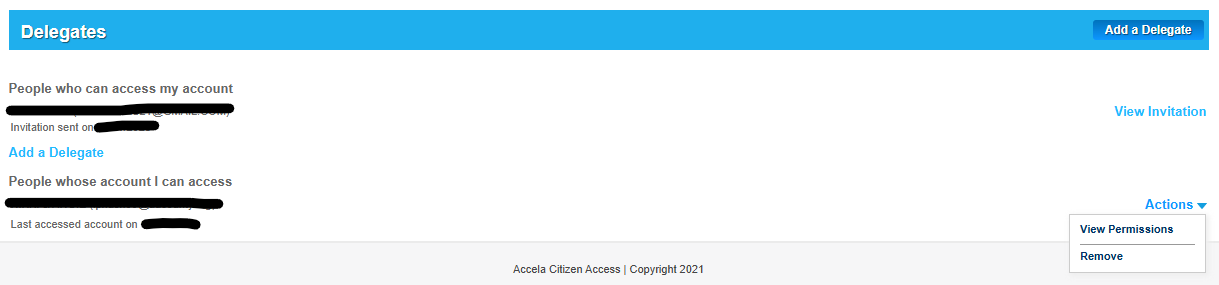
- An automated email will be sent to the selected delegate.
- To accept permissions, the delegate will have to log in to their LUN account and accept the invitation

- Clicking on Actions will allow you to view your permissions, remove yourself from accounts you can access, and view permissions, edit permissions, and remove the delegate for accounts you have delegated permissions to.

*If you do not have an existing LUN account please refer to the General Access section for instructions to create an account*
Log in to the Land Use Navigator and from your home page
Select My Account or Account Management
In the dropdown menu choose the Type of License

Under License number input Entire license number including prefix & click Find License
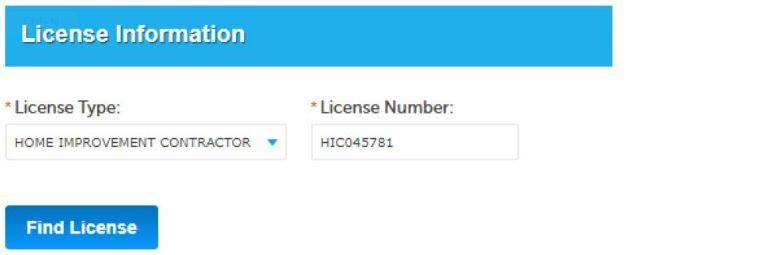
Please note EACH LICENSE NUMBER NEEDS TO BE THE SUFFIX & (6) DIGITS
- HIC000000
- MSC000000
- HBR000000
- B5000000
- A2000000
- D1000000
Verify it is the correct license information & click Add License to Account
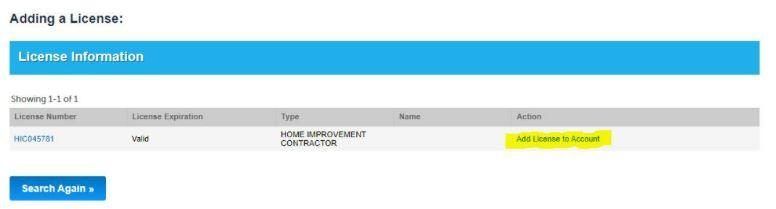
Click OK in the popup message, you will see a message telling you the license has been added to your account
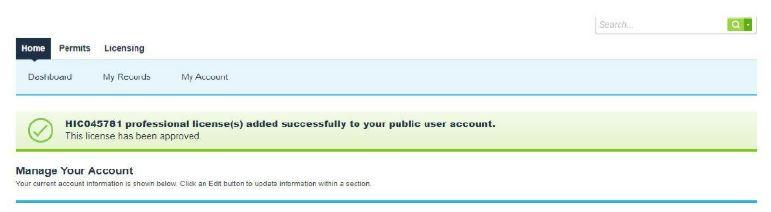
If you do not have an existing LUN account please refer to the General Access section for instructions to create an account
All initial payments must be paid through the record creator's LUN account. Please do not forward the payment link via email. Payments made in this manner will not be applied to the record and may not be able to be recovered
Please refrain from paying for more than 10 records at once; you may receive a time out error and the payment may not be applied to the records and may not be able to be recovered
To make payments to an existing record. Log in to the Land Use Navigator and from your home page, select My Records
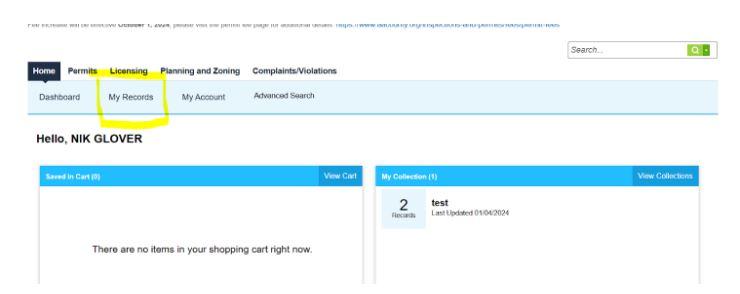
Select Pay Fees Due under the action column of the record you would like to access. Once this option is selected it will provide a breakdown of fees due
Select Check Out and the fees will be added to your cart. You can choose to Continue Shopping or select Check out and be redirected to the third party payment screen