Log in to the Harbor system
Before proceeding with this help guide, you must be logged into the Harbor financial system. For your security, Harbor requires Multi-Factor Authentication (MFA) to complete the login process.
- Case-by-Case Documentation: Required compliance documents are determined on a case-by-case basis depending on your specific engagement or service type. Requested documents may include proof of expertise, surety bonds, or a Certificate of Insurance (COI).
- CRITICAL NOTE Regarding Form W-9: When submitting or updating your Form W-9, you must use the latest active version.
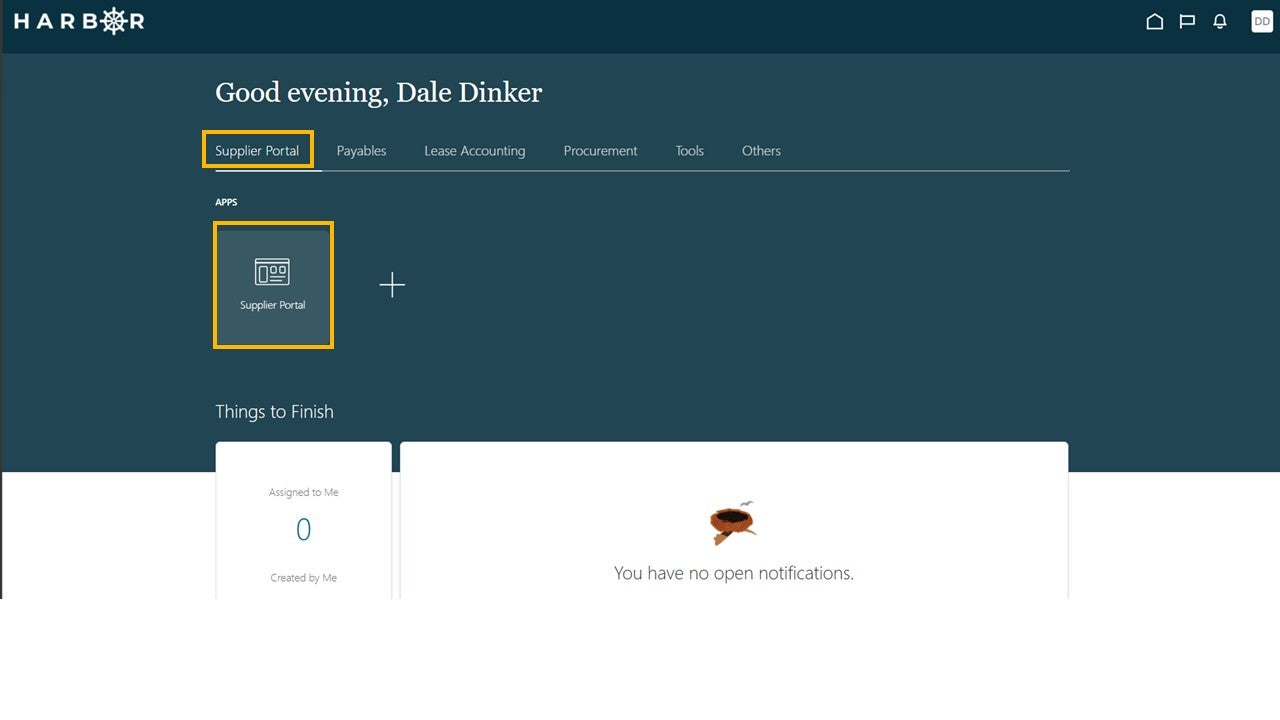
1Click on the Supplier Portal tab and click into the Supplier Portal app to access the Work Area.
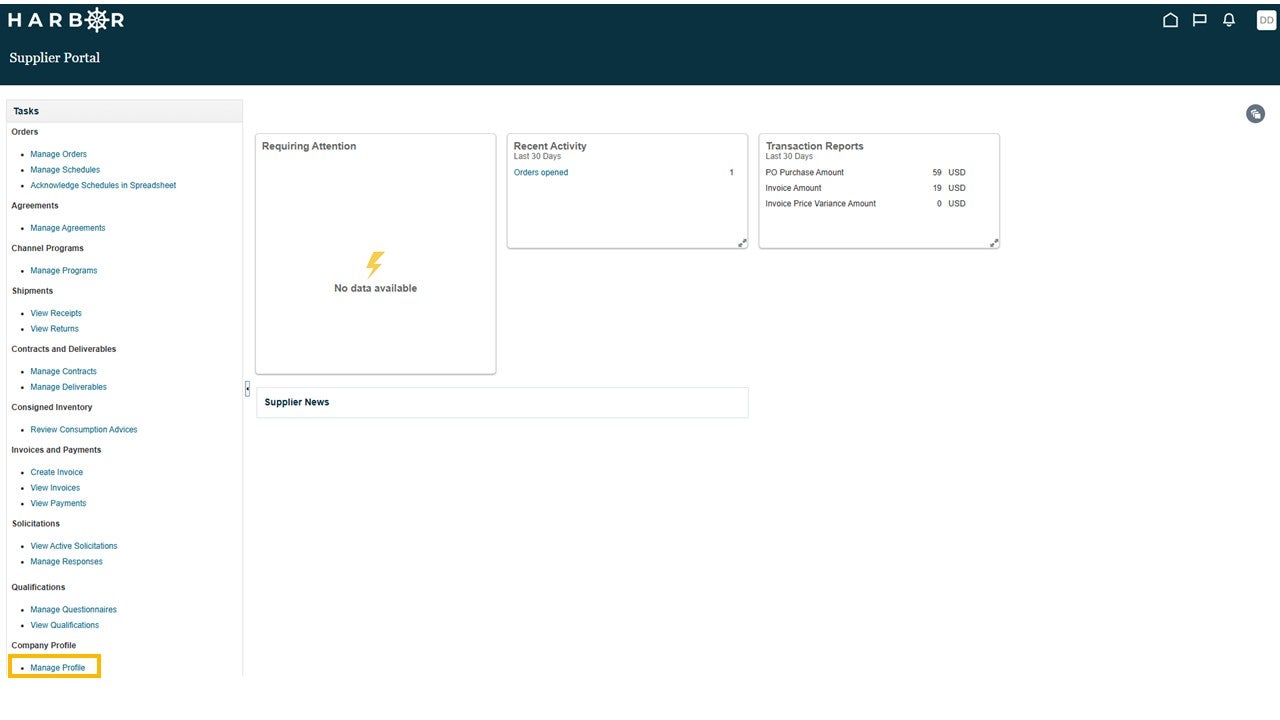
2Select Manage Profile at the bottom of the Tasks pane on the left side of the screen.
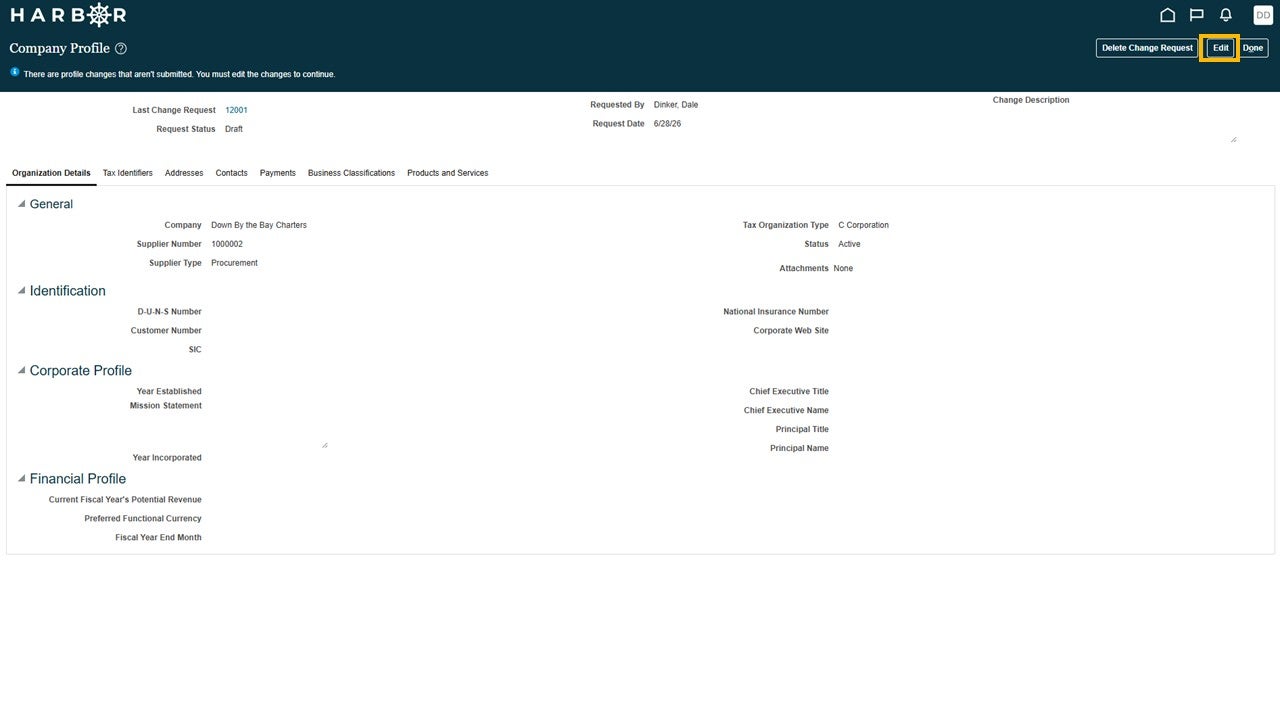
3Click on the Edit button in the top right side of the screen.
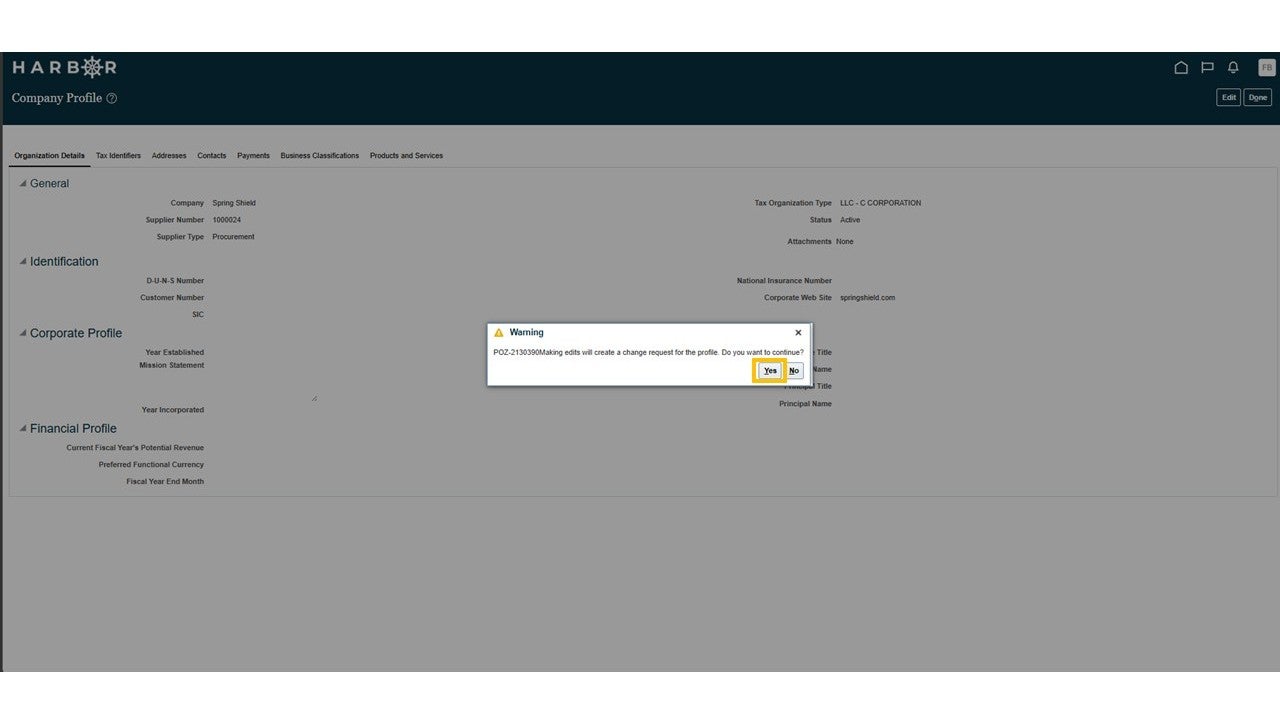
4A warning window will pop up that says "Making edits will create a change request for the profile. Do you want to continue?" Click the Yes button.
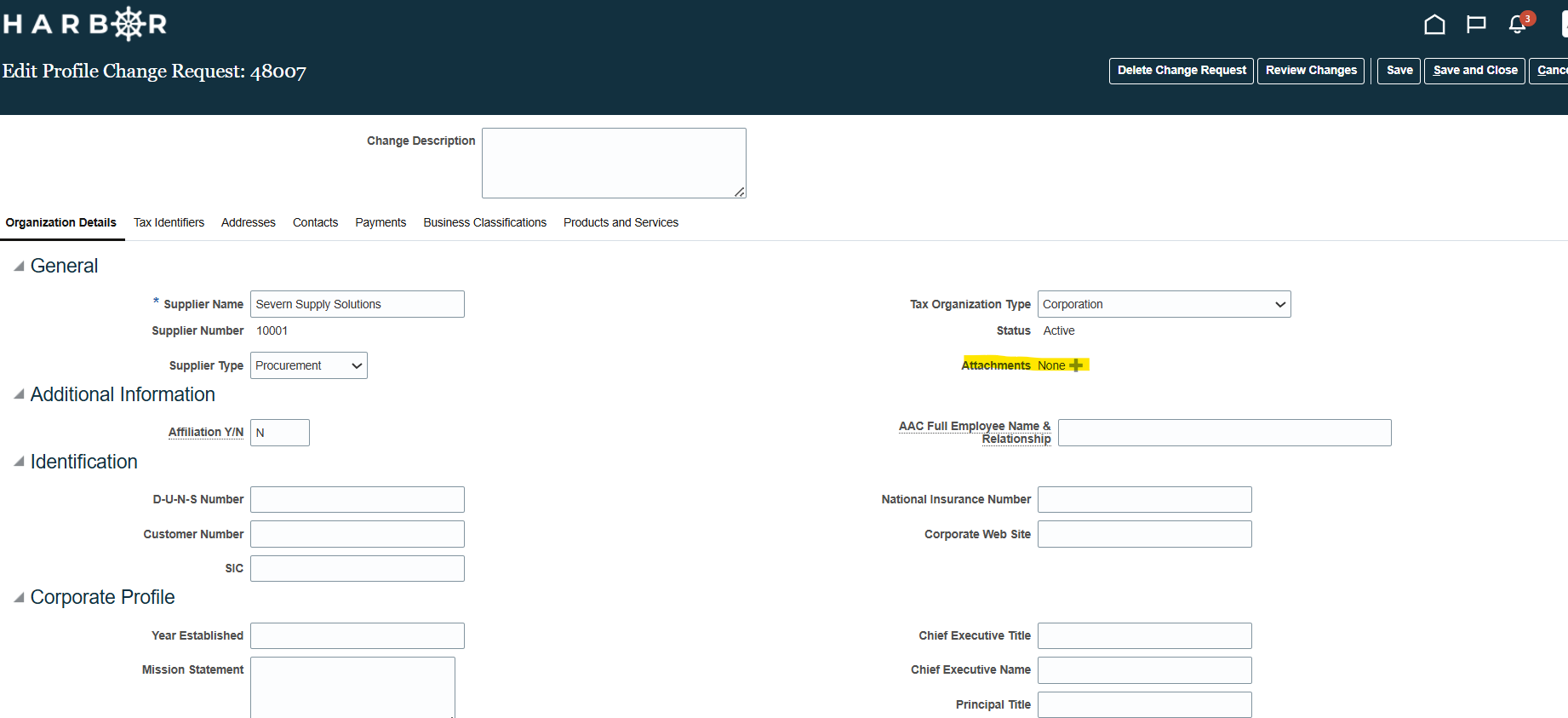
5Select the plus (+) sign next to attachments and add your latest active version of your W-9 here.
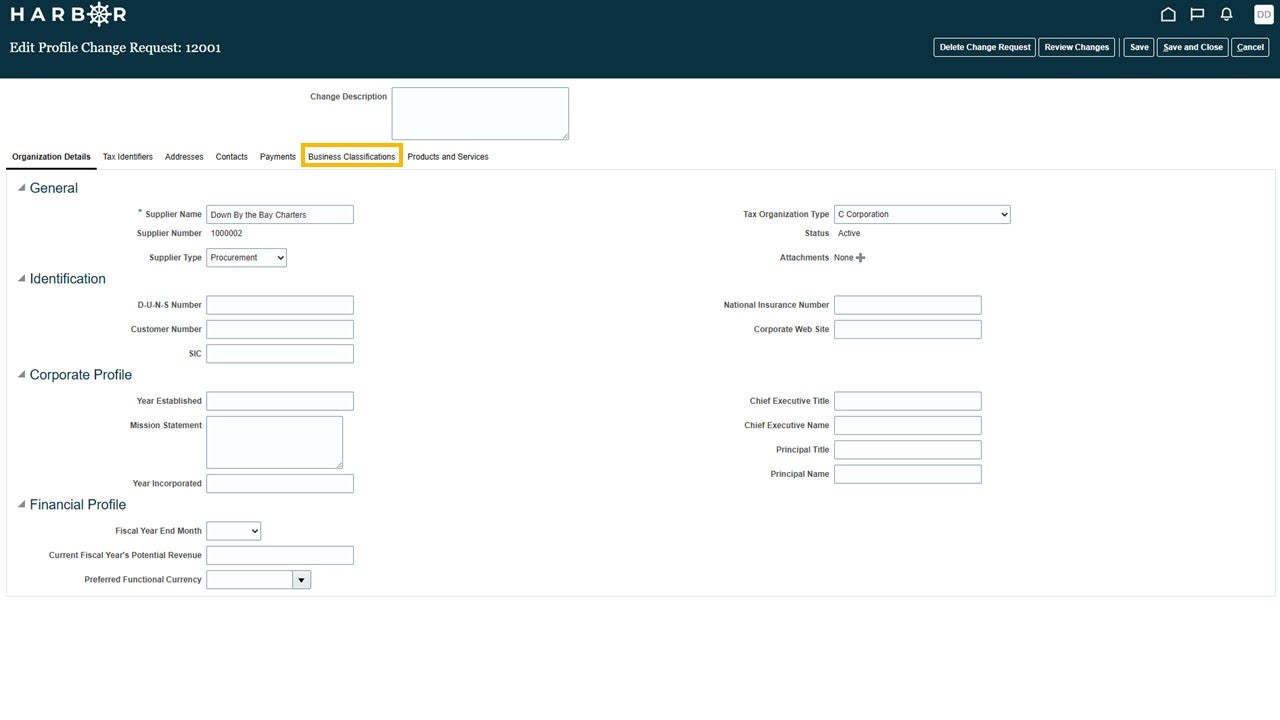
6Click on the Business Classifications tab.
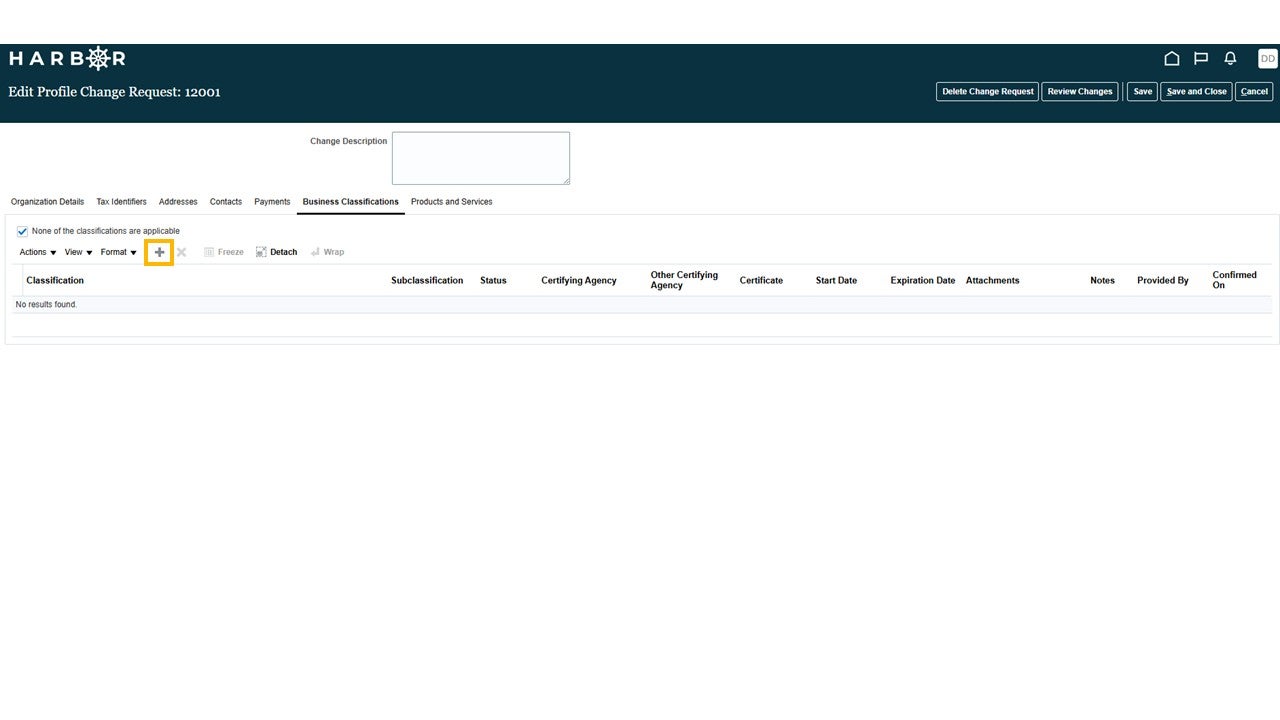
7Click on the + button to add a new business classification.
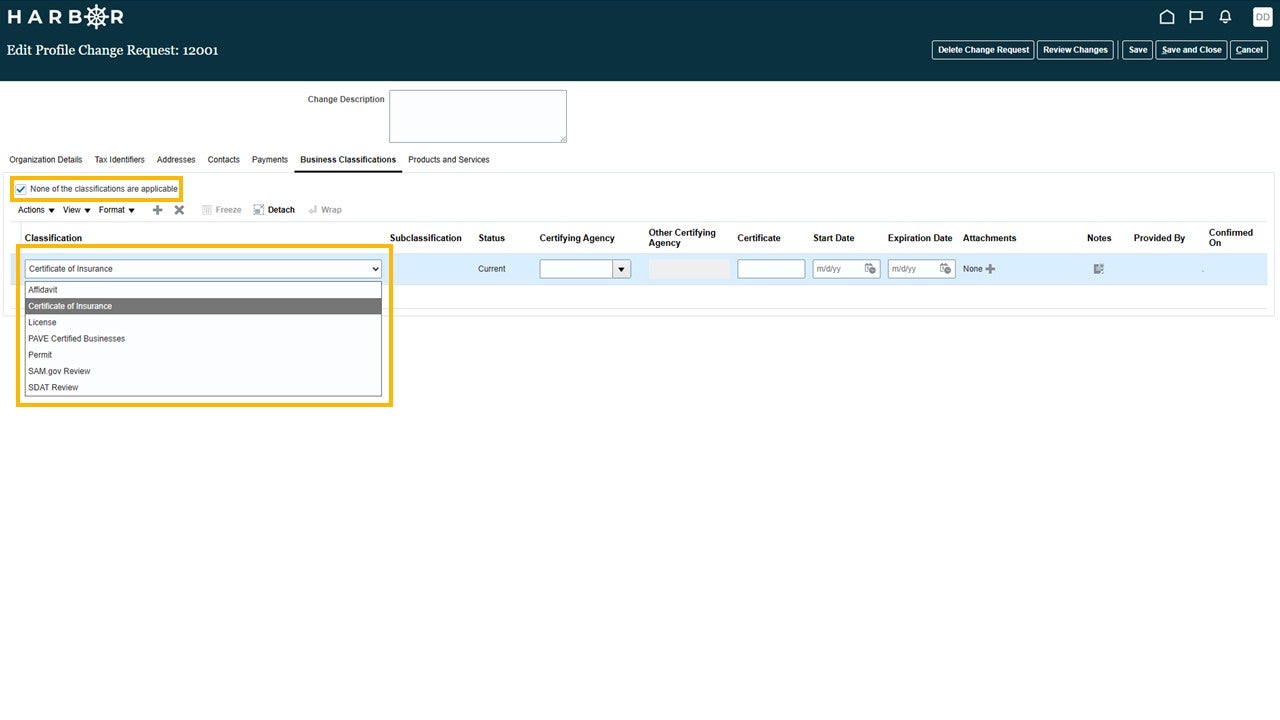
8In the Classification drop-down menu, select the most appropriate option. If none of the classification options are applicable, click the box indicating that.
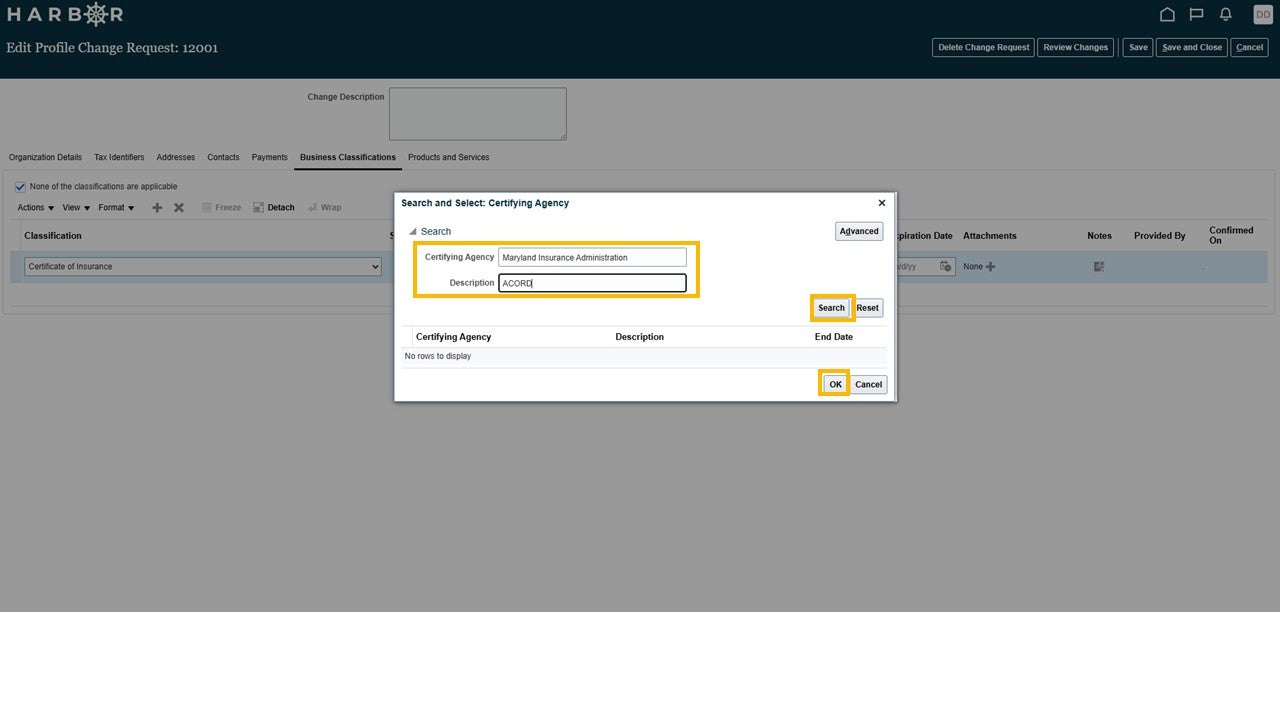
9Fill in the data field for Certifying Agency manually or use the Search button. Once the appropriate agency is identified, click the OK button.
10Enter a Start Date and Expiration Date, if applicable.
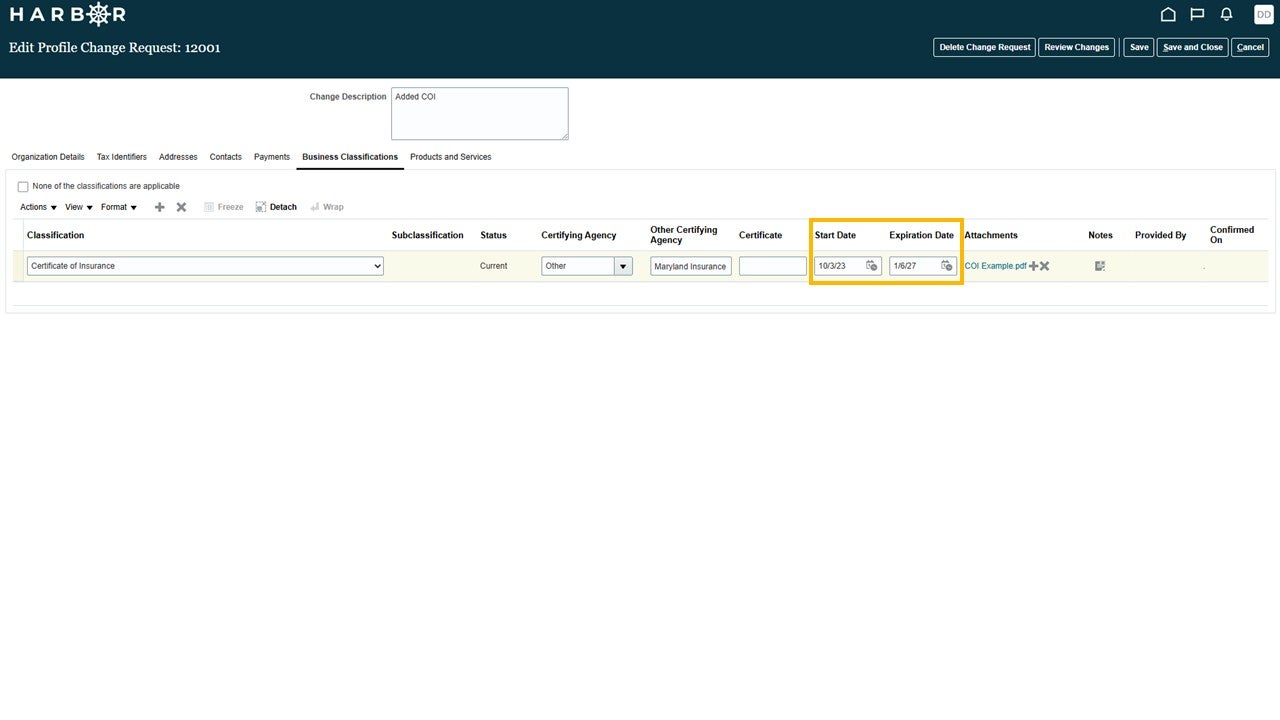
Entering the expiration date is especially important, if applicable. The Harbor supplier portal will automatically include notifications of expiring certificates on your dashboard.
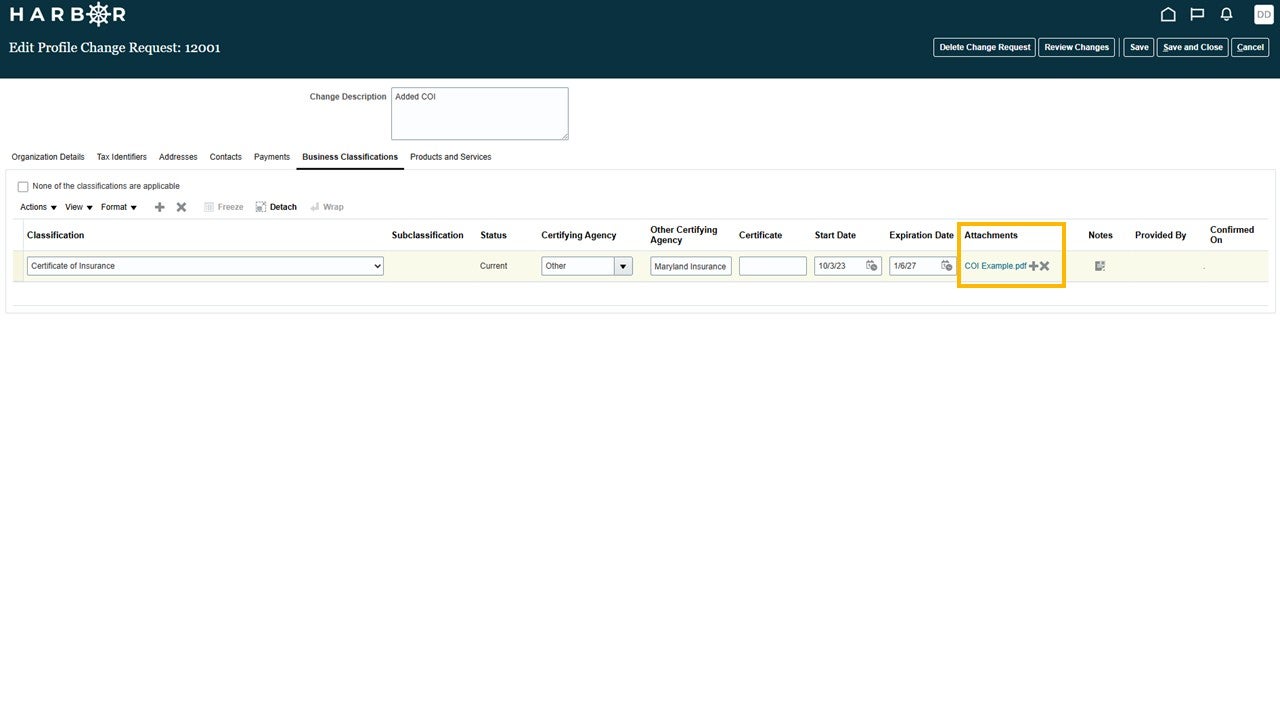
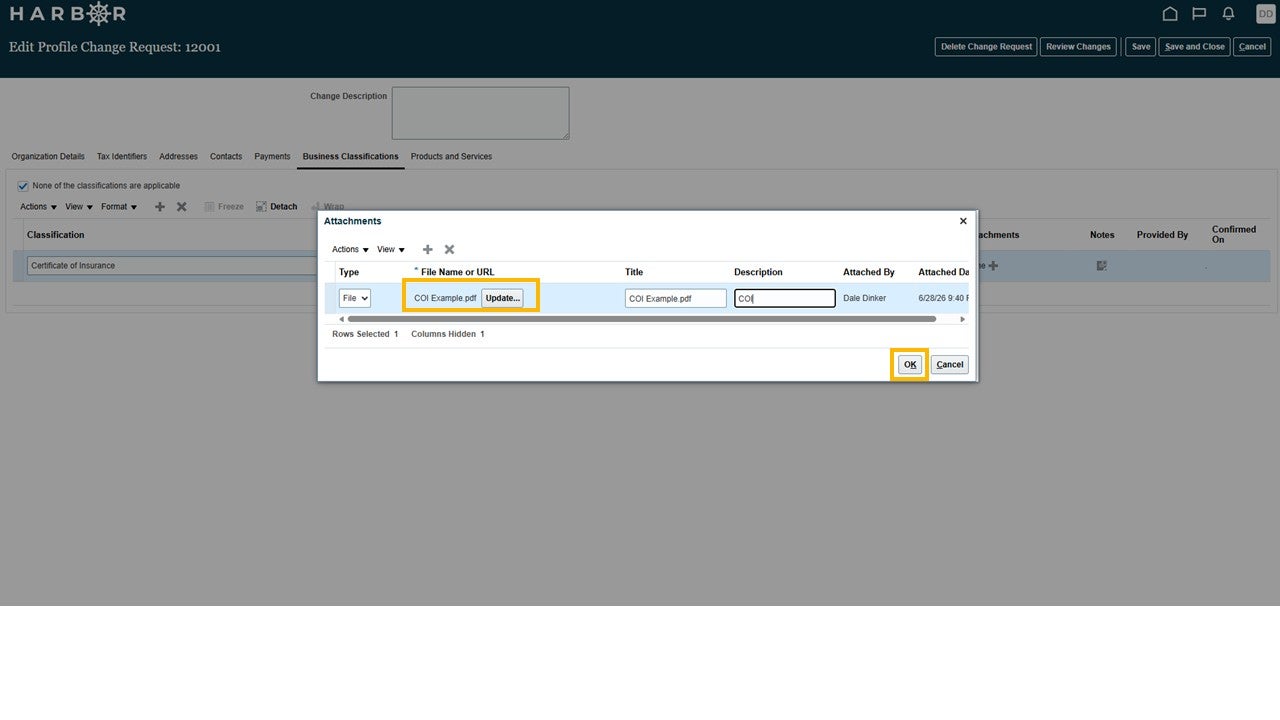
11To add attachments, click on the + symbol, upload the appropriate documentation, and press the OK button.
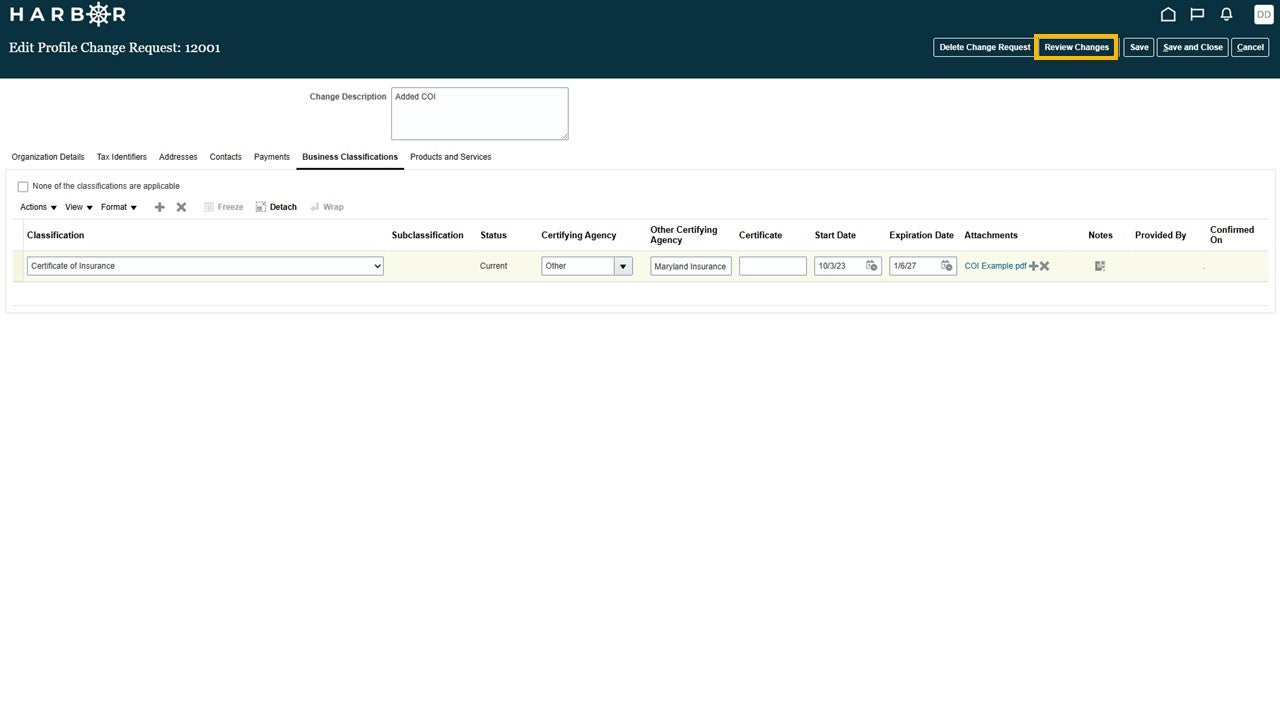
12Click the Review Changes button.
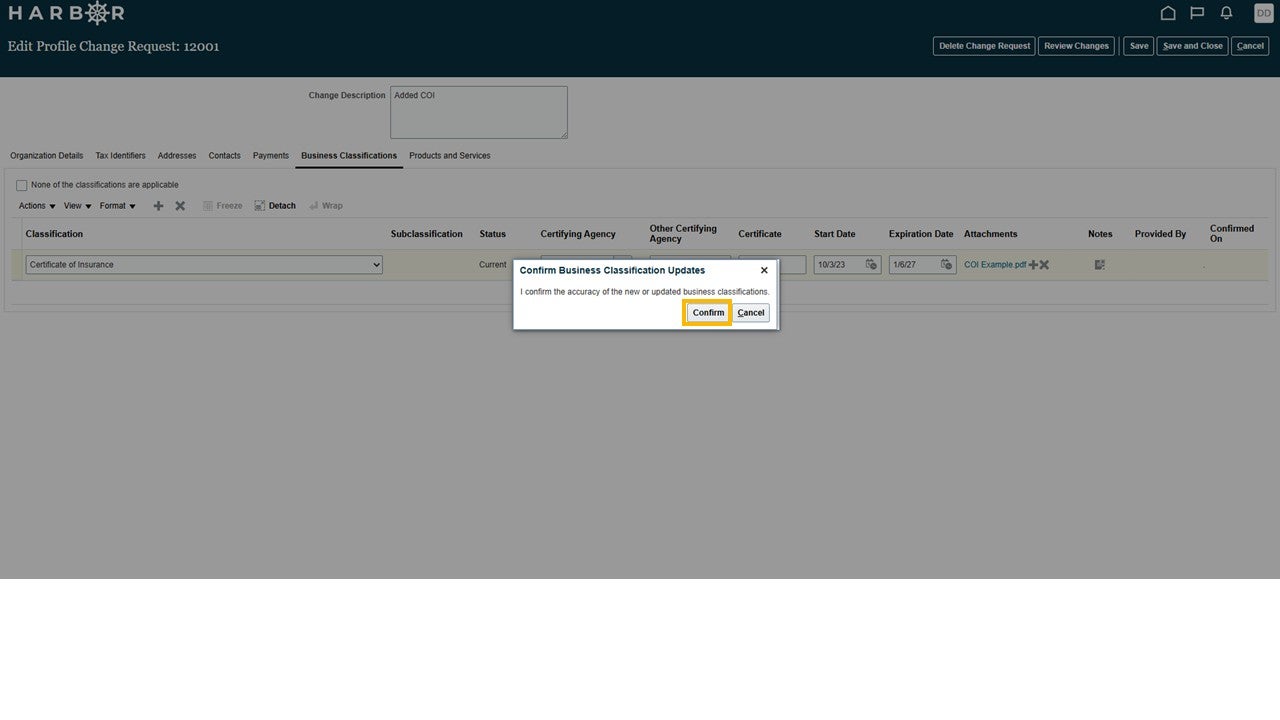
13A confirmation pop-up window will appear. Click Confirm.
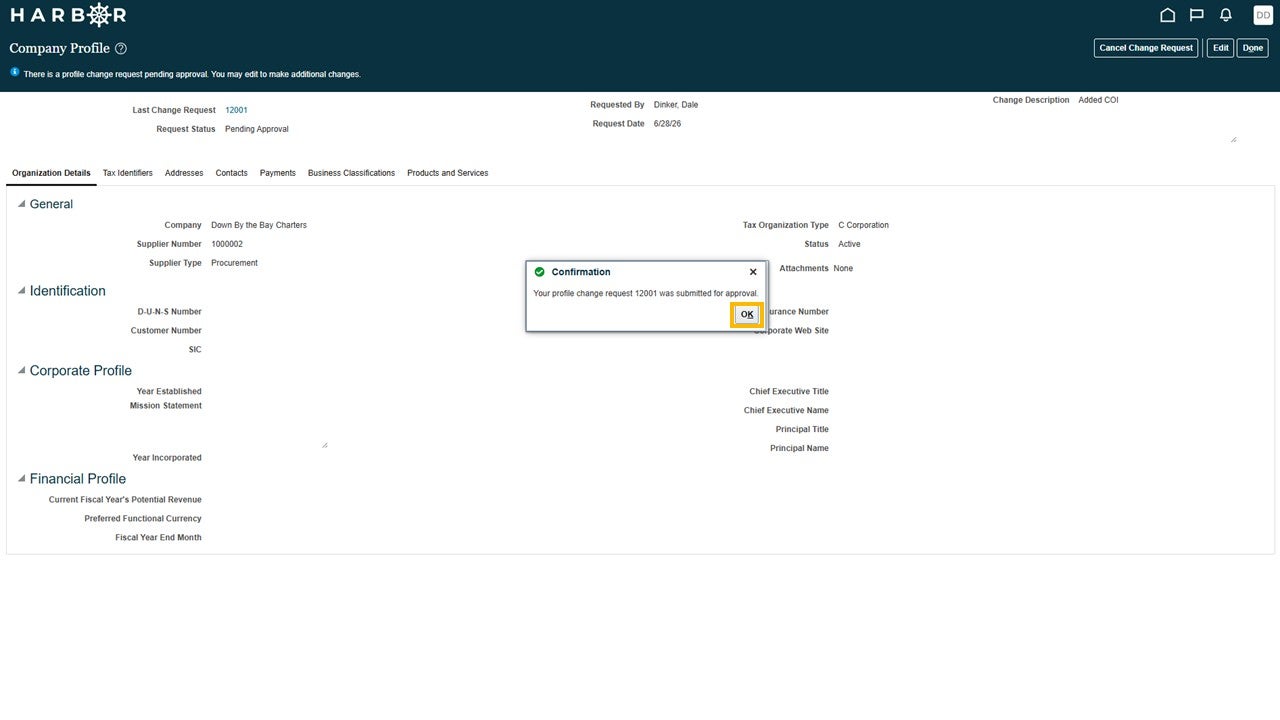
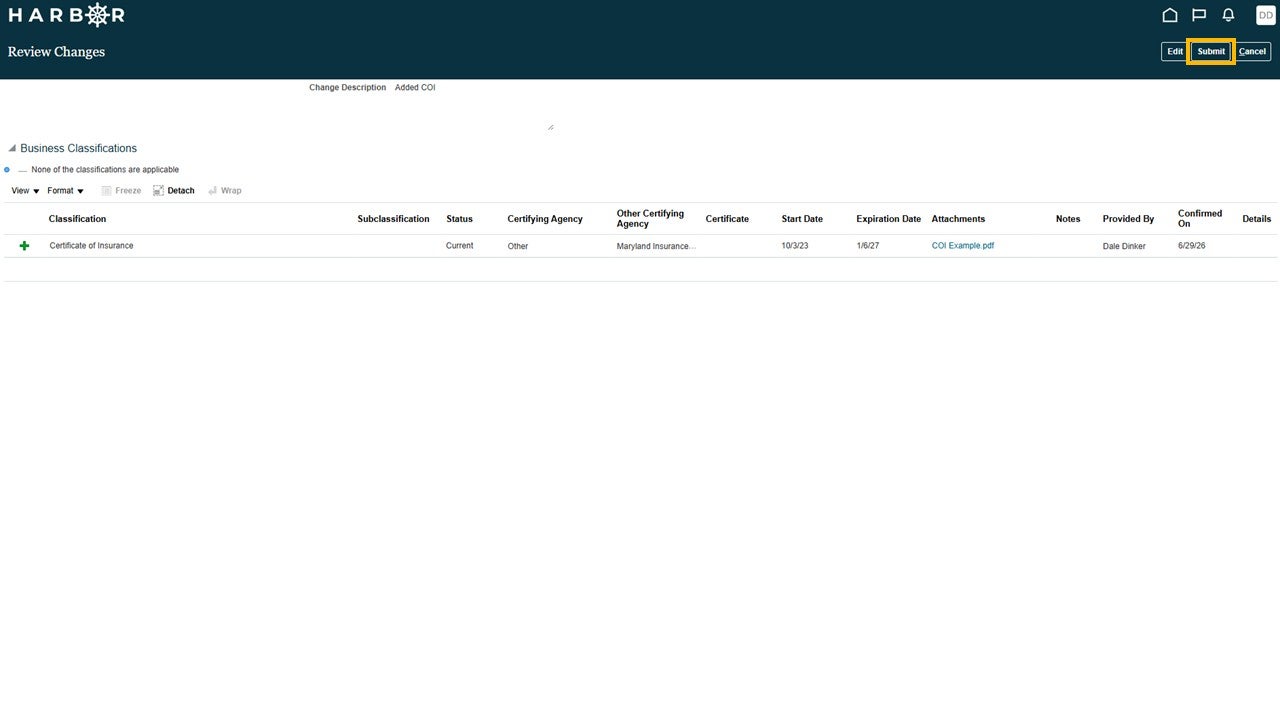
14Click the Submit button.
15A confirmation pop-up window will appear. Click Confirm.